Document Settings
Document Settings control how every invoice generated by Fakturownia for WooCommerce looks and what information it contains. Most stores configure these once at setup and never touch them again. This page covers every option in detail so you configure it correctly the first time.
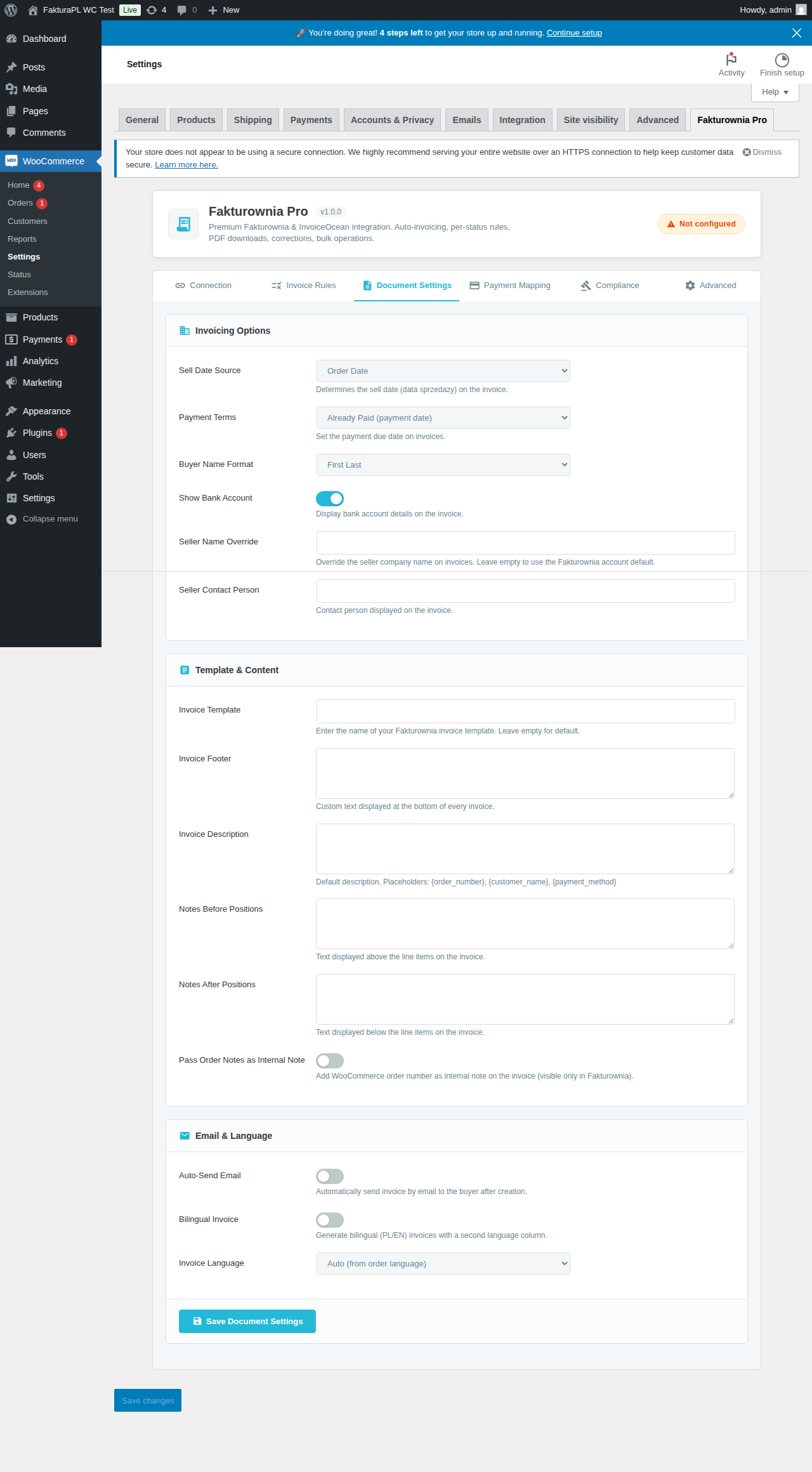
Accessing Document Settings
- In your WordPress admin, navigate to WooCommerce → Fakturownia → Settings
- Select the Document Settings tab
Template Selection
Fakturownia for WooCommerce displays all invoice templates from your connected Fakturownia account. To select a template:
- Open the Template dropdown
- Templates load from your Fakturownia account — if you have custom templates, they appear here
- Click "Preview" next to any template to open a sample PDF
- Select the template and save
Per Document Type Templates
Configure separate templates for each document type:
| Document type | Separate template | |---|---| | VAT Invoice | Yes | | Proforma | Yes | | Credit Note | Yes |
Payment Gateway Mapping
WooCommerce stores typically run several payment gateways. The raw gateway ID (used internally by WooCommerce) is often not human-readable on a printed invoice. The gateway mapping table lets you set a display name for each gateway.
Standard WooCommerce Gateways
| WooCommerce gateway ID | Recommended display name |
|---|---|
| stripe | Credit card (Stripe) |
| paypal | PayPal |
| bacs | Bank transfer |
| cheque | Check |
| cod | Cash on delivery |
Popular Polish Payment Gateways
| WooCommerce gateway ID | Recommended display name |
|---|---|
| przelewy24 | Przelewy24 |
| tpay | Tpay |
| payu | PayU |
| blik | BLIK |
| imoje | ING imoje |
| dotpay | Dotpay |
Adding Gateway Mappings
- In Document Settings, scroll to Payment Gateway Mapping
- Click "Add Mapping"
- Enter the WooCommerce gateway ID (visible in WooCommerce → Settings → Payments under the gateway slug)
- Enter the display name to print on invoices
- Add all gateways your store accepts
Unmapped gateways display their raw ID on the invoice, which is typically acceptable for testing but should be mapped before going live.
Payment Method Visibility
Enable "Show payment method on invoice" to include the payment method line on all invoices. This is optional — some stores prefer cleaner invoices without it. It is most useful for stores with a mix of card, transfer, and COD orders where accounting needs to reconcile per payment type.
WooCommerce Multi-Currency Plugin Compatibility
Fakturownia for WooCommerce is compatible with all major multi-currency plugins. The invoice is always generated in the currency the customer paid in, as recorded on the WooCommerce order.
Supported Multi-Currency Plugins
| Plugin | Compatibility |
|---|---|
| WooCommerce Payments (multi-currency) | Full — reads currency from _order_currency meta |
| CURCY – Multi Currency for WooCommerce | Full |
| Currency Switcher for WooCommerce (Aelia) | Full |
| WOOCS – Currency Switcher | Full |
| WooCommerce Multilingual (WPML + WooCommerce) | Full — see WPML section |
How Currency is Detected
Fakturownia for WooCommerce reads the currency from the WooCommerce order's order_currency field. This is set by the payment gateway at checkout — it reflects exactly what the customer paid.
Exchange Rate on Invoices
When an order is in a currency other than PLN, the invoice footer includes the exchange rate used:
- NBP (recommended) — fetches the previous business day's rate from the National Bank of Poland API
- ECB — European Central Bank reference rates
- WooCommerce order rate — uses the rate that was in effect at checkout (from the multi-currency plugin's stored rate). This is the most accurate for the customer's actual transaction but may differ slightly from the official NBP rate used for accounting.
Consult your accountant on which source to use. NBP Table A rates are the standard for Polish VAT accounting.
WPML Integration for Bilingual Invoices
When WPML is installed and configured, Fakturownia for WooCommerce automatically generates invoices in the language the customer used at checkout.
How WPML Language Detection Works
WPML stores the checkout language on each order in order_language meta. Fakturownia for WooCommerce reads this field when generating the invoice.
| WPML order language | Invoice behavior |
|---|---|
| pl | Polish only |
| en | English only (or bilingual Polish/English) |
| de | German only (or bilingual Polish/German) |
| Any supported language | Language-matched invoice |
Bilingual Invoice Mode
Enable "Bilingual invoices" in Document Settings to include both Polish and the customer's language on every invoice. In bilingual mode, all label columns appear in both languages — product names, totals headers, payment terms.
When to use bilingual mode: Required if your company is registered in Poland and issues VAT invoices — Polish law requires the invoice to be legible in Polish. If you sell internationally, bilingual mode satisfies both requirements in one document.
When to use monolingual mode: If your company is not Polish-registered and you invoice entirely in English or another language, disable bilingual mode and set your default language to English.
WPML Without Language-Specific Invoices
If you have WPML installed but want all invoices in Polish regardless of checkout language, disable the WPML integration in Document Settings. All invoices will use your configured default language.
Buyer Name Format
Three formats control how the buyer's name appears on invoices:
| Format | What appears | When to use |
|---|---|---|
| Company name | WooCommerce billing_company | Pure B2B store |
| Full name | billing_first_name + billing_last_name | Pure B2C store |
| Both | Company on line 1, name on line 2 | Mixed B2B/B2C |
Behavior When Company Name is Empty
When Both is selected and the WooCommerce order has no company name (B2C customer left the field blank), only the full name is printed. No blank first line appears on the invoice.
When Company name is selected and the order has no company name, the full name is used as a fallback — the invoice is never generated with an empty buyer name.
Sell Date vs. Issue Date
Polish VAT invoices carry two dates:
- Issue date — when the invoice was generated
- Sell date — when the goods were delivered (taxable event)
For most WooCommerce stores, these dates are the same (the invoice is generated immediately on payment). When they differ, your accountant needs the sell date to be correct.
| Sell date option | Value on invoice |
|---|---|
| Invoice creation date | Same as issue date — simplest for immediate-payment stores |
| Order date | Date the WooCommerce order was placed |
| Payment date | Date woocommerce_payment_complete fired |
| Completion date | Date the order status moved to "Completed" |
For B2B stores issuing invoices on fulfillment (not payment): set sell date to Completion date to correctly record delivery as the taxable event.
Shipping Cost as a Separate Line Item
WooCommerce orders include a shipping total that Fakturownia for WooCommerce can represent on the invoice in three ways:
| Option | Behavior | |---|---| | Separate line item (recommended) | Shipping appears as its own line with configurable name and VAT rate | | Included in products | Shipping is distributed proportionally across product lines | | Excluded | Shipping is not on the invoice |
Shipping Line Item Configuration
| Field | Description |
|---|---|
| Description | Text in the description column for the shipping line (default: "Shipping") |
| VAT rate | Tax rate applied to the shipping line |
| SKU | Optional product code for the shipping line in Fakturownia |
Shipping and WooCommerce Tax Classes
If you use WooCommerce's tax classes for shipping (e.g., shipping taxed at the same rate as cart contents), configure your Fakturownia VAT rate to match your WooCommerce shipping tax class. The two systems are independent — Fakturownia for WooCommerce reads the WooCommerce shipping total (tax-inclusive or exclusive, depending on your WooCommerce tax settings) and applies the configured Fakturownia VAT rate.
Important: Do not configure Fakturownia for WooCommerce to calculate VAT independently from WooCommerce. Use the VAT amounts already calculated by WooCommerce — the module reads them from the order and passes them to Fakturownia as-is.
Custom Notes
Note Before Line Items
Appears between the buyer/seller block and the product table. Supports dynamic variables:
| Variable | Value |
|---|---|
| {order_id} | WooCommerce order ID |
| {order_number} | WooCommerce order number (may include prefix) |
| {customer_name} | Full name from billing address |
| {company_name} | Company name from billing address |
| {invoice_number} | Fakturownia invoice number |
| {due_date} | Calculated due date based on payment terms |
Note After Line Items
Appears below the totals section. Common uses: legal disclaimers, return policy references, thank-you messages.
Seller Information Overrides
Override the seller details from your Fakturownia account for WooCommerce-generated invoices:
| Field | Notes | |---|---| | Seller name | Trading name — overrides Fakturownia account name | | Address | Trading address if different from registered address | | Bank account (IBAN) | Account shown for bank transfer payments | | Phone / Email | Contact details printed on the invoice |
All fields are optional. Empty fields inherit from your Fakturownia account.
Bank Account Visibility
Control when the IBAN is shown:
| Option | When to use | |---|---| | Always show | B2B stores with bank transfer payment terms | | Show for bank transfer only | Mixed stores — show only when order payment method is BACS or Przelewy24 transfer | | Never show | Card-only stores |
Payment Terms
The payment due date printed on the invoice:
| Option | Due date | |---|---| | Immediate | Invoice date (for card/PayPal payments) | | 7 / 14 / 21 / 30 / 45 / 60 / 90 days | Invoice date + N days | | End of month | Last day of invoice month | | Custom | Any number of days |
For mixed B2B/B2C stores: set the default to match your most common terms, then use invoice rule conditions to apply different terms to specific customer groups or payment methods.
Settings Reference
| Setting | Default | Notes | |---|---|---| | Template | Default | Preview before selecting | | Payment gateway mapping | (empty) | Populate all active gateways | | Show payment method | Off | Enable for accounting reconciliation | | Multi-currency exchange source | NBP Table A | Confirm with accountant | | WPML bilingual invoices | Off | Enable if store is multilingual | | Buyer name format | Both | Set Company for pure B2B | | Sell date | Invoice creation date | Consider Order date for B2B | | Shipping handling | Separate line | Recommended | | Shipping VAT rate | 23% | Adjust for reduced-rate stores | | Bank account visibility | Bank transfer only | Adjust for payment mix | | Payment terms | 14 days | Adjust per agreements |
Next Steps
- Invoice Rules — configure WooCommerce order statuses to invoice generation rules
- Compliance — GTU codes, OSS, split payment for WooCommerce stores
- Troubleshooting — diagnose invoice generation failures