Invoice Rules
Invoice rules define which Fakturownia document is generated when a WooCommerce order reaches a specific status. Rules can include optional filters (payment method, customer type, order total) to handle complex store configurations.
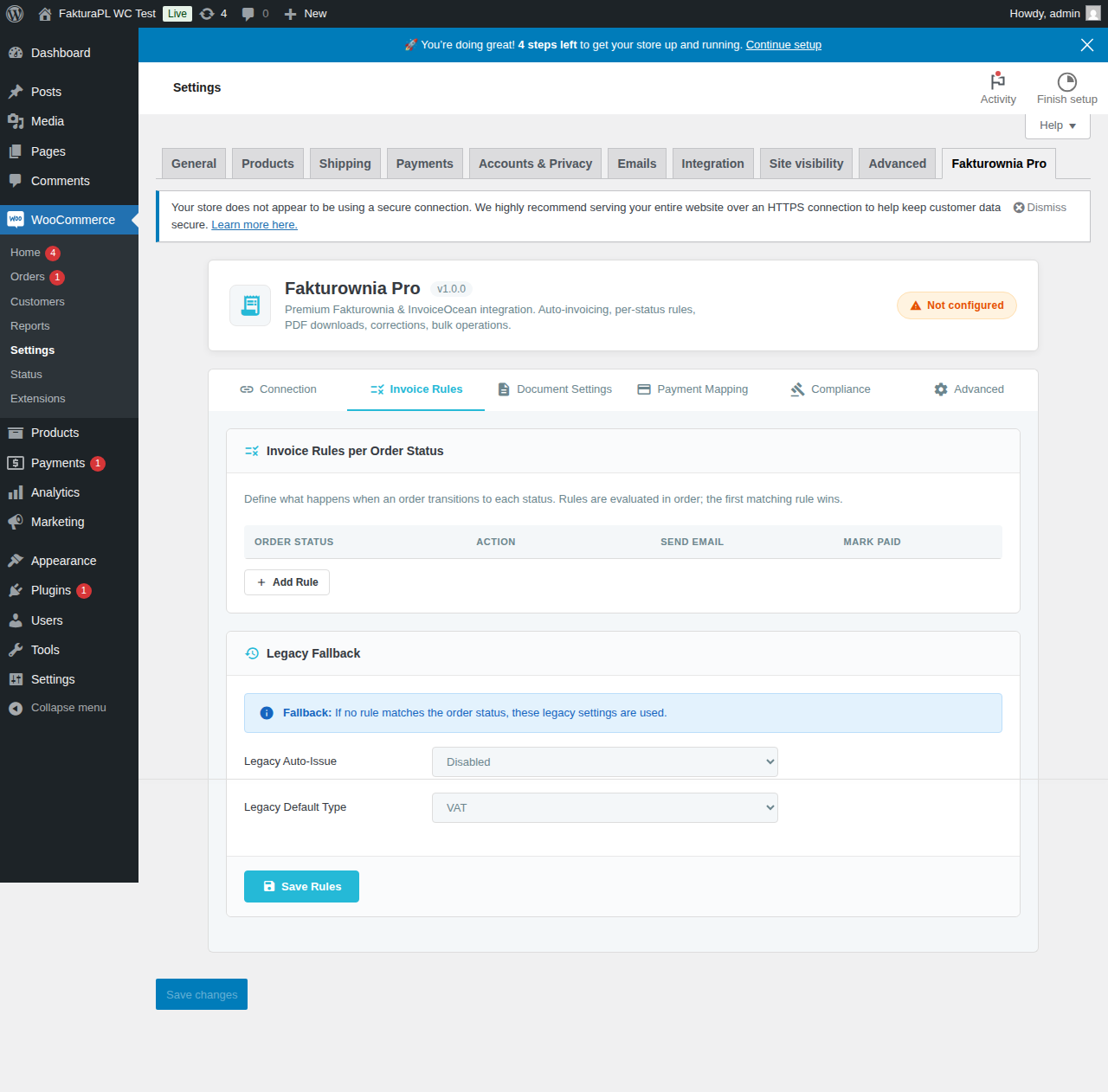
How Rules Are Evaluated
When a WooCommerce order status changes, the plugin:
- Loads all configured rules
- Evaluates each rule's conditions against the order
- Executes the first matching rule (rules are prioritized by the order number you assign)
- Logs the result in the order meta
If no rule matches — either because no rule is configured for that status, or because all rules' conditions exclude this order — nothing happens. No error is generated; the transition is silently skipped.
WooCommerce Order Statuses Reference
| Status slug | Display name | Typical scenario |
|---|---|---|
| pending | Pending payment | Order placed, payment not yet confirmed |
| processing | Processing | Payment received, not yet shipped |
| on-hold | On hold | Awaiting manual review or verification |
| completed | Completed | Order fully shipped and delivered |
| cancelled | Cancelled | Order cancelled before payment or fulfillment |
| refunded | Refunded | Full refund issued |
| failed | Failed | Payment attempt failed |
Custom statuses: Any status registered by a plugin (e.g., wc-awaiting-shipment from a shipping plugin, wc-partially-shipped, or active from WooCommerce Subscriptions) appears automatically in the rule builder once registered with WooCommerce. Enter the slug without the wc- prefix when configuring rules.
Document Types
| Type | Fakturownia kind | When to use |
|---|---|---|
| Invoice (Faktura VAT) | vat | Standard VAT invoice for B2C or B2B sales |
| Receipt (Paragon) | receipt | B2C receipts without full VAT buyer details (below registration threshold) |
| Pro forma | proforma | Advance billing before payment |
| Credit note (Korekta) | correction | Correction of an issued invoice — full or partial |
| Bill (Rachunek) | bill | For sellers not registered for VAT |
Configuring a Rule
- Go to WooCommerce → Fakturownia Pro → Invoice Rules
- Click "Add Rule"
- Configure:
- Trigger status: the WooCommerce status that fires this rule
- Document type: what to create
- Payment method filter (optional): only fire for specific gateways
- Customer type filter (optional): B2B (NIP present) or B2C (no NIP)
- Order total range (optional): minimum and/or maximum order total
- Attach PDF to email: which email type gets the PDF attached
- Also mark as paid: (for invoice/proforma) create and mark paid in one step
- Priority: lower number = evaluated first when multiple rules match
- Click Save
5 Real-World Rule Configurations
Configuration 1: Standard Online Store (Stripe / Shopify-equivalent for WC)
For stores using card payment with immediate capture (Stripe, PayU, Przelewy24 with immediate capture mode).
| Status | Document | Paid? | Email |
|---|---|---|---|
| processing | Invoice (Faktura VAT) | Yes | Order Processing email |
| refunded | Credit note | — | Yes, separate email |
| cancelled | Cancel Invoice | — | No |
Why processing not completed? Processing fires when payment is confirmed. Completed fires when the merchant marks the order as done (often days later). For standard VAT compliance, invoice the payment date — not the delivery completion date.
Configuration 2: Bank Transfer (BACS, Przelewy24 pending)
For stores where payment arrives separately from order placement.
| Status | Document | Paid? | Email |
|---|---|---|---|
| on-hold | Pro forma | No | Yes (customer needs bank transfer details) |
| processing | Invoice (Faktura VAT) | Yes | Order Processing email |
| refunded | Credit note | — | Yes |
| cancelled | Cancel Invoice | — | No |
The pro forma sends on hold (before payment) with your bank account details. The VAT invoice fires when Przelewy24 or your bank transfer confirms.
Configuration 3: COD (Cash on Delivery)
For stores collecting payment at delivery.
| Status | Document | Paid? | Email |
|---|---|---|---|
| completed | Invoice (Faktura VAT) | Yes | Order Complete email |
| refunded | Credit note | — | Yes |
Payment method filter: Apply the completed rule only to orders with gateway cod. For non-COD orders, use a separate processing rule without the payment method filter so both rule types coexist correctly.
Full setup:
- Rule 1: Status
processing, NO payment method filter → Invoice + Paid (catches Stripe, PayU, etc.) - Rule 2: Status
completed, payment methodcodonly → Invoice + Paid (catches COD) - Rule 3: Status
refunded, no filter → Credit note
Configuration 4: B2B Net-30 with Pro Forma
For B2B stores issuing invoices before payment on net terms.
| Status | Document | Paid? | Email |
|---|---|---|---|
| processing | Invoice (Faktura VAT) | No | Order Processing email |
| completed | Mark as Paid | — | No |
| refunded | Credit note | — | Yes |
The invoice is created unpaid when the order starts processing (this is the payment request sent to the B2B buyer). When payment arrives and the merchant marks the order complete, the "Mark as Paid" rule updates the Fakturownia invoice status.
Customer type filter: Add a "B2B customers only" filter (NIP present) to the invoice rules if your store serves both B2C (who get standard invoices with different terms) and B2B.
Configuration 5: Subscription Store (WooCommerce Subscriptions)
WooCommerce Subscriptions adds statuses like active, pending-cancel, cancelled, and expired. Subscription renewals create new WooCommerce orders with standard processing status.
| Status | Document | Paid? | Email |
|---|---|---|---|
| processing | Invoice (Faktura VAT) | Yes | Order Processing email |
| refunded | Credit note | — | Yes |
For subscriptions, no special configuration is needed — renewal orders behave like regular orders from Fakturownia Pro's perspective. Each renewal creates a separate invoice.
Gotcha: If you cancel a WooCommerce Subscription and issue a prorated refund, the refund creates a refunded status transition. Ensure the credit note rule is configured to handle prorated amounts — partial refunds are supported (the credit note mirrors the refunded line items).
Partial Refunds
When a WooCommerce partial refund is issued:
- WooCommerce records the refund with the specific line items and amounts refunded
- Fakturownia Pro creates a credit note for only the refunded amount
- The credit note line items mirror the WooCommerce refund record exactly
- If a partial shipping refund is included, it appears as a separate "Shipping" line on the credit note
- The credit note is linked to the original invoice by order reference
Multiple partial refunds on the same order create separate credit notes — one per WooCommerce refund event.
Bulk Actions
Generate invoices for multiple historical orders:
- Go to WooCommerce → Orders
- Select orders using the checkbox
- In Bulk Actions dropdown, select "Generate Fakturownia Invoice"
- Click Apply

Bulk generation runs asynchronously via WP-Cron to avoid PHP execution timeouts. Progress is tracked in WooCommerce → Action Scheduler. The job runs in batches of 20 orders per WP-Cron fire to stay within memory and time limits.
From WP-CLI:
# Generate invoices for all completed orders in 2024
wp fakturownia generate --status=completed --date-after=2024-01-01 --date-before=2024-12-31

# Generate for a specific order
wp fakturownia generate --order-id=12345

# Dry run (no invoices created, shows what would be generated)
wp fakturownia generate --status=processing --dry-run
Custom Status Support
Third-party plugins register custom WooCommerce order statuses. These appear in the rule builder automatically. Examples:
| Plugin | Custom status | Typical use |
|---|---|---|
| WooCommerce Subscriptions | wc-active | Active subscription |
| WooCommerce Pre-Orders | wc-pre-ordered | Pre-order placed |
| WooCommerce Point of Sale | wc-pos-completed | In-store sale |
| Custom shipping plugin | wc-awaiting-shipment | Awaiting warehouse pick |
To configure a rule for a custom status, enter its slug (without wc- prefix) in the status field of the rule builder. The status must already be registered — if it is not visible in the dropdown, the plugin that registers it may not be active.
Developer Hooks
Override rule behavior programmatically when built-in conditions are insufficient.
Filter: Skip Invoice Generation for Specific Orders
add_filter('fakturownia_pro_should_generate', function($should, $order_id, $status) {
    // Skip invoices for orders with a specific meta value
    if (get_post_meta($order_id, '_is_internal_order', true)) {
        return false;
    }
    // Skip for orders below a minimum value
    $order = wc_get_order($order_id);
    if ($order && $order->get_total() < 10) {
        return false;
    }
    return $should;
}, 10, 3);
Filter: Modify Buyer Data Before Sending to Fakturownia
add_filter('fakturownia_pro_buyer_data', function($buyer, $order) {
    // Use a company-specific billing email instead of the customer email
    $company_email = $order->get_meta('_billing_company_email');
    if ($company_email) {
        $buyer['email'] = $company_email;
    }
    // Override buyer name for B2B orders to include department
    $department = $order->get_meta('_billing_department');
    if ($department && !empty($buyer['company'])) {
        $buyer['company'] = $buyer['company'] . ' — ' . $department;
    }
    return $buyer;
}, 10, 2);
Filter: Override Document Type Per Order
add_filter('fakturownia_pro_document_type', function($type, $order_id, $rule_id) {
    $order = wc_get_order($order_id);
    // Issue receipts instead of invoices for orders under 450 PLN
    if ($order && $order->get_total() < 450 && $order->get_billing_country() === 'PL') {
        return 'receipt';
    }
    return $type;
}, 10, 3);
Order Meta Box
Each order detail page shows the Fakturownia Pro meta box in the right sidebar:
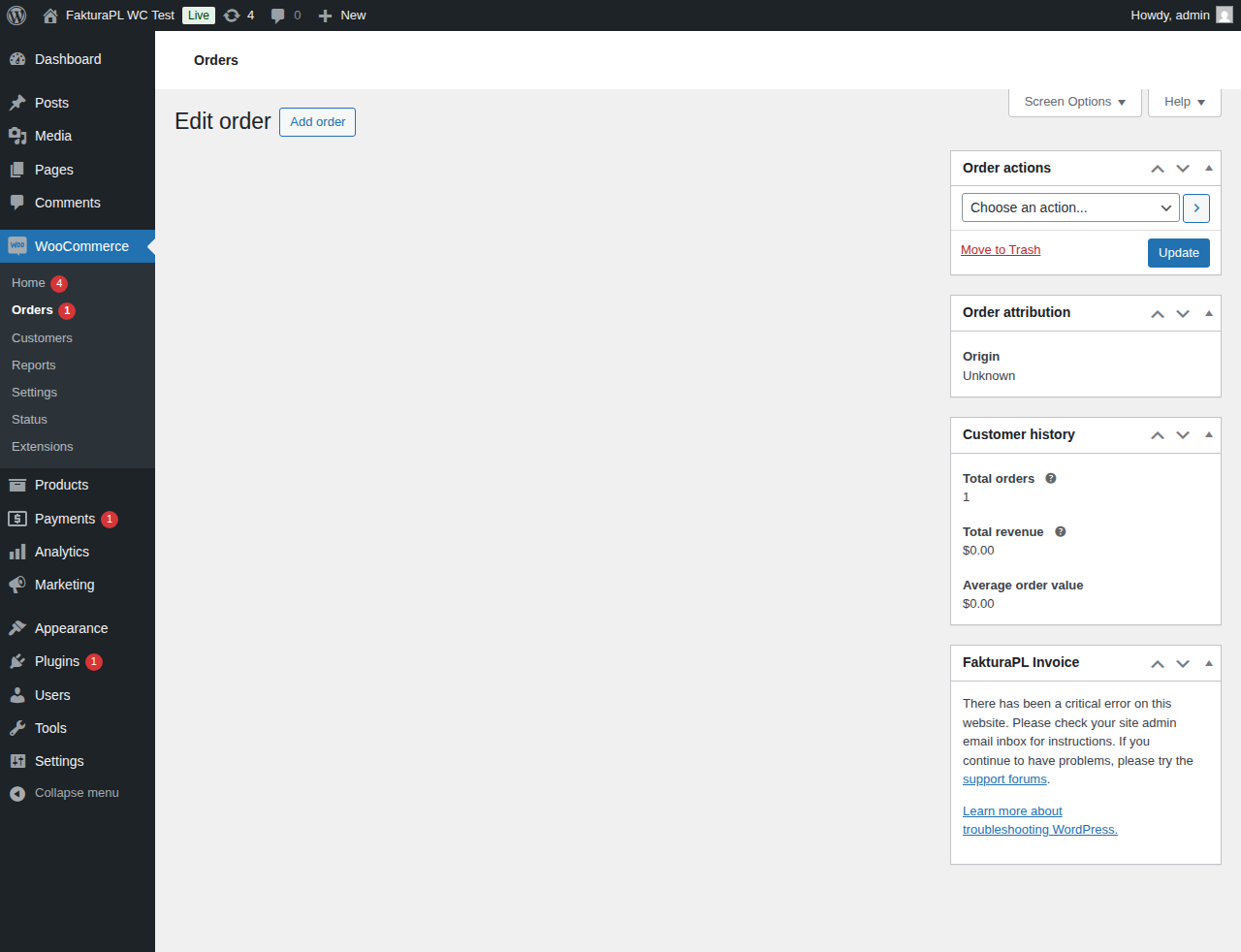
| Item | Description | |---|---| | Invoice number | Fakturownia invoice number, linked to the document in Fakturownia | | Document type | Invoice, pro forma, credit note, etc. | | Generated at | Timestamp of invoice creation | | Status | Paid, unpaid, cancelled | | Download PDF | Download button — fetches PDF from Fakturownia in real time | | Regenerate | Re-creates the invoice if the original failed or was accidentally deleted | | View in Fakturownia | Direct link to the invoice in your Fakturownia account |
Next Steps
- Compliance — NIP checkout field, OSS, GTU codes
- Troubleshooting — diagnose why rules are not firing
- Configuration — all settings tabs