Customer Invoice Portal
Fakturownia Pro adds a dedicated Invoices tab to the WooCommerce My Account area so customers can view and download their invoice PDFs without contacting support. It also adds a NIP/VAT number field at checkout so B2B customers can provide their tax ID before the invoice is generated.
Enabling the Invoices Tab
The My Account Invoices tab is disabled by default. To enable it:
- Go to WooCommerce → Fakturownia Pro → Documents
- Under Customer Invoice Access, check "Show Invoices tab in My Account"
- Click Save Settings
The tab appears immediately in My Account for all logged-in customers. Customers who have no invoices on record see the tab but with an empty state message ("No invoices yet. Invoices appear here after your order is processed.").
Controlling Tab Visibility
Two additional options control who sees the tab and when:
| Option | Behavior |
|---|---|
| Show tab for all customers | Tab is visible to every logged-in customer, even those with no invoices |
| Show tab only after first invoice | Tab is hidden until the customer's first invoice is generated — recommended for mixed B2B/B2C stores where most B2C customers will never have an invoice |
| Minimum role required | Restrict the tab to customers with the b2b_customer role (requires a separate B2B roles plugin) |
For stores where invoices are generated for every order, the "show tab for all customers" option is appropriate. For stores where invoices are opt-in or conditional, the "show only after first invoice" option prevents confusion.
What Customers See
The Invoices tab shows a table of all invoices associated with the customer's account:
| Column | Description |
|---|---|
| Invoice number | The Fakturownia document number (e.g., FS/2025/042) |
| Order | Link to the WooCommerce order the invoice was generated for |
| Date | Invoice issue date |
| Amount | Gross invoice value in the order currency |
| Status | Invoice document status from Fakturownia (Paid, Sent, Issued) |
| Download | PDF download button |
Invoices are listed in reverse chronological order (newest first). The table paginates at 20 entries per page — customers with large order histories can navigate with Previous/Next.
The Download button fetches the PDF from Fakturownia and delivers it to the browser. The PDF is generated by Fakturownia's servers using the document template configured in your Fakturownia account — the plugin does not generate or modify the PDF itself.
NIP / VAT Number at Checkout
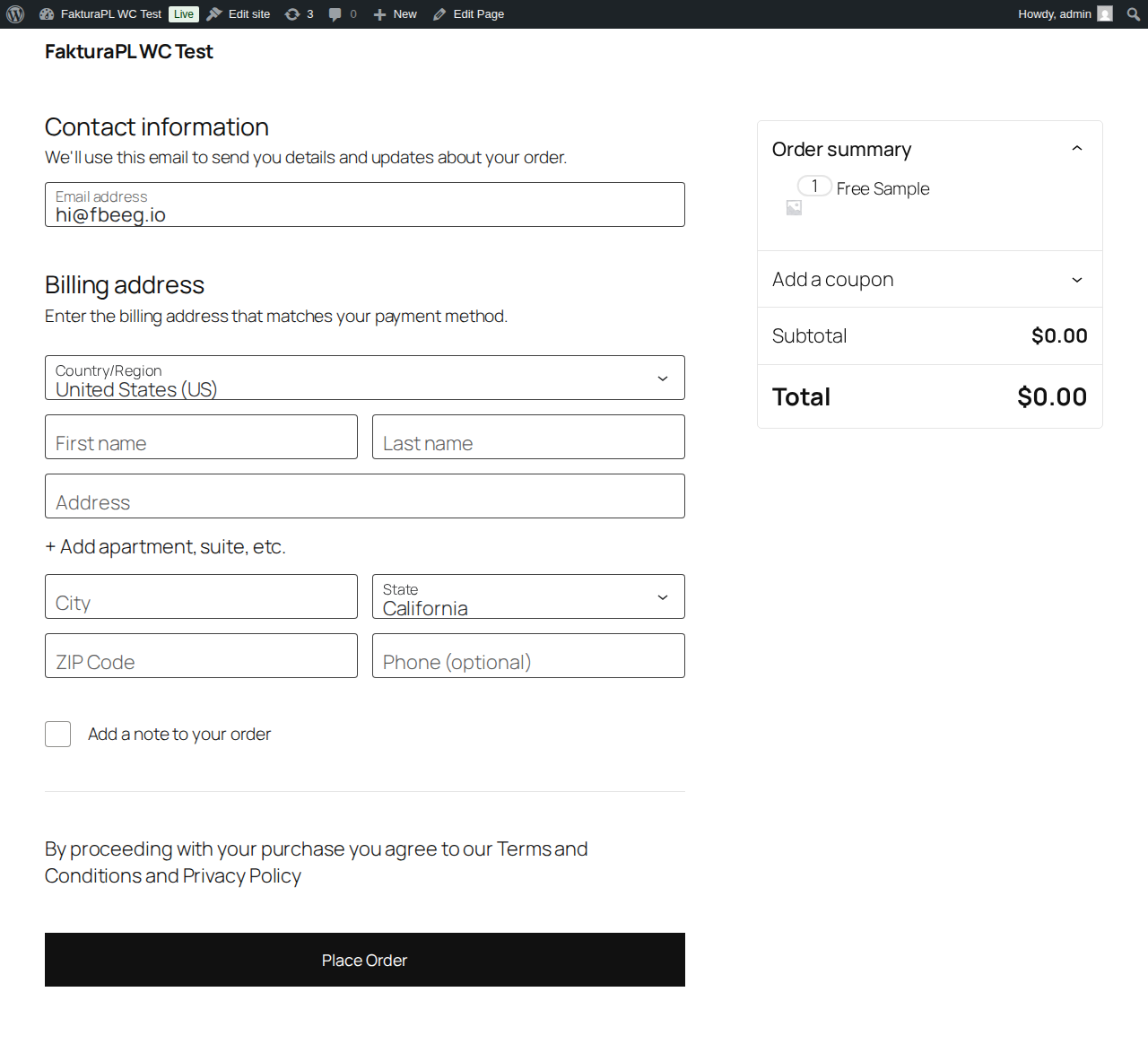
Polish B2B customers need to provide their NIP (Numer Identyfikacji Podatkowej) at checkout so it appears on the invoice. The NIP checkout field adds this input before the invoice is generated.
Enabling the NIP Field
- Go to WooCommerce → Fakturownia Pro → Compliance
- Under NIP Field, check "Enable NIP field at checkout"
- Configure the display options (see below)
- Click Save Settings
NIP Field Configuration Options
| Option | Default | Notes | |---|---|---| | Field label | "NIP (company invoice)" | Customizable — some stores use "VAT ID" for international audiences | | Placement | After billing company field | Options: after company, after billing address block, or in a separate "Invoice data" section | | Required | Off | When off, the field is optional and appears for all customers | | Show only when "Company" is filled | Off | When on, the NIP field is hidden until the customer enters a company name — reduces B2C confusion | | Require for company orders | Off | When on, the NIP field becomes required if the billing company field is non-empty | | Validate NIP format | On | Rejects checkout if the NIP is not 10 digits (strips hyphens and spaces before validating) | | EU VAT validation | Off | For EU stores: validates EU VAT numbers via VIES in addition to format checking |
Recommended Configuration for B2B Stores
Show only when "Company" is filled: On
Require for company orders: On
Validate NIP format: On
This setup shows the NIP field only when the customer signals they are a business (by entering a company name), then requires it to be filled and valid before checkout can proceed. It avoids presenting the field to B2C customers who will be confused by it.
How the NIP Flows to the Invoice
When a customer enters a NIP at checkout:
- The NIP is stored as the WooCommerce order meta key
_fakturownia_nip - When an invoice rule fires for this order, the plugin reads the NIP from order meta
- The NIP is sent to Fakturownia as
buyer_tax_noin the invoice creation API call - Fakturownia includes the NIP in the invoice PDF as required by Polish tax law
If the customer did not enter a NIP, buyer_tax_no is omitted from the API call and the invoice is generated as a B2C consumer invoice (no buyer tax ID on the document).
B2B vs B2C Experience
The plugin adapts to the customer type both at checkout and in the invoice document:
At Checkout
| Customer type | What they see | |---|---| | B2C (no company name) | Standard billing form — NIP field hidden (if configured with "show only when company is filled") | | B2B (company name entered) | Standard billing form + NIP field — required if you have configured it as required for company orders |
On the Invoice
| Customer type | Invoice appearance |
|---|---|
| B2C | No buyer NIP. Buyer name from first name + last name. No buyer_tax_no in document |
| B2B | Buyer NIP displayed. Buyer name from company name field. buyer_tax_no populated |
In My Account
The Invoices tab is identical for both customer types — all invoices are listed regardless of whether they are B2B or B2C invoices. The PDF the customer downloads will either include their company name and NIP (B2B invoice) or just their name (B2C invoice).
Invoice Rule Filtering by Customer Type
Invoice rules can be scoped to customer type. If you need different document types for B2B and B2C customers:
- Create a rule for
processing→ Create VAT Invoice with Customer type: B2C only - Create a second rule for
processing→ Create VAT Invoice with Customer type: B2B only (this rule adds buyer NIP and may apply different GTU codes)
See Invoice Rules for the full filter configuration.
PDF Caching and Download Mechanics
How PDF Delivery Works
When a customer clicks the Download button in My Account, the plugin does the following:
- Looks up the Fakturownia invoice ID stored in the order meta (
_fakturownia_invoice_id) - Calls the Fakturownia REST API:
GET /api/invoices/{id}.pdf - Streams the PDF response through WordPress to the customer's browser
The PDF is not stored on your server. Each download fetches a fresh copy from Fakturownia. This ensures customers always receive the current version of the document — if you update the invoice in Fakturownia (correct a NIP, change an address), the updated version is served immediately.
Caching Behavior
Because the PDF is fetched live, download speed depends on Fakturownia API response time and your server's outbound bandwidth. For most stores, downloads take under 2 seconds.
Optional local caching: To reduce API calls and improve download speed on high-traffic stores, enable PDF caching under WooCommerce → Fakturownia Pro → Advanced → PDF Caching:
| Setting | Default | Notes |
|---|---|---|
| Enable PDF caching | Off | Stores a local copy of each PDF in WordPress uploads |
| Cache duration | 24 hours | How long before the cache entry expires and a fresh copy is fetched |
| Cache directory | wp-content/uploads/fakturownia-pdfs/ | Protected by an .htaccess deny rule — not publicly accessible by URL |
| Purge on invoice update | On | If you update an invoice in Fakturownia, the cache entry is invalidated on the next download request |
When caching is enabled, the first download fetches from Fakturownia and stores a local copy. Subsequent downloads within the cache window are served from the local file. The cache directory is not browsable — direct URL access returns a 403.
Security: Download Authorization
The Download button does not expose a public URL to the PDF. The download is gated through a WordPress endpoint that:
- Verifies the customer is logged in (
is_user_logged_in()) - Verifies the requested invoice belongs to an order owned by the current user
- Only then fetches and streams the PDF
A customer cannot access another customer's invoice by guessing an invoice ID. Unauthenticated download attempts return a 403.
Admin Downloads
Admins can download any invoice PDF directly from the order meta box in WooCommerce → Orders. The same Fakturownia API call is made, but the authorization check uses admin capability instead of order ownership.
Displaying Invoice Numbers on the Orders Page
Optionally, invoice numbers can be displayed on the customer-facing order history page (My Account → Orders):
- Go to WooCommerce → Fakturownia Pro → Documents
- Check "Show invoice number on My Account orders list"
- Save Settings
When enabled, a Invoice column appears on the My Account orders table showing the invoice number (e.g., FS/2025/042) for orders that have an invoice. Orders without invoices show a dash.
Troubleshooting the Customer Portal
Invoices Tab Not Appearing
Most common cause: The option is disabled. Verify it is checked under WooCommerce → Fakturownia Pro → Documents → Customer Invoice Access.
Less common causes:
- A WooCommerce page builder plugin has overridden the My Account template. Check for theme-specific My Account templates in
your-theme/woocommerce/myaccount/. - A caching plugin is serving a cached version of the My Account page without the tab. Purge the cache and test in an incognito window.
- The current user does not have any invoices and "show only after first invoice" is enabled. Place a test order and generate an invoice.
PDF Download Fails with "Invoice not found"
This error means the invoice ID stored in order meta no longer corresponds to a valid invoice in Fakturownia. Common causes:
- The invoice was deleted directly in Fakturownia (avoid deleting invoices that were generated by the plugin)
- The plugin was reinstalled and the order meta was migrated incorrectly
- A test invoice was generated and then deleted during setup
To resolve: manually regenerate the invoice from the WooCommerce → Orders order detail page using the Fakturownia Pro meta box → "Generate Invoice" button.
Download Button Spins but PDF Does Not Arrive
The Fakturownia API call is timing out. Check:
- Your API timeout setting under Advanced (increase to 30s on shared hosting)
- Whether the Fakturownia API is reachable:
wp eval 'var_dump(wp_remote_get("https://app.fakturownia.pl/api/invoices.json?per_page=1&api_token=YOUR_TOKEN"));' - PHP output buffering — some hosting configurations buffer all output, interfering with PDF streaming. Check with your host.
NIP Field Not Showing at Checkout
Verify:
- The NIP field is enabled under Compliance
- If "show only when company is filled" is on — enter a company name at checkout first
- The checkout page is not using a shortcode from a page builder that bypasses WooCommerce's checkout hook system. The NIP field uses the
woocommerce_after_checkout_billing_formhook.
Next Steps
- HPOS Compatibility — how the plugin handles high-performance order storage
- Compliance — full NIP, OSS, GTU, and Reverse Charge documentation
- Invoice Rules — configure B2B vs. B2C document type splits