Document Settings Deep Dive
The Document Settings section of Faktura.pl Pro contains more than a dozen configuration options that control how every generated invoice looks and what legal and accounting information it carries. This page documents every setting with practical guidance on when and how to configure each one.
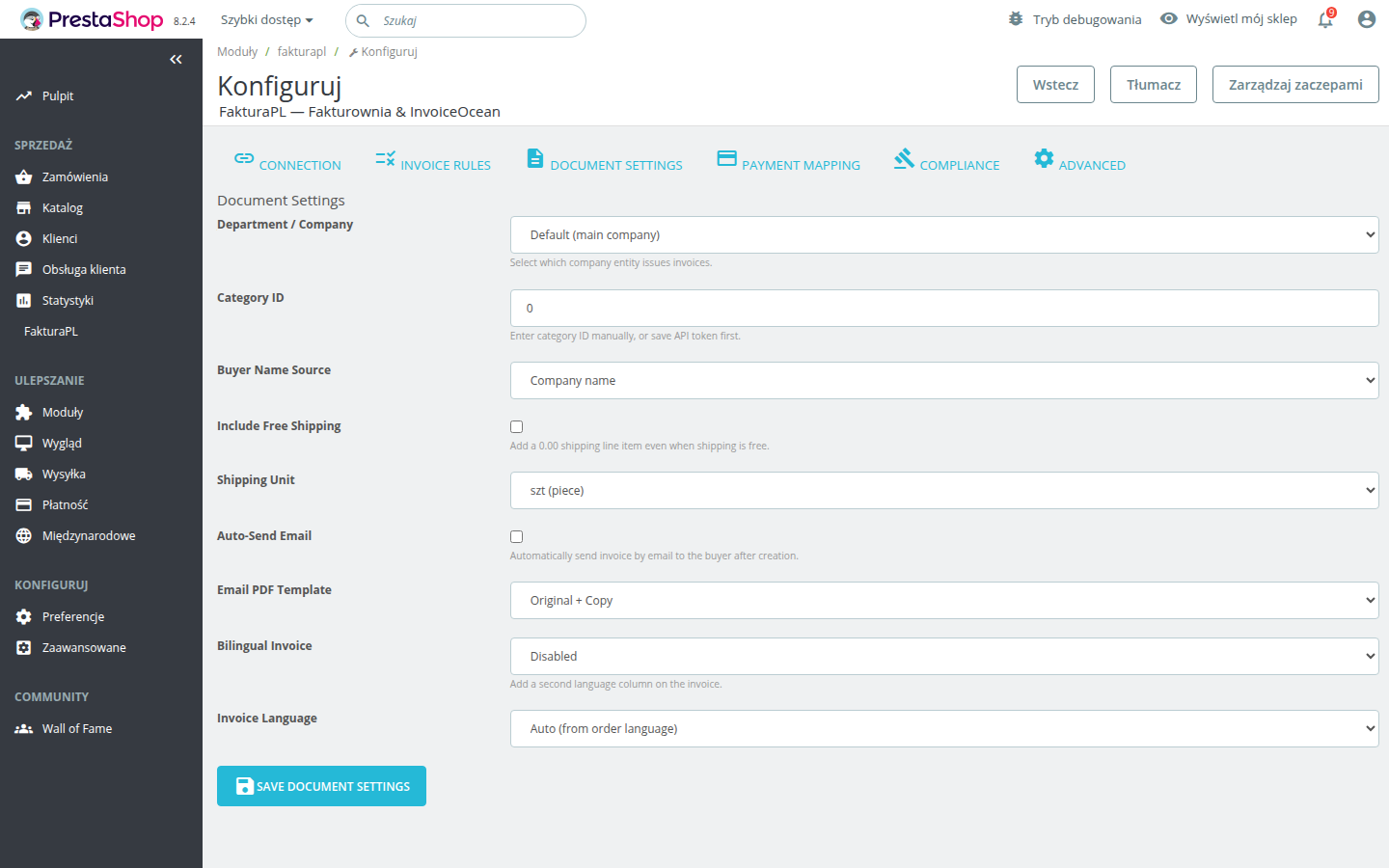
Accessing Document Settings
- Open Faktura.pl Pro from your PrestaShop admin
- Navigate to Modules → Faktura.pl Pro → Configuration
- Select the Document Settings tab
Settings on this tab apply to all invoices generated by the module. If you operate multiple Faktura.pl accounts (e.g., for different shops in a multishop setup), you can configure each account independently from the account selector at the top of the Configuration page.
Payment Terms
Payment terms determine the due date printed on the invoice and the payment deadline set in Faktura.pl.
Standard Term Options
| Setting | Due date calculation | |---|---| | Immediate (0 days) | Due date = invoice date (used for card and immediate payment methods) | | 7 days | Due date = invoice date + 7 calendar days | | 14 days | Due date = invoice date + 14 calendar days | | 21 days | Due date = invoice date + 21 calendar days | | 30 days | Due date = invoice date + 30 calendar days | | 45 days | Due date = invoice date + 45 calendar days | | 60 days | Due date = invoice date + 60 calendar days | | 90 days | Due date = invoice date + 90 calendar days | | End of month | Due date = last day of the current calendar month | | End of next month | Due date = last day of the month following invoice date | | Custom | Enter any number of days (1–365) |
End of Month Terms
"End of month" is common in Polish B2B relationships where all invoices issued in a given month are due on the last day of that month. When selected, an invoice issued on the 5th and an invoice issued on the 27th of the same month will both show the same due date.
Payment Term per Order Type
In a mixed B2B/B2C store, you may want different terms for wholesale and retail orders. Use PrestaShop's customer group assignment in combination with the module's per-order-status rules to apply different payment terms:
- Retail customers (card payments): configure a rule on
payment_acceptedstatus with 0-day terms - B2B customers (bank transfer): configure a rule on
processingstatus with 30-day terms using the B2B customer group condition
Sell Date vs. Issue Date
Polish VAT law distinguishes between two dates that appear on VAT invoices:
- Issue date (data wystawienia) — the date the invoice document was created
- Sell date (data sprzedaży) — the date the goods or services were actually delivered
These dates can differ. For example, an order fulfilled on the 28th of the month may be invoiced on the 2nd of the following month. The sell date (28th) is the taxable event; the issue date (2nd) is when the invoice was generated.
Sell Date Options
| Setting | Sell date used on invoice | |---|---| | Order date | Date the PrestaShop order was placed | | Invoice creation date | Same as issue date (no separate sell date printed) | | Payment date | Date payment was confirmed in PrestaShop | | Shipping date | Date the order was marked as shipped |
For most B2C stores with immediate payment: use Payment date or Invoice creation date — they are typically the same.
For B2B stores with net terms: use Shipping date or Order date to correctly record the taxable event separately from the invoice date.
Seller Name and Contact Person Overrides
By default, the seller information printed on invoices comes from your Faktura.pl account profile. Overrides in the module let you customize what appears on PrestaShop-generated invoices without affecting your Faktura.pl account globally.
| Override field | Description | |---|---| | Seller name | Trading name shown at the top of the invoice — overrides the account name | | Contact person | Name of the responsible person (optional, some templates display this) | | Phone number | Contact phone printed on the invoice | | Email address | Contact email printed on the invoice | | Website | Company website URL |
These fields are all optional. Leave blank to inherit from your Faktura.pl account.
Notes Before and After Invoice Line Items
Two free-text fields let you add notes that appear at specific positions in the invoice layout.
Note Before Line Items
Appears between the buyer/seller address block and the product table. Typical uses:
- Purchase order number references:
"PO number: {{order_reference}}" - Payment instructions for bank transfer invoices
- Custom greeting text for regular wholesale customers
Note After Line Items
Appears below the invoice totals. Typical uses:
- Legal disclaimers required by your industry
- Return policy or warranty terms
- Accounting notes for internal processing
Dynamic Variables in Notes
Both note fields support template variables resolved per order:
| Variable | Value |
|---|---|
| {{order_id}} | PrestaShop order ID |
| {{order_reference}} | PrestaShop order reference (e.g., XMKZP-2) |
| {{customer_name}} | Full name from billing address |
| {{company_name}} | Company name from billing address |
| {{due_date}} | Calculated payment due date |
| {{invoice_number}} | Faktura.pl invoice number |
Internal Note Passthrough from PrestaShop Orders
If a PrestaShop order has an internal note added by your staff (visible in the order admin under "Messages"), Faktura.pl Pro can pass this note to the Faktura.pl invoice as an internal note.
Enable "Pass internal order note to invoice" in Document Settings. Internal notes in Faktura.pl are visible only to your team — they do not appear on the customer-facing PDF.
This is useful for:
- B2B orders where account managers add context: "Customer requested net-30, agreed 15 Feb."
- Order modifications notes: "Changed SKU from A to B — customer confirmed."
- Compliance notes: "Verified company VAT number on 2025-03-01."
PKWiU Classification Codes
PKWiU (Polska Klasyfikacja Wyrobów i Usług) codes are required on VAT invoices in Poland for certain product categories, particularly for reduced VAT rates and split payment threshold transactions.
Configuring PKWiU per Product
PKWiU codes are assigned at the product level in PrestaShop, not at the invoice level. To assign a PKWiU code:
- Open any product in your PrestaShop admin
- Navigate to Modules → Faktura.pl Pro → Product Tax Settings
- Enter the PKWiU code for this product (e.g.,
62.01.11.0for custom software development)
When Faktura.pl Pro generates an invoice line for this product, it includes the PKWiU code in the line item as required by Polish VAT regulations.
PKWiU and Reduced VAT Rates
Products with 5% or 8% VAT rates require a PKWiU code to justify the reduced rate. Without the code, the invoice may be questioned during a VAT audit. Consult your accountant to confirm the correct PKWiU code for each product category you sell.
Split Payment and PKWiU
From 2020, invoices for goods listed in Annex 15 to the VAT Act above PLN 15,000 gross require a split payment notice (mechanizm podzielonej płatności). Many Annex 15 goods are identified by PKWiU code. When a product with a relevant PKWiU code is included in an order exceeding the threshold, Faktura.pl Pro automatically adds the split payment annotation to the invoice. See Compliance for full details.
Multi-Currency Exchange Rates
Faktura.pl Pro generates invoices in the order currency. When the order currency differs from your base accounting currency (PLN), the invoice includes an exchange rate footnote as required by Polish law.
Exchange Rate Sources
| Source | Description | |---|---| | NBP Table A | Mid-market rates for freely convertible currencies (EUR, USD, GBP, CHF, etc.) | | NBP Table C | Buying/selling rates — used only for cash transactions | | ECB | European Central Bank reference rates | | Custom | Fixed rate you enter manually |
Exchange Rate Date Rule
The applicable exchange rate is the rate from the last business day before the invoice issue date — this is the Polish accounting standard under Article 31a of the VAT Act.
If an invoice is created on Monday, the Friday rate applies. If created on a public holiday, the rate from the last working day applies.
What Appears on the Invoice
The invoice shows:
- Line item amounts in the order currency (e.g., EUR)
- A footer line:
"Exchange rate: 1 EUR = 4.2837 PLN (NBP, 2025-03-28)" - Total amount in PLN
This satisfies the legal requirement for the PLN equivalent to appear on foreign-currency invoices.
Bank Account Visibility Toggle
Control whether your bank account number (IBAN) appears on the invoice.
| Setting | When to use | |---|---| | Always show | B2B stores with bank transfer payment terms — customers need the IBAN to pay | | Show only for bank transfer orders | Mixed stores — IBAN shown only when payment method is bank transfer | | Never show | Pure card-payment stores — IBAN on a card-paid invoice is confusing |
Multiple Bank Accounts
If you have separate IBAN accounts for different currencies (e.g., a PLN account and a EUR account), configure them in Settings → Bank Accounts. Faktura.pl Pro selects the matching currency account automatically based on the order currency.
Buyer Name Format
The buyer name printed on the invoice is assembled from the PrestaShop order billing address. Three format options are available:
| Format | What appears | When to use |
|---|---|---|
| Company name | company field from billing address | Pure B2B store |
| Full name | firstname + lastname | Pure B2C store |
| Both | Company on line 1, name on line 2 | Mixed B2B/B2C |
When Both is selected and no company name is present in the order, only the full name is printed — no blank first line.
Invoice PDF Template Selection
Faktura.pl offers multiple invoice templates. Select which template Faktura.pl Pro uses for documents generated from PrestaShop orders.
- In Document Settings, open the PDF Template dropdown
- Templates are loaded from your Faktura.pl account (custom templates you have created appear here)
- Click "Preview" to open a sample PDF for any template
- Select the desired template and save
Different Templates per Document Type
Configure separate templates for:
| Document type | Separate template | |---|---| | VAT Invoice | Yes | | Proforma | Yes | | Credit Note | Yes | | Receipt (paragon) | Yes |
Shipping Cost Handling
Shipping charges in PrestaShop orders can be mapped to invoice line items in three ways:
| Option | Behavior | |---|---| | Separate line item (recommended) | Shipping appears as its own line with configurable description and VAT rate | | Proportional distribution | Shipping cost added proportionally to product line amounts — not recommended | | Exclude shipping | Shipping charge is not included on the invoice |
Shipping VAT Rate
Set the VAT rate for the shipping line item to match your tax configuration. For most Polish stores: 23%. For shipments qualifying for reduced rates, consult your accountant.
Shipping Description
The description text for the shipping line defaults to "Shipping". Customize it — for bilingual invoices, use "Shipping / Wysyłka".
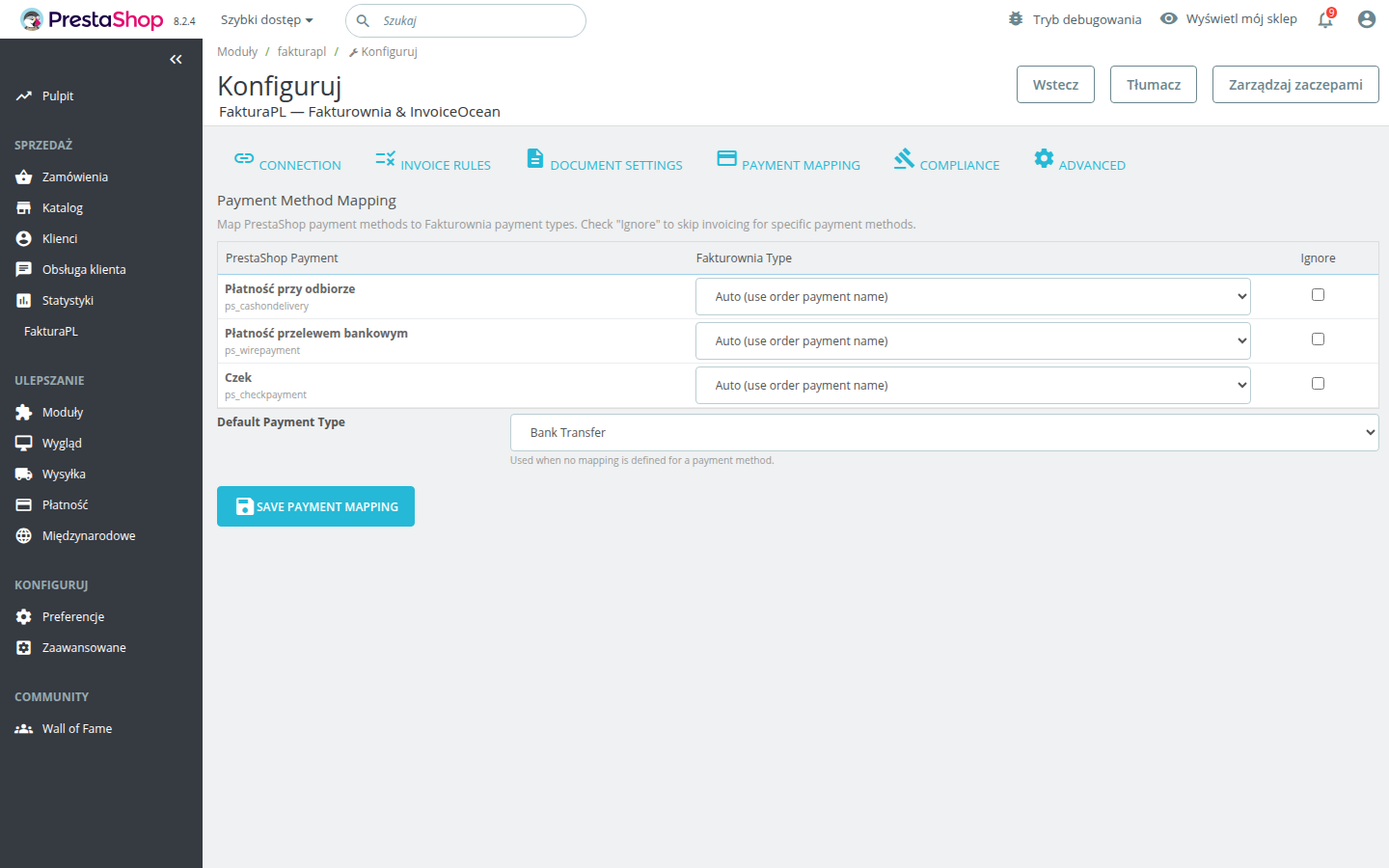
Payment Method Mapping
Map PrestaShop payment module names to human-readable payment method descriptions that appear on the invoice.
| PrestaShop payment module | Suggested display name |
|---|---|
| ps_wirepayment | Bank transfer |
| ps_checkpayment | Check |
| stripe_official | Credit card |
| paypal | PayPal |
| payu_standard | PayU |
| przelewy24 | Przelewy24 |
| blik | BLIK |
| ps_cashondelivery | Cash on delivery |
Add mappings in Settings → Payment Method Mapping. Unmapped payment modules display their raw module name, which may be cryptic on printed invoices.
Full Settings Reference
| Setting | Default | Notes | |---|---|---| | Payment terms | 14 days | Adjust per your customer agreements | | Sell date | Invoice creation date | Consider "order date" for B2B | | Seller name override | (empty — uses Faktura.pl account) | Use for trading name differences | | Contact person | (empty) | Optional | | Note before items | (empty) | Supports dynamic variables | | Note after items | (empty) | Supports dynamic variables | | Internal note passthrough | Off | Enable for B2B stores | | PKWiU codes | Per product | Configure on product level | | Exchange rate source | NBP Table A | Confirm with accountant | | Bank account visibility | Show for bank transfer | Adjust for payment mix | | Buyer name format | Both | Set to Company for pure B2B | | PDF template | Default template | Preview before selecting | | Shipping handling | Separate line item | Recommended for all stores | | Payment method mapping | (empty) | Populate all active gateways |
Next Steps
- Invoice Rules — map PrestaShop order statuses to Faktura.pl document actions
- Compliance — split payment, GTU codes, PKWiU, OSS
- Customer Dashboard — let customers download their own invoices
- API Reference — programmatic invoice generation for custom integrations