Invoice Rules
Invoice Rules are the core of Fakturownia Pro. Each rule tells the app what Fakturownia document to create when a Shopify order reaches a specific status. Rules fire automatically via Shopify webhooks — no manual intervention required.
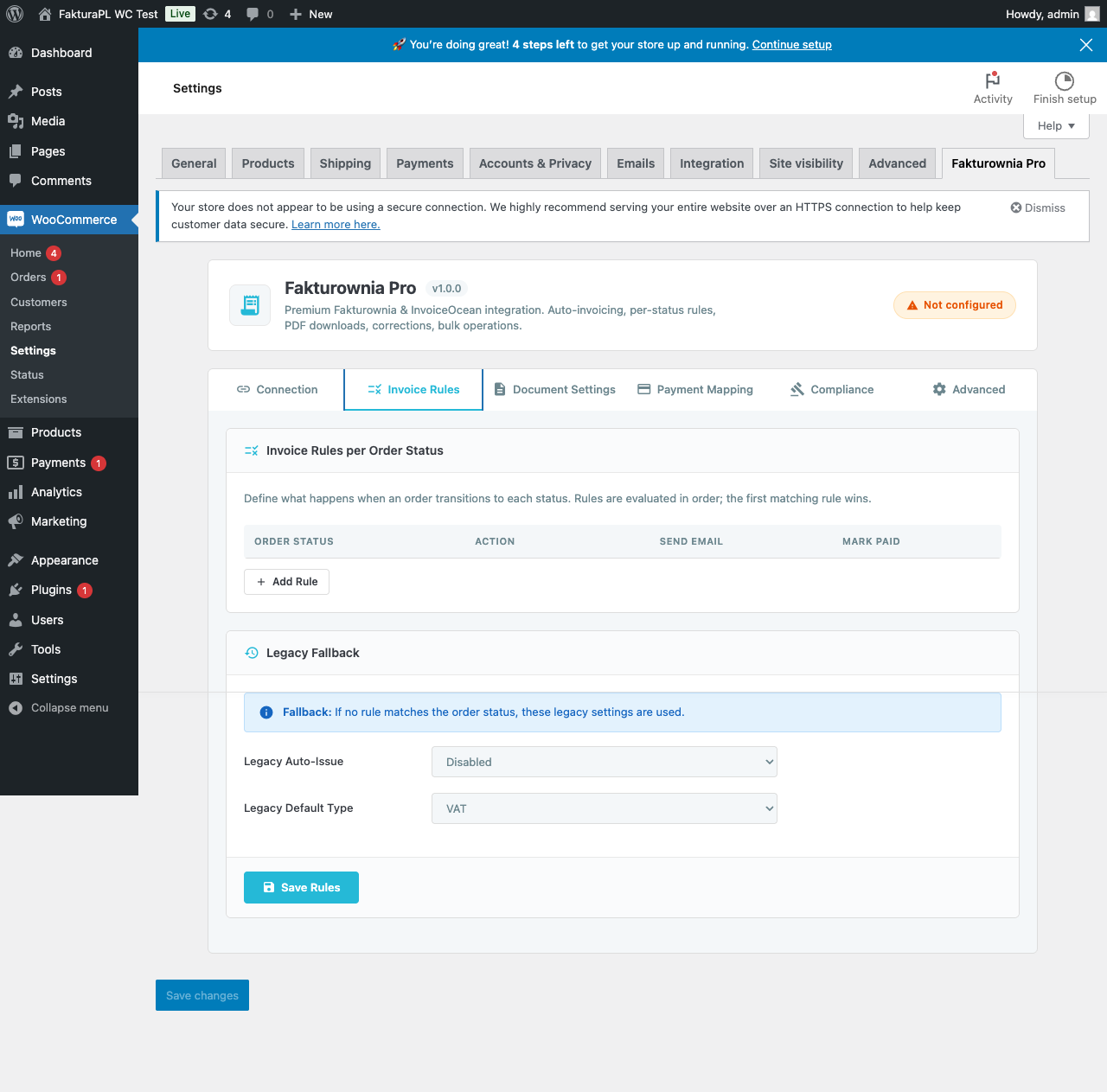
How Rules Work
When a Shopify order transitions to a status with a configured rule, Fakturownia Pro:
- Checks for an existing invoice — if one exists for this order, the action is evaluated against it (e.g., "Mark as Paid" updates the existing invoice; "Create VAT Invoice" would be skipped as a duplicate)
- Executes the configured action — creates, updates, or cancels the document in Fakturownia via API
- Optionally sends an email — attaches the invoice PDF to an email sent to the customer's billing email
- Logs the result — records the outcome in the order's Fakturownia Pro activity log, accessible from the order detail in Shopify admin
Rules are evaluated only on status transitions — not on page refreshes or admin changes that do not trigger a Shopify webhook.
Available Actions
| Action | What it does | Notes | |---|---|---| | Create VAT Invoice | Issues a full VAT invoice (Faktura VAT) in Fakturownia | Most common action for confirmed payment | | Create Proforma | Issues a proforma (advance) invoice before payment is confirmed | Does not constitute a tax document | | Mark as Paid | Marks an existing invoice as paid without creating a new document | Use after a separate "Create" rule on a prior status | | Create Credit Note | Issues a correction document (faktura korygująca) | Requires an existing invoice in Fakturownia | | Cancel Invoice | Cancels the invoice — does not delete it from Fakturownia | Used when an order is cancelled after invoicing | | Send Email | Re-sends the invoice PDF to the customer email | Use to resend without triggering a new document |
Also Mark as Paid
The "Also Mark as Paid" checkbox is available on the Create VAT Invoice and Create Proforma actions. When enabled, the app creates the invoice AND immediately marks it paid in a single API call.
Use this when the trigger status already confirms full payment (e.g., orders/paid). Without this option, the invoice is created with a "unpaid" status in Fakturownia and requires a separate "Mark as Paid" rule on a subsequent status — which may never be reached if the order lifecycle is short.
Shopify Order Statuses Reference
| Shopify webhook topic | When it fires |
|---|---|
| order/created | New order placed — any payment state |
| orders/paid | Payment confirmed by Shopify Payments, PayPal, or manual payment capture |
| orders/fulfilled | All items marked as shipped (all fulfillments completed) |
| orders/partially_fulfilled | Some items shipped, others pending |
| orders/cancelled | Order cancelled by merchant or customer |
| refunds/create | Full or partial refund issued (fires once per refund event) |
Important: orders/paid is the most reliable trigger for VAT invoice creation. It fires when Shopify confirms payment capture — not when the customer clicks "Buy." For payment gateways that require manual capture (e.g., some B2B gateways), orders/paid fires when you manually capture the payment in Shopify admin.
Configuring a Rule
- Open Fakturownia Pro from your Shopify admin
- Navigate to Invoice Rules
- Click "Add Rule" to create a new rule, or click an existing rule to edit
- Select the Shopify order status from the dropdown
- Choose the action to perform
- Optionally enable "Also Mark as Paid" and "Send Email"
- Click Save
Changes take effect immediately for all new order events. Existing orders in transit are not affected.
Real-World Configuration Examples
Configuration 1: Standard Shopify Store (Card Payments)
The most common setup for Shopify stores using Shopify Payments or Stripe.
| Status | Action | Also Mark as Paid | Send Email |
|---|---|---|---|
| orders/paid | Create VAT Invoice | Yes | Yes |
| refunds/create | Create Credit Note | — | Yes |
| orders/cancelled | Cancel Invoice | — | No |
Why no proforma? For most Shopify stores with card payments, orders move directly from "placed" to "paid" within seconds. A proforma would be created and immediately superseded by the VAT invoice — unnecessary document clutter.
Configuration 2: Store with Pay Later / Bank Transfer
For stores accepting bank transfer (BACS, Przelewy24 pending, or similar) where payment is confirmed after the order is placed.
| Status | Action | Also Mark as Paid | Send Email |
|---|---|---|---|
| order/created | Create Proforma | No | Yes |
| orders/paid | Create VAT Invoice | Yes | Yes |
| refunds/create | Create Credit Note | — | Yes |
| orders/cancelled | Cancel Invoice | — | No |
The proforma sends immediately on order placement so the customer has a document with your bank details. The VAT invoice replaces it when payment clears.
Configuration 3: B2B Store with Net-30 Terms
For B2B stores where invoices are issued before payment and payment is expected within 30 days.
| Status | Action | Also Mark as Paid | Send Email |
|---|---|---|---|
| orders/fulfilled | Create VAT Invoice | No | Yes |
| orders/paid | Mark as Paid | — | No |
| refunds/create | Create Credit Note | — | Yes |
Why "fulfilled" as the trigger? For B2B net-term stores, the invoice is the payment request — it should be issued when goods are delivered, not when payment arrives. The "Mark as Paid" rule fires when Shopify records the payment, keeping the Fakturownia invoice status in sync.
Configuration 4: COD (Cash on Delivery) Store
For stores where payment is collected by the courier at delivery.
| Status | Action | Also Mark as Paid | Send Email |
|---|---|---|---|
| order/created | Create Proforma | No | No |
| orders/fulfilled | Create VAT Invoice | Yes | Yes |
| refunds/create | Create Credit Note | — | Yes |
The proforma is for internal tracking. The VAT invoice is created when the order ships — at that point, COD collection is guaranteed by the carrier contract. Marking as paid at fulfillment is appropriate because the cash collection is contractually confirmed.
Partial Refunds
When a partial refund is issued in Shopify, Fakturownia Pro creates a credit note for the refunded amount only — not the full order total.
The credit note line items mirror exactly what was refunded in Shopify:
- Refunded product lines appear on the credit note with the refunded quantity and unit price
- If a shipping refund is included, it appears as a separate "shipping" line on the credit note
- The credit note references the original invoice number in Fakturownia
Gotcha: Multiple partial refunds on the same order create separate credit notes — one per refund event. Each credit note references the original invoice. If you issue 3 partial refunds, you will have 3 credit notes in Fakturownia against the same original invoice.
Shopify Flow Integration
Fakturownia Pro supports Shopify Flow (available on Shopify, Advanced, and Plus plans) for advanced automation beyond the built-in status triggers.
Available Triggers (Fakturownia Pro fires these to Flow)
| Trigger | When it fires | |---|---| | Invoice Created | A new invoice (any type) is created in Fakturownia | | Invoice Sent | An invoice email is sent to the customer | | Credit Note Created | A credit note is created | | Invoice Error | An invoice action fails (API error, duplicate, etc.) |
Available Actions (Flow calls these on Fakturownia Pro)
| Action | What it does | |---|---| | Create Invoice | Generates an invoice for the specified order on demand | | Send Invoice | Sends or resends the invoice PDF to the customer's email |
Example Flow: Error Escalation
Goal: When an invoice fails to create, assign the order to a staff member for manual review.
- Trigger: Invoice Error
- Condition: None (all errors)
- Action (Shopify): Add order tag →
invoice-failed - Action (Shopify): Assign order to
accounting@yourstore.com - Action (Shopify): Add internal order note with the error details
This prevents failed invoices from being silently missed. Your accounting team checks the invoice-failed tagged orders each day.
Duplicate Prevention
Fakturownia Pro checks for an existing invoice before executing any "Create" action. If an invoice already exists for the order:
- "Create VAT Invoice" — skipped; logged as "Duplicate prevented"
- "Create Proforma" — skipped; logged as "Duplicate prevented"
- "Mark as Paid" — executes normally (safe to run multiple times)
- "Create Credit Note" — executes normally (multiple credit notes are valid for partial refunds)
- "Cancel Invoice" — executes normally
This protection prevents double invoicing if a Shopify webhook fires twice during a platform incident (which Shopify documents as a known edge case).
Regenerating an invoice that was skipped as a duplicate: Use Tools → Regenerate Invoice on the affected order in the Fakturownia Pro app. This bypasses duplicate prevention and creates a fresh invoice.
Testing Rules
Before going live, validate each rule with Shopify's test order system:
- Enable test mode in your Shopify Payments settings or use the Bogus Gateway
- Place a test order and advance it through each status manually
- After each status change, check your Fakturownia account for the expected document
Cleaning up test invoices: Test orders create real Fakturownia documents. Delete them manually in Fakturownia or use a dedicated test Fakturownia subdomain for development.
Viewing Rule Execution History
For any specific order:
- Open the order in Shopify admin
- In the Apps section of the right sidebar, click Fakturownia Pro
- The activity log shows every action attempted, with timestamp, status (Success / Failed / Skipped), and error message if applicable
For aggregate rule execution stats: Fakturownia Pro → Reports → Rule Execution Summary shows success and failure counts per rule over any date range.
Next Steps
- Configuration — document settings, payment terms, multi-currency
- Compliance — OSS, GTU codes, split payment, reverse charge
- Troubleshooting — diagnose why a rule did not fire