Configuration
Fakturownia Pro is organized into clear settings sections accessible from Apps → Fakturownia Pro → Settings. This guide covers every configurable option, explains what it does, and gives guidance on when to change it from the default.
Connection Settings
API Token
Your Fakturownia.pl or InvoiceOcean API authorization code. The full token format is: AlphanumericString/yourcompany.fakturownia.pl. Enter the entire string including the domain portion.
To regenerate: Fakturownia → Settings → Account → Integration → API Authorization Code. After regenerating, update the token in Fakturownia Pro immediately — the old token stops working as soon as a new one is generated.
Custom Domain
Leave blank if your Fakturownia account uses the standard yourcompany.fakturownia.pl subdomain format. Enter the custom domain if your account uses a branded URL (e.g., invoices.yourcompany.com). The app does not auto-detect custom domains — the connection will fail silently if this field is empty when a custom domain is in use.
Department
If your Fakturownia account uses multiple departments (oddziały), select which department should receive invoices generated by this Shopify store. Leave blank to use the account default department. This is useful when operating multiple brands or warehouse locations from a single Fakturownia account.
Document Settings
Invoice Templates
Fakturownia Pro supports four built-in template options plus any custom templates you have created in your Fakturownia account.
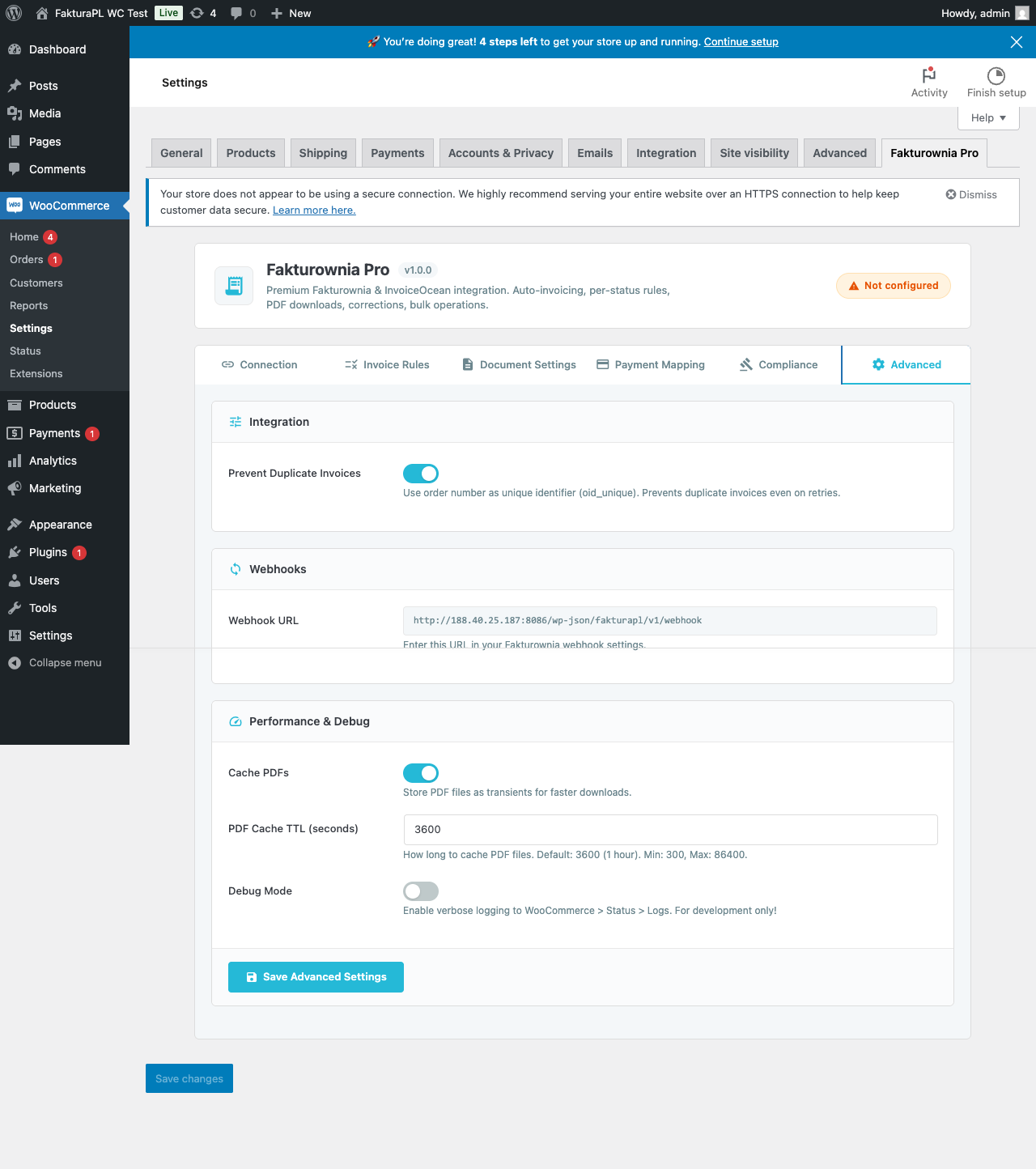
| Template | Best for | Notes | |---|---|---| | Standard | General retail, most stores | Clean layout, all standard fields | | Compact | Orders with many line items | Reduced line spacing, fits more products per page | | Bilingual PL/EN | International B2B customers | Labels appear in both Polish and English | | Custom | Brand-specific layouts | Must exist in your Fakturownia account; enter its name/ID |
To preview a template, click the thumbnail. The preview shows a sample invoice with placeholder data — your actual invoices will use real order data.
Invoice Language
Controls the language of text labels on generated PDFs. Options: Polish (pl) or English (en). This affects labels like "Invoice number:", "Date:", "Tax rate:", etc. — not the product names, which always come from your Shopify catalog.
When to use English: For stores primarily serving international B2B customers who expect English-language invoices. Note that Polish VAT invoices issued to Polish customers should use Polish labels to comply with KSeF preparation requirements.
Sell Date Source
The invoice sell date (data sprzedaży) is the date the transaction occurred. Two options:
| Option | When the sell date is set | Use when | |---|---|---| | Order date | The date the Shopify order was originally placed | Most stores — keeps sell date aligned with when the customer bought | | Invoice creation date | The date the invoice document is created in Fakturownia | Useful for net-term B2B where invoice creation deliberately lags the order |
For most e-commerce stores, "Order date" is correct — the sell date and the order date should match.
Buyer Name Format
Controls how the buyer's name appears on the invoice buyer block.
| Option | Example output | |---|---| | Company name | ACME Sp. z o.o. | | Full name | Jan Kowalski | | Company + full name | ACME Sp. z o.o. — Jan Kowalski |
Use "Company name" for B2B stores where the company is the invoice recipient. Use "Full name" for B2C retail. Use "Company + full name" when both appear on the invoice is standard for your industry.
Payment Terms
Sets the payment due date on invoices. Fakturownia calculates the due date as: invoice issue date + configured payment term.
| Option | When to use | |---|---| | 7, 14, 30 days | Standard B2B terms | | End of month | Common in certain EU markets | | 0 days (immediate) | For prepaid orders — due date equals issue date | | Custom (enter days) | Non-standard terms negotiated with specific customers |
Leave unset to use the default from your Fakturownia account settings. Per-order overrides are not currently supported — the configured term applies to all invoices.
Show/Hide Bank Account
Toggle whether your bank account number appears on the invoice PDF. For stores where payment is always captured by card before invoicing, displaying a bank account number is confusing and may cause customers to attempt a bank transfer for a card order. Disable it for prepaid-only stores.
Seller Information Overrides
By default, the seller name, NIP, address, and bank account on invoices come from your Fakturownia account settings. Enter overrides here when:
- You operate multiple Shopify stores connected to the same Fakturownia account but representing different brands
- You want different contact person names on invoices from different stores
| Override field | What it overrides | Leave blank to use | |---|---|---| | Seller name | Company name in the seller block | Fakturownia account company name | | Seller NIP | Tax ID in the seller block | Fakturownia account NIP | | Seller address | Address lines in the seller block | Fakturownia account address | | Seller contact person | Contact name printed on invoice | Fakturownia account contact | | Bank account | Bank account shown on invoice | Fakturownia account bank account |
Use case: You run BrandA.pl and BrandB.pl from one Shopify organization, both billing from the same Polish legal entity. Both stores connect to the same Fakturownia account. Override the seller name on BrandA.pl to show "Brand A Sp. z o.o." and on BrandB.pl to show "Brand B Sp. z o.o." while the underlying NIP and bank account remain the same.
Invoice Number Series
By default, Fakturownia handles invoice numbering automatically using its sequential counter. Enter a custom number series name here only if:
- Your Fakturownia account uses multiple numbering series (e.g., separate series for different stores)
- Your accounting practice requires a specific invoice number prefix (e.g.,
SHOPIFY/2025/)
The series name must match exactly what exists in your Fakturownia account under Settings → Invoice Number Series.
Notes Fields
Notes Before Positions
Free text printed on the invoice above the line-item table. Use for:
- Payment instructions ("Please transfer to account: XX-XXXX...")
- Project reference numbers
- Contract numbers for B2B orders
- Promotional messages
Notes After Positions
Free text printed on the invoice below the line-item table. Commonly used for:
- Legal disclaimers
- Warranty terms
- Thank-you messages
- Return policy references
Both notes fields support plain text — HTML is not rendered. Max 1,000 characters each.
Internal Note
When enabled, copies the Shopify order note to Fakturownia's internal note field. Internal notes appear in the Fakturownia admin panel but are not printed on the invoice PDF. Useful for passing customer instructions or staff comments to your accounting team.
Multi-Currency
Invoices are generated in the currency of the Shopify order by default. If a customer pays in GBP, the invoice is in GBP. If they pay in PLN, the invoice is in PLN.
Exchange rate for VAT calculation: When the invoice is in a foreign currency, Fakturownia records the NBP (National Bank of Poland) mid-rate on the invoice date to calculate the PLN equivalent for VAT purposes. This is handled automatically — no configuration is needed.
Gotcha: Fakturownia's EU VAT rate table applies rates based on destination country. For OSS-eligible cross-border orders, enable the OSS feature under the Compliance tab — otherwise Fakturownia applies your default VAT rate regardless of destination.
Shipping Line
Controls how shipping costs appear on invoices.
| Option | What happens | |---|---| | Include shipping as line item | A "Shipping" line appears on every invoice with the shipping cost | | Exclude free shipping | Shipping line included when cost > 0; omitted when shipping is free | | Always exclude shipping | Shipping never appears on invoices |
For most stores, "Exclude free shipping" is the cleanest option — customers on free shipping thresholds do not need a zero-value shipping line cluttering their invoice.
VAT on shipping: When shipping appears as a line item, it must have a VAT rate assigned. Fakturownia Pro uses the most common tax rate in the order (typically the standard rate) for the shipping line. If your store uses a special VAT rate for shipping, contact support to configure a fixed shipping tax rate.
Post-Purchase Email Attachment
Enable "Attach invoice PDF to order emails" under the Customer Portal settings to automatically attach the invoice PDF to Shopify order emails.
The attachment is added at the time the email is sent. If the invoice is created after the email has already been sent (because your rule fires on a status change that comes after the confirmation email), the attachment will not be retroactively added to the already-sent email. In those cases, configure a separate "Send Email" action in your invoice rules to send a dedicated invoice email after the invoice is created.
Customer Portal Settings
| Setting | Description | |---|---| | Enable invoice portal | Injects the "Invoices" section into Shopify customer accounts | | Show invoice link on order status page | Adds a "Download Invoice" button to the post-checkout confirmation page | | Attach invoice PDF to order email | Attaches PDF to order confirmation and status emails | | Portal display language | Follows Shopify storefront locale automatically; manually override here |
Full customer portal documentation: Customer Portal.
Bulk Invoice Generation
For stores migrating to Fakturownia Pro and needing to backfill historical invoices:
- Go to Tools → Bulk Generation
- Select the date range for historical orders
- Click "Generate Invoices"
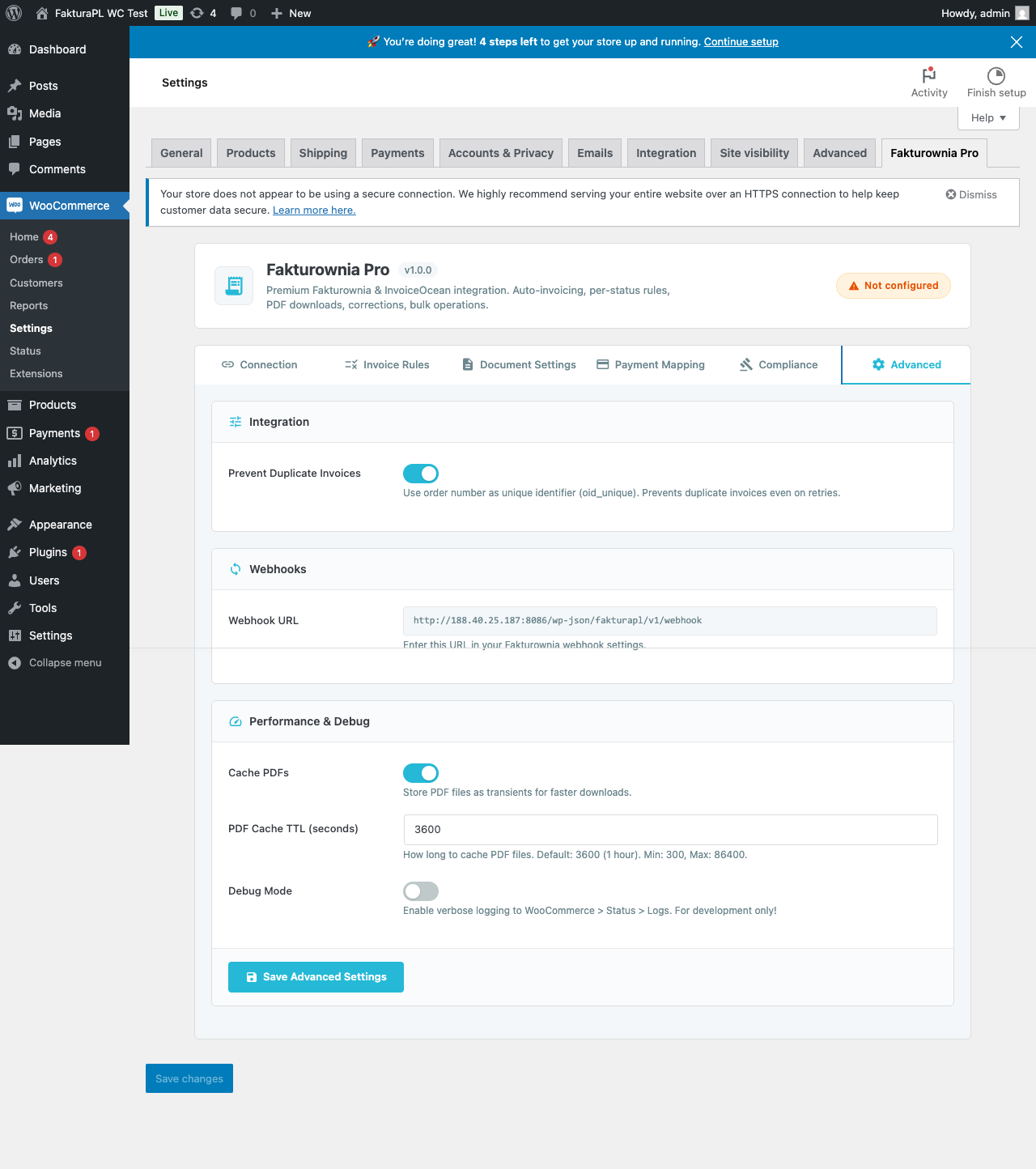
The bulk run processes all orders in the selected range that do not already have an invoice. It continues if individual orders fail — a failure summary is shown at the end. Duplicate prevention applies: orders that already have a Fakturownia invoice are skipped.
Rate limits: Fakturownia's API has per-minute rate limits. For very large date ranges (thousands of orders), the bulk run may take several hours and will automatically pause and resume to stay within limits.
Exporting Settings
All settings can be exported as JSON for backup or deployment to another store:
- Go to Settings → Advanced → Export Settings
- Download the JSON file
To import on a new store:
- Install Fakturownia Pro on the target store
- Go to Settings → Advanced → Import Settings
- Upload the JSON file — all settings are applied except the API token (must be entered manually for security)
Next Steps
- Invoice Rules — configure which order statuses trigger which document actions
- Compliance — OSS, GTU codes, split payment, reverse charge
- Customer Portal — configure the customer-facing invoice download experience