Document Settings & Templates
Document Settings control how every invoice generated by Fakturownia Pro looks and what information it carries. These settings apply globally to all invoice rules unless a rule has its own override. Configure them once and all future invoices reflect the changes automatically.
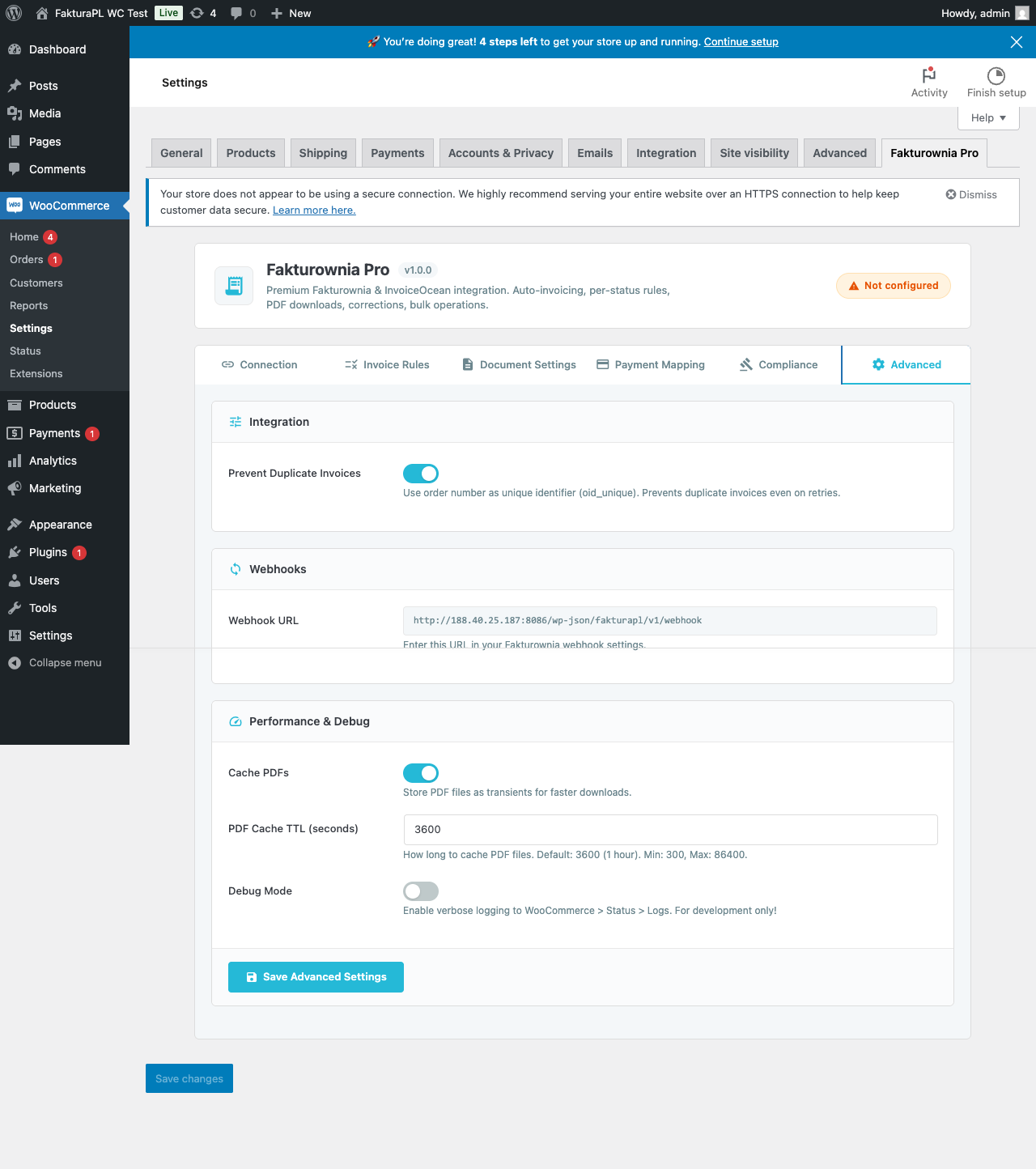
Accessing Document Settings
- Open Fakturownia Pro from your Shopify admin
- Navigate to Settings → Document Settings
Changes saved here take effect for all invoices created after the save. Existing invoices in Fakturownia are not retroactively updated.
Template Selection and Customization
Choosing an Invoice Template
Fakturownia offers multiple invoice templates that differ in layout, font treatment, and section arrangement. Fakturownia Pro uses your Fakturownia account's templates and presents them in the template selector.
- In Document Settings, open the Template dropdown
- Preview available templates — clicking a template name opens a preview PDF in a new tab
- Select the template to use for all Fakturownia Pro-generated documents
- Click Save
All templates include the same required tax fields (seller NIP, buyer NIP, VAT breakdown, invoice number). The differences are visual only — column width, logo placement, color scheme.
Customizing Templates in Fakturownia
Template customization (adding a logo, changing colors, adjusting column widths) is done directly in your Fakturownia account, not in the Shopify app.
- Log into fakturownia.pl or your Fakturownia subdomain
- Navigate to Settings → Invoice Templates
- Edit the template you selected in Fakturownia Pro
Changes to the template in Fakturownia apply immediately to all future invoices generated by Fakturownia Pro — the app uses the template by ID, so it always picks up the latest version.
Template per Document Type
You can assign a different template for each document type:
| Document type | Separate template | |---|---| | VAT Invoice | Yes | | Proforma | Yes | | Credit Note | Yes |
This is useful if your proformas should use a "draft" watermark template while VAT invoices use your primary branded template.
Multi-Currency Invoice Generation
Fakturownia Pro supports stores selling in multiple currencies. Invoices are always generated in the currency of the Shopify order.
Currency Configuration
| Setting | Description | |---|---| | Base currency | Your Fakturownia account's accounting currency (typically PLN) | | Exchange rate source | NBP (National Bank of Poland), ECB (European Central Bank), or Custom rate | | Exchange rate date | Previous business day (NBP/ECB default) or order date |
Supported Currencies
All currencies available in Shopify are supported: EUR, USD, GBP, CHF, CZK, HUF, and others. The invoice displays in the order currency, with the PLN equivalent shown in the exchange rate footnote as required by Polish accounting law.
NBP Exchange Rate Integration
When NBP is selected as the exchange rate source, Fakturownia Pro fetches the rate from the NBP API (Table A or Table C) on the invoice creation date. The fetched rate and date are stored on the invoice in Fakturownia so your accountant can verify it independently.
Important: The NBP publishes rates each business day at approximately 11:45 AM Warsaw time. If an order triggers invoice creation before the daily rate is published (e.g., a midnight order with orders/paid firing at 00:05), Fakturownia Pro uses the previous business day's rate — which is the correct accounting practice under Polish law.
ECB Exchange Rate Integration
For non-Polish companies or those preferring ECB rates:
- ECB rates are fetched from the European Central Bank's daily reference rates feed
- Published at approximately 16:00 Central European Time each business day
- Same "previous business day" fallback applies
Custom Fixed Rates
For businesses that prefer manual rate control (some accountants prefer to set rates themselves each month):
- Select Custom as the exchange rate source
- Enter the rate manually for each currency pair you accept
Custom rates remain fixed until you change them. Use this only if your accountant manages exchange rates outside the automated flows.
Bilingual Invoices
Fakturownia Pro generates invoices in the language of the Shopify order automatically when bilingual invoice mode is enabled.
How Language Detection Works
Fakturownia Pro reads the order language from the Shopify order's customer_locale field. The language mapping is:
| Customer locale | Invoice language |
|---|---|
| pl | Polish only |
| en, en-GB, en-US | English (if bilingual) or Polish |
| de | German (if bilingual) or Polish |
| fr | French (if bilingual) or Polish |
| es | Spanish (if bilingual) or Polish |
| Any other locale | Falls back to your default language |
Enabling Bilingual Mode
- In Document Settings, enable "Bilingual invoices"
- Select your primary language (Polish for Polish-registered companies)
- Select the secondary language (the language the invoice will also include)
In bilingual mode, label columns appear twice on the invoice: once in Polish and once in the customer's language. This satisfies the Polish legal requirement for the invoice to be in Polish while providing the customer a readable document.
Monolingual Foreign-Language Invoices
For companies registered outside Poland that use Fakturownia but invoice entirely in English or another language, set bilingual mode to off and set your default language to English. All invoices will be in English only.
Buyer Name Format Options
The buyer name printed on the invoice is assembled from the Shopify order's billing address fields. You have three format options:
| Format | What appears on the invoice | When to use |
|---|---|---|
| Company name | billing_address.company | B2B stores where every buyer is a company |
| Full name | billing_address.first_name + billing_address.last_name | B2C stores with individual buyers |
| Both | Company name on line 1, full name on line 2 | Mixed B2B/B2C stores |
Per-Order Overrides
When the "Both" format is selected, the app uses the following logic:
- If the Shopify order has a company name: prints company on line 1, name on line 2
- If the Shopify order has no company name: prints only the full name (no blank line 1)
This handles mixed-use stores without requiring manual correction on each order.
Shipping Cost as a Separate Line Item
By default, Fakturownia Pro creates a separate invoice line for shipping costs if the Shopify order includes a shipping charge.
| Setting | Behavior | |---|---| | Separate line item (default) | Shipping appears as its own line with configurable description and VAT rate | | Included in products | Shipping cost is distributed proportionally across product lines — not recommended for most stores | | Excluded | Shipping cost is not included on the invoice at all |
Shipping Line Item Description
The text that appears in the description column for the shipping line item. Default: "Shipping". Customize it to match your invoice language or VAT category naming conventions.
Shipping VAT Rate
Shipping in Poland is subject to VAT at the same rate as the predominant goods in the shipment, or at 23% for mixed-rate shipments. Set the shipping VAT rate to match your accountant's guidance:
| Common shipping VAT rates | When to use | |---|---| | 23% (np. A) | Default for most goods | | 8% (np. B) | When all shipped goods are 8% VAT rate | | 0% (np. E) | Intra-EU B2B shipments (OSS/reverse charge) | | zw. (exempt) | For exempt transactions |
Payment Method Display on Invoices
Fakturownia Pro can print the payment method used by the customer on the invoice. This is optional but useful for accounting reconciliation.
Enable "Show payment method" in Document Settings to include a "Payment method" field on all invoices.
The payment method string is pulled from the Shopify order's payment_gateway field:
| Shopify gateway value | Display name on invoice |
|---|---|
| shopify_payments | Credit card |
| paypal | PayPal |
| manual | Bank transfer |
| cash_on_delivery | COD |
| Custom gateway | Gateway name as-is (editable in Settings → Payment Method Mapping) |
Customizing Gateway Display Names
For custom gateways (Przelewy24, Blik, PayU, etc.), the raw gateway identifier from Shopify may not be human-readable. Map them in Settings → Payment Method Mapping:
| Shopify gateway | Display name |
|---|---|
| przelewy24 | Przelewy24 |
| blik | BLIK |
| payu | PayU |
| imoje | ING imoje |
Custom Notes and Legal Text
Two note fields are available:
Notes Before Line Items
Appears between the buyer/seller header and the product table. Use for:
- Payment instructions (for unpaid invoices)
- Purchase order reference numbers
- Custom terms or delivery notes
Supports plain text only — no HTML or markdown.
Notes After Line Items
Appears below the totals section. Common uses:
- Legal disclaimers
- Return policy references
- Thank-you messages
Dynamic Variables
Both note fields support variables that are replaced per order:
| Variable | Replaced with |
|---|---|
| {{order_number}} | Shopify order number (e.g., #1234) |
| {{customer_name}} | Full name from billing address |
| {{company_name}} | Company name from billing address |
| {{invoice_number}} | Fakturownia invoice number |
| {{due_date}} | Calculated payment due date |
Example: "Payment due by {{due_date}}. Reference: {{order_number}}." — generates a human-readable payment reminder tailored to each invoice.
Seller Name and Address Overrides
By default, the seller information on invoices is pulled from your Fakturownia account settings. Overrides in Fakturownia Pro let you use different seller details for Shopify-generated invoices without changing your main Fakturownia account.
When to Use Seller Overrides
- You operate multiple brands under the same legal entity and want different trading names on invoices
- Your Fakturownia account has a parent company name but you invoice under a subsidiary name
- Your registered address differs from your trading address and you want the trading address shown
Configuring Seller Overrides
In Settings → Document Settings → Seller Override:
| Field | Description | |---|---| | Seller name | Trading name printed on the invoice (overrides Fakturownia account name) | | Seller address line 1 | Street address | | Seller address line 2 | Building / apartment number | | City, postal code | | | Bank account number | IBAN shown on the invoice for bank transfers |
Leave any field blank to inherit from your Fakturownia account settings.
Configuration Checklist
Before going live, verify these document settings:
- [ ] Template selected and previewed as a PDF
- [ ] Currency and exchange rate source confirmed with your accountant
- [ ] Buyer name format tested with a sample B2B and B2C order
- [ ] Shipping line item VAT rate confirmed
- [ ] Payment method mapping complete for all gateways you accept
- [ ] Notes fields populated with correct legal text (if required)
- [ ] Seller override details verified if using non-default seller info
Next Steps
- Bulk Operations — generate invoices for historical orders and run bulk paid sweeps
- Invoice Rules — configure which Shopify order statuses trigger invoice creation
- Compliance — OSS, GTU codes, split payment, reverse charge
- Customer Portal — let customers download their own invoice PDFs