Troubleshooting HTMLBox Pro
This guide covers every common issue store owners encounter with HTMLBox Pro, structured by symptom with step-by-step diagnosis and resolution. Work through the relevant section methodically — most problems have a clear root cause.
Block Is Not Appearing on the Storefront
This is the most common issue. Work through each check before moving to the next.
Check 1: Is the block enabled?
In the HTMLBox Pro block list, look at the leftmost column — the enable/disable toggle. A green toggle means the block is active and will render. A grey toggle means the block is disabled.
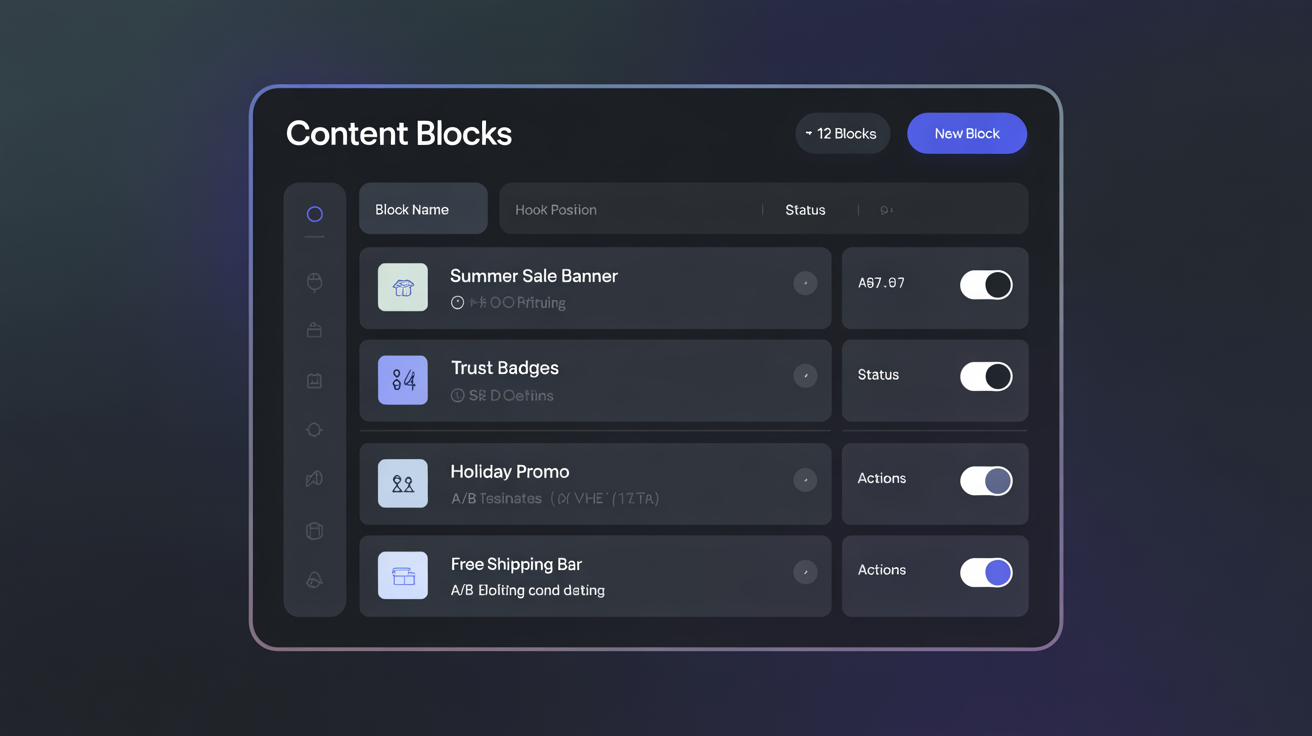
Click the toggle to enable the block, then reload your storefront to verify. This resolves roughly 30% of "my block isn't showing" reports.
Check 2: Is the hook correct for the target page?
Confirm the block is assigned to a hook that fires on the page you are testing. Open the block editor and check the Hook Position field.
Hook-to-page mapping for common mistakes:
| If you expect the block on... | The correct hook is... | Wrong hooks people use |
|---|---|---|
| Homepage | displayHome | displayTop (every page, not just home) |
| Every page | displayTop or displayFooter | displayHome (homepage only) |
| Product pages | displayProductAdditionalInfo | displayHome |
| Cart page | displayShoppingCartFooter | displayTop |
| Order confirmation | displayOrderConfirmation | displayOrderDetail |
| Customer account — order history | displayOrderDetail | displayCustomerAccount |
Use the visual hook selector (click the Hook Position field) to see a storefront wireframe — the highlighted regions show you exactly where each hook fires.
Check 3: Are conditions excluding you?
If the block has conditions set, you may not be in the matching audience. To test:
- Temporarily remove all conditions from the block
- Clear the HTMLBox Pro cache (block list → "Clear Cache" button in toolbar)
- Reload the storefront — if the block now appears, the conditions were filtering you out
- Re-add conditions one at a time, testing after each, to find which condition is too restrictive
Most common condition mistakes:
- Customer Group = Wholesale — you are testing as a regular customer or guest
- Date Range — start date has not been reached yet, or end date has passed
- Language — set to a language you are not currently viewing
- Category — testing on a product that does not belong to the selected category
Check 4: Is the cache stale?
HTMLBox Pro caches rendered blocks for performance. After creating a new block or making changes, the old cached version (or absence of the block) may persist until the cache is refreshed.
Clear the HTMLBox Pro cache:
- Go to the HTMLBox Pro block list
- Click "Clear Cache" in the toolbar at the top of the list
Also clear PrestaShop's main cache:
- Admin → Advanced Parameters → Performance
- Click "Clear cache"
After both clears, reload the storefront page. If the block still does not appear, proceed to Check 5.
Check 5: Does your theme support this hook?
A theme can skip any PrestaShop hook it does not want to support. If the theme's template file does not include a call to the hook, no module output will ever appear there — regardless of HTMLBox Pro configuration.
How to check:
- Connect to your server via FTP/SFTP
- Navigate to
/themes/[your-theme-name]/templates/ - Open the
.tplfile for the page where the hook should appear (e.g.,index.tplfor homepage,product.tplfor product pages) - Use Ctrl+F to search for the hook name (e.g.,
displayHome,displayProductAdditionalInfo) - If the hook name does not appear in the template file, the theme does not call that hook
Fix: Ask your theme developer to add the hook call. The standard PrestaShop syntax is:
{hook h='displayHome'}Alternatively, choose a different hook that your theme does support.
Check 6: Sidebar hooks on mobile
Hooks like displayLeftColumn and displayRightColumn frequently do not render on mobile because most modern themes collapse or remove sidebars on small screens. The sidebar HTML may not be in the DOM at all on mobile viewports.
Fix: Open the block editor and disable the Mobile toggle in the Responsive Visibility section. The block will not attempt to render on mobile, avoiding empty or broken output.
Block Appears in the Wrong Position
- Double-check the hook name — many hooks have similar names. For example:
displayTop(below header) vs.displayBanner(above header) — both are sitewide, but different vertical positionsdisplayHome(homepage main area) vs.displayTopColumn(homepage above main area)displayOrderDetail(customer account) vs.displayOrderConfirmation(post-purchase page)
- Use the visual hook selector — click any position in the wireframe to see the exact hook name before selecting it
- If multiple blocks share the same hook, the render order is controlled by the drag-and-drop order in the block list. The top block renders first (topmost position on the page). Reorder by dragging.
WYSIWYG Editor Not Loading
The WYSIWYG editor requires JavaScript to load and will fail silently if scripts are blocked.
Diagnosis — check the browser console:
- Open the block editor
- Press F12 to open browser developer tools
- Click the Console tab
- Look for any red error messages — they will name the blocked script or the specific JavaScript error
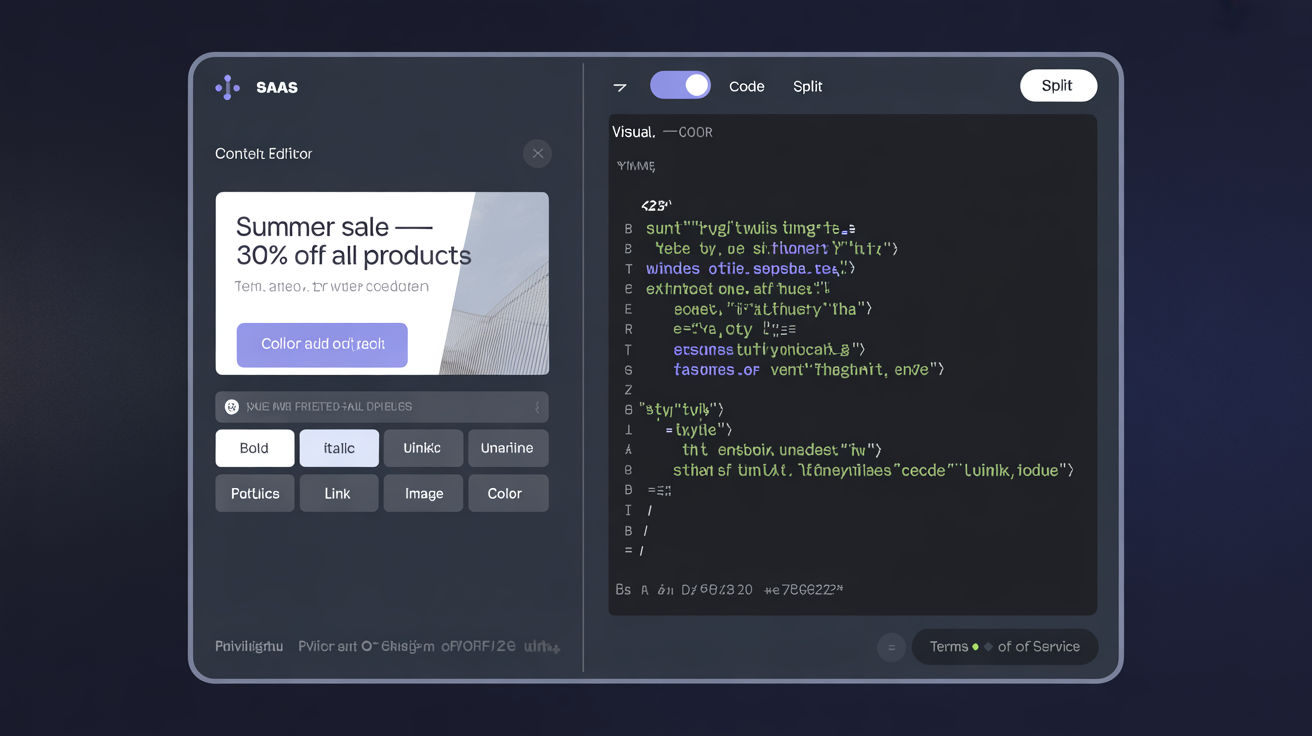
Immediate workaround: Click the < > button in the editor toolbar to switch to Code Mode. Code Mode works in all browsers without any external dependencies and is always available. You can write and save HTML content there while investigating the WYSIWYG issue.
Common causes and fixes:
| Cause | Symptom | Fix | |---|---|---| | Browser extension blocking scripts | Console shows "Script blocked" | Disable ad blockers / script blockers for your admin domain | | Content Security Policy (CSP) error | Console shows "Refused to load script" | Ask your IT/hosting team to add the TinyMCE script to your CSP allowlist | | Admin served over HTTP (not HTTPS) | Editor may not load in modern browsers | Ensure your admin panel is served over HTTPS | | Outdated browser | Visual glitches, failed loads | Use a modern browser (Chrome, Firefox, Safari, Edge — latest version) | | PrestaShop JS cache outdated | Editor loads empty or broken | Clear PrestaShop cache and force-refresh the admin page (Ctrl+Shift+R) |
HTML Renders as Plain Text
Symptom: Your HTML (e.g., <h2>Hello</h2>) appears literally on the storefront as the text <h2>Hello</h2> rather than as a styled heading.
Cause: You pasted HTML markup into the WYSIWYG editor while in visual mode. The WYSIWYG editor treats everything typed or pasted in visual mode as text content — it does not interpret it as HTML code.
Fix: Switch to Code Mode using the < > button in the toolbar. In Code Mode, paste your HTML. Save. The storefront will render it correctly.
Scheduled Block Not Activating or Deactivating on Time
Cause 1: Timezone mismatch
Scheduling uses the store's configured timezone (International → Localization → Timezone), not your browser's timezone or the server's system timezone. A block set to start at 09:00 Polish time must be entered as 09:00 in the editor — the module stores and evaluates it relative to the store's timezone setting.
Verify: Check International → Localization and confirm the timezone is what you expect. If the store timezone shows "UTC" and your audience is in Poland, the block will activate/deactivate 1–2 hours off from your intention.
Cause 2: Cache not refreshing at schedule time
The schedule activates when the block cache is next refreshed. If a visitor loads the page at exactly midnight on your start date but the cache is still serving the previous (empty) version, the block will not appear until the cache refreshes.
Fix for development/testing: Manually clear the HTMLBox Pro cache (block list → Clear Cache) immediately after the scheduled time to force an immediate re-evaluation.
Fix for production reliability: Ensure PrestaShop's cron job is configured to run at least hourly. The cron job clears expired cache entries, which triggers blocks to re-evaluate their schedule conditions. Configure it in your hosting control panel (cPanel → Cron Jobs) with:
0 * * * * php /var/www/html/bin/console prestashop:cache:clear
A/B Test Is Not Recording Conversions
Conversions showing zero despite traffic
Check 1: Goal type mismatch
The conversion goal must match the action your block is designed to trigger. If your block contains a form but you selected "Click" as the goal, form submissions are not counted. If your block has a link to /products but you selected "Link click" with a different URL as the target, no clicks will match.
Fix: Open the A/B test settings, review the Goal Type, and confirm it matches what your block actually does.
Check 2: Cookie-based assignment blocked
Variant assignment uses a session cookie. Visitors in private/incognito mode have cookies blocked by default in some browsers. Visitors who have explicitly blocked all cookies (via GDPR cookie consent rejection) may not be consistently assigned to a variant.
Fix: Accept cookies in your test session. Private/incognito mode is not suitable for testing A/B variant assignment.
Check 3: Purchase goal attribution window
For "Purchase" goal tests, the conversion is attributed to the last variant the visitor saw before placing the order. If your block is on a product page but the visitor browsed multiple sessions over several days, the attribution may be inconsistent.
What to do: For purchase-goal tests, ensure the test has been running long enough for complete purchase cycles (allow 2× your typical decision-to-purchase timeframe).
Multistore: Block Appearing on Wrong Shops
Symptom: A block created for "Germany Store" appears on "France Store" as well.
Cause: The block was created while "All Shops" was selected in the admin header, making it global.
How to identify: Open the block editor — the shop context is shown at the top of the edit panel. A global block shows "All Shops"; a shop-specific block shows the shop name.
Fix:
- Delete the block in the "All Shops" context
- Switch to the specific shop context in the admin header
- Recreate the block in the correct shop context
To copy a block from global to shop-specific:
- Export the block from the "All Shops" context (block list → Export)
- Switch to the specific shop context
- Import the exported JSON
- Delete the global version
To make a global block shop-specific after the fact: You cannot convert a global block to a shop-specific one directly — you must delete and recreate it in the correct context.
JavaScript Conflicts with Theme
Symptom: A block that includes JavaScript works on a test page but breaks something on the storefront (e.g., the product image carousel stops working, or the mobile menu stops responding).
Cause: Your block's JavaScript conflicts with the theme's scripts — for example, overriding a global variable, re-initialising a slider plugin, or using the same CSS class name for a different purpose.
Diagnosis:
- Open browser developer tools (F12) → Console tab
- Load the page where the conflict occurs
- Look for JavaScript errors after your block renders
- The error message will indicate which script is conflicting
Common fixes:
- Wrap your JavaScript in an immediately invoked function expression (IIFE) to avoid polluting the global scope:
(function() { /* your code */ })(); - Use unique, namespaced CSS class and ID names (e.g.,
htmlbox-exit-popupinstead ofpopup) - Avoid redefining jQuery (
$) if it is already loaded by the theme — usejQuerydirectly orjQuery(document).ready(function($) { ... }) - Assign your block a CSS ID (block settings panel) and scope all your JavaScript to that ID
Performance: Page Load Slows After Adding Many Blocks
HTMLBox Pro caches rendered blocks, so each block adds minimal per-request overhead. However, blocks with heavy external resource loads (large images, third-party iframes, external JavaScript libraries) can affect perceived page speed.
Optimisation checklist:
- Use
loading="lazy"on all images below the fold in your blocks - Specify
widthandheighton all images to prevent layout shift (Core Web Vitals) - Load heavy third-party scripts (chat widgets, analytics) via the
displayBeforeBodyClosingTaghook so they defer to after the main content loads - Avoid loading the same external library (e.g., Bootstrap, jQuery) twice if it is already loaded by the theme
Getting Further Help
If none of the above resolves your issue:
- Note your PrestaShop version, PHP version, and theme name
- Take a screenshot of the block settings and any browser console errors (F12 → Console)
- Check whether the problem occurs with all themes disabled (Admin → Themes → switch to PrestaShop default theme temporarily) — if it resolves, the issue is theme-specific
- Contact support via plugkit.io/support with these details
We respond within 24 business hours (Monday–Friday, CET).
Next Steps
- Configuration Guide — review all block settings to rule out misconfiguration
- Conditions Guide — ensure conditions are not inadvertently filtering out your session
- Changelog — check if your issue was fixed in a newer version