Configuration
All plugin settings live under WooCommerce → Fakturownia Pro. The settings screen is organized into six tabs. Changes take effect immediately after clicking Save Settings on each tab.
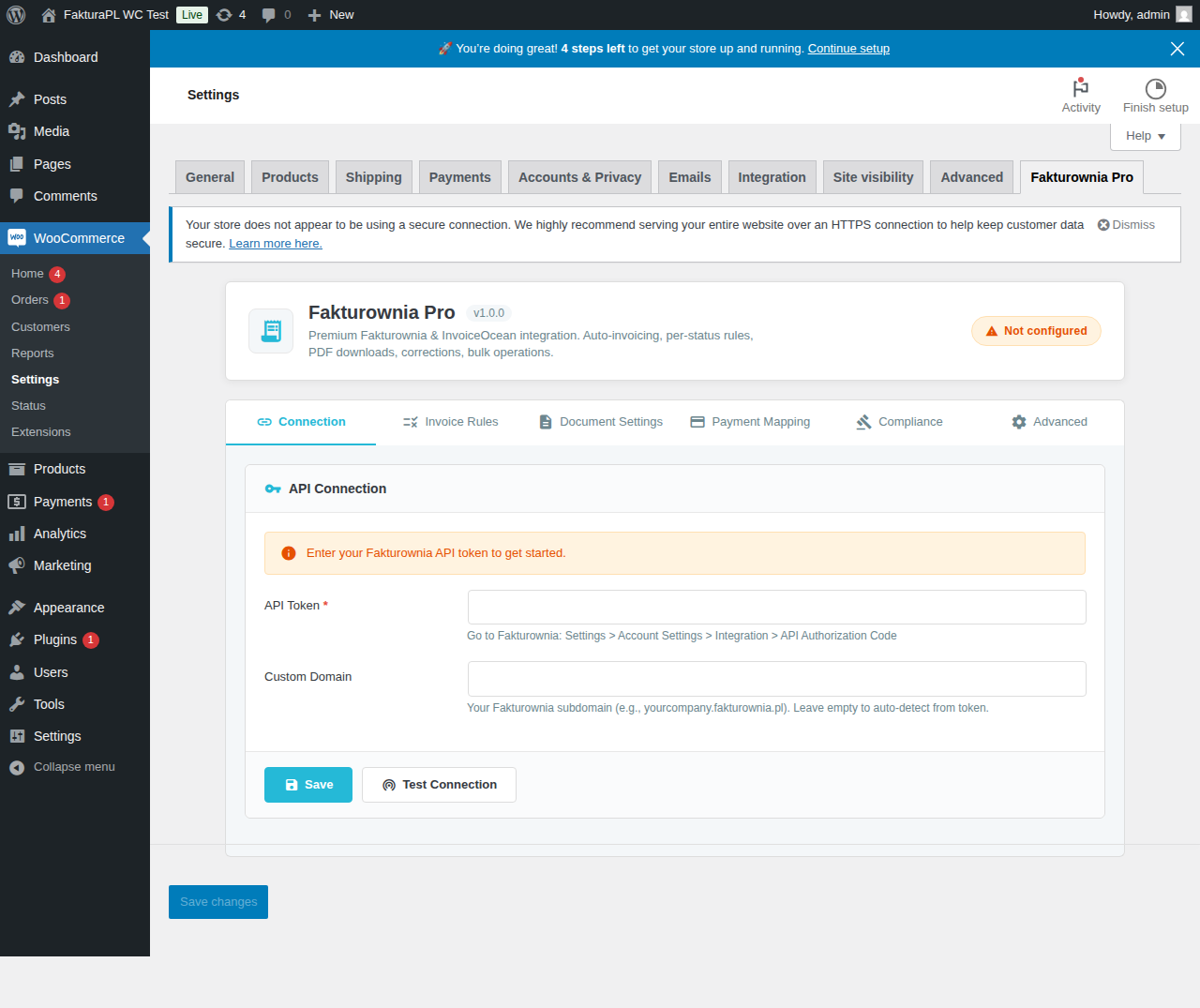
Tab 1: General
The General tab handles the API connection and top-level plugin behavior.
API Connection
| Field | Description | Notes |
|---|---|---|
| API Token | Your Fakturownia API authorization code | Include the full string with /subdomain suffix |
| Subdomain | The part before .fakturownia.pl | Enter mycompany not mycompany.fakturownia.pl |
| Test Connection | Fires a live API call and displays your account name on success | Run this after any token change |
What "Test Connection" does: Makes a GET /api/invoices.json?per_page=1 request to Fakturownia with your credentials. On success, it displays your Fakturownia account company name — a quick confirmation that the token is valid and points to the correct account. On failure, it shows the HTTP status and error message from the Fakturownia API.
Department (Oddział)
If your Fakturownia account uses multiple departments (divisions), select which department should receive documents from this WooCommerce store. Leave blank to use the account's default department. This setting is overridable per invoice rule.
Language
Selects the language for generated invoice PDFs. Options: Polish (pl) or English (en). This controls the document labels ("Faktura VAT" vs. "VAT Invoice", "Data wystawienia" vs. "Issue date") — not the product names, which come from your WooCommerce catalog.
HPOS Mode
The HPOS status indicator confirms whether the plugin is operating in HPOS-compatible mode. When WooCommerce HPOS is active, all order reads and writes use wc_get_order() and the WooCommerce CRUD abstraction layer. No raw $wpdb queries against order data are made.
Tab 2: Documents
The Documents tab controls invoice content and formatting.
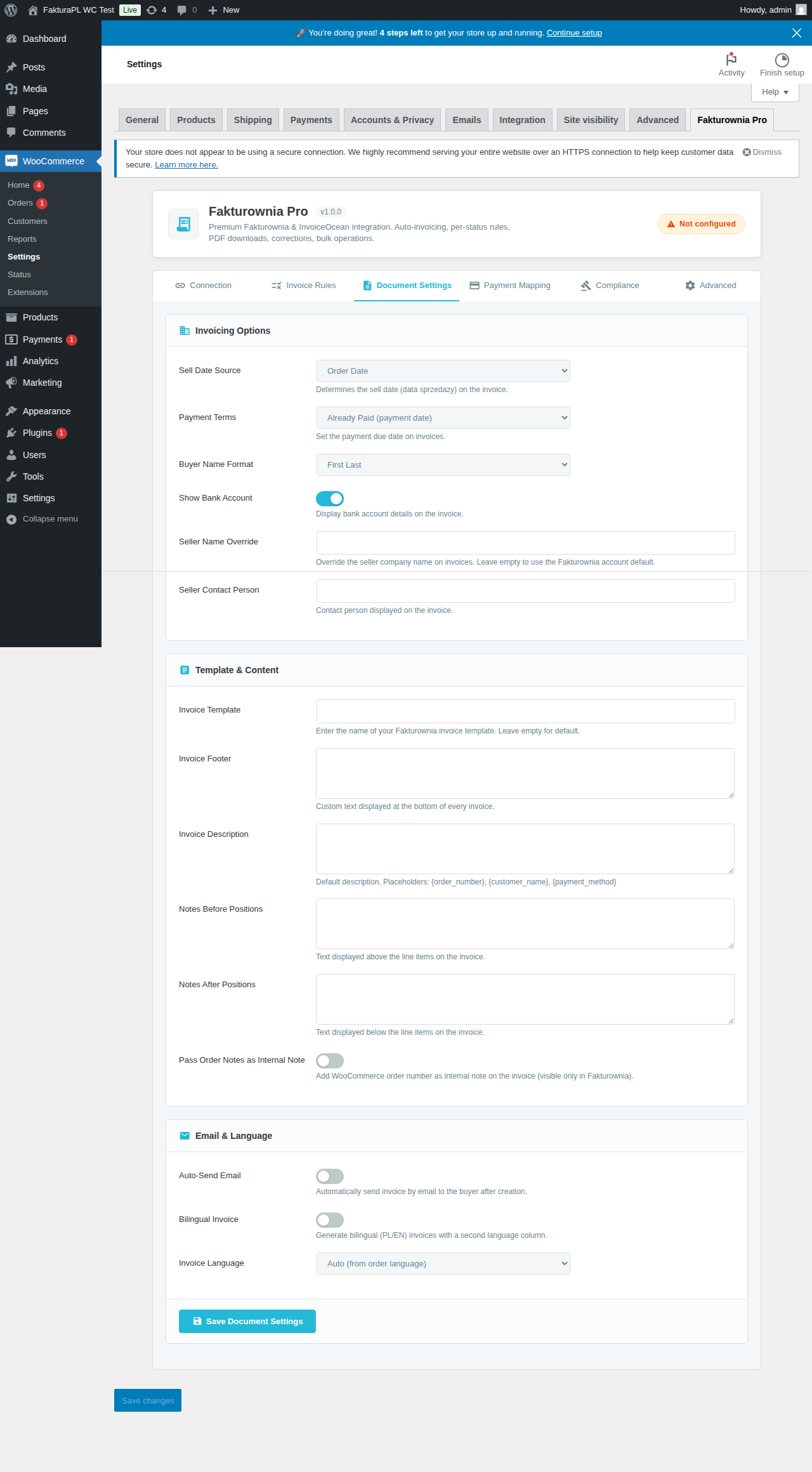
Invoice Number Series
By default, Fakturownia manages sequential numbering. Enter a custom series name here only if:
- Your Fakturownia account uses named series (e.g.,
WC/2025/) - Your accountant requires a specific numbering prefix for documents from this store
The series name must match exactly what is configured in Fakturownia → Settings → Numbering.
Seller Information
| Option | Description | |---|---| | Use account default | Seller details come from your Fakturownia account settings | | Custom | Override company name, NIP, address, bank account for documents from this store |
Custom overrides are useful when running multiple WooCommerce stores from a single Fakturownia account but with different brand identities.
Buyer Data Source
The plugin resolves buyer data for invoice generation in this priority order:
- Extension attribute
fakturownia_nipon the order — set when the NIP checkout field is enabled and the customer entered a NIP - Customer
tax_idattribute from the billing address, if present - Standard billing fields:
billing_company(if set), thenbilling_first_name+billing_last_name
For B2B stores, always enable the NIP checkout field (see Compliance tab) to ensure the buyer's NIP appears on invoices.
Attach PDF to Email
Enable to attach the invoice PDF to WooCommerce order emails. Select which email types receive the attachment:
| Email type | Typical use |
|---|---|
| New Order (admin) | Internal notification — the admin copy gets the invoice attached |
| Order Processing (customer) | Customer confirmation email — attach invoice when triggered on processing status |
| Order Complete (customer) | Fulfilled order email — attach for stores triggering invoices on completed |
| Custom status emails | Any custom WooCommerce email registered by a plugin |
Select only the email types where attaching makes sense. Attaching to the admin email is useful for your accounting team; attaching to the customer email serves as the primary invoice delivery mechanism.
Customer Invoice Access
When enabled, customers see a "My Invoices" tab in My Account that lists all their invoices with download links. The tab is visible only to logged-in customers who have at least one invoice on record.
Tab 3: Invoice Rules
The Invoice Rules tab contains a summary of configured rules and links to the full rule editor. Each rule can be configured with:
- Trigger status: The WooCommerce order status that fires the rule
- Document type: Invoice, receipt, pro forma, credit note, or bill
- Payment method filter: Restrict the rule to specific gateways
- Customer type filter: B2B (has NIP) or B2C
- Order total filter: Apply only within a total range
Full rule documentation: Invoice Rules.
Tab 4: Payment Methods
Map WooCommerce payment gateway IDs to Fakturownia payment types. This mapping populates the payment_to field on generated invoices, which affects how the payment method label appears on the PDF.
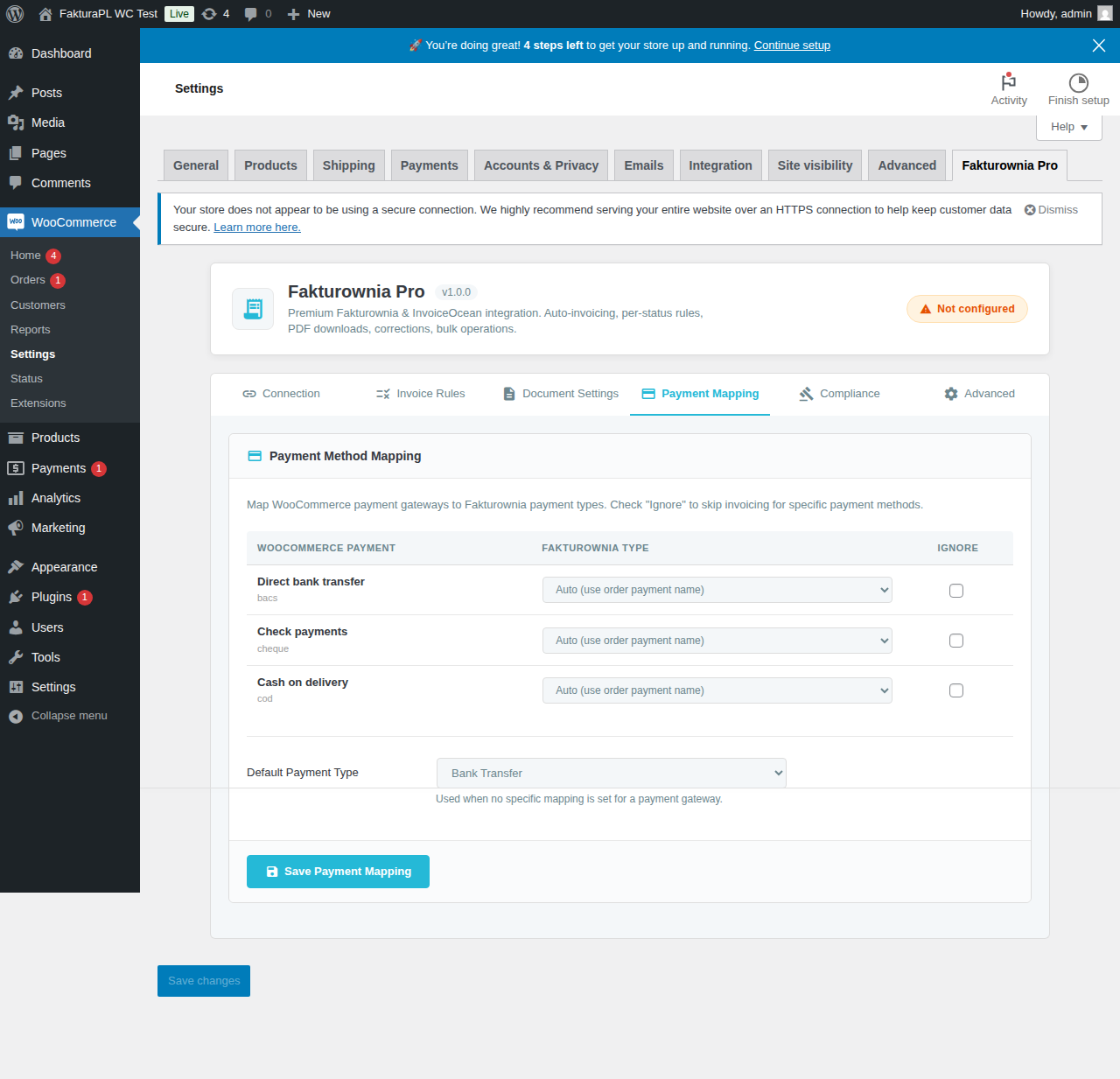
Default Mappings
| WooCommerce Gateway ID | Fakturownia payment type |
|---|---|
| bacs | transfer |
| cheque | transfer |
| cod | cash |
| stripe | card |
| stripe_sepa | transfer |
| paypal | paypal |
| przelewy24 | transfer |
| dotpay | transfer |
| blik | transfer |
| tpay | transfer |
For custom or third-party payment gateways not in this list, click "Add mapping" and enter:
- The gateway ID — found in WooCommerce → Settings → Payments next to the gateway name
- The Fakturownia payment type — select from the dropdown
Unknown gateways (no mapping configured) default to transfer. You can change this default under the mapping settings.
Payment Due Date
Sets the default payment term in days for generated invoices. Fakturownia calculates the due date as invoice issue date + this number of days. Common values: 7, 14, 30. Overridable per invoice rule.
Leave blank to inherit the default from your Fakturownia account settings (configurable in Fakturownia → Settings → Invoices → Default payment term).
Tab 5: Compliance
The Compliance tab provides access to Polish tax compliance features. Each feature has its own detailed documentation section in the Compliance page.
| Feature | Default | When to enable | |---|---|---| | NIP field at checkout | Off | B2B stores that need the buyer's Polish tax ID on invoices | | EU OSS VAT regime | Off | Stores selling B2C to EU countries and registered for OSS | | Split Payment (MPP) | Off | Stores selling Annex 15 goods/services B2B in Poland | | GTU codes | Off | All Polish VAT payers — required for correct JPK_VAT reporting | | Reverse Charge | Off | Stores selling to EU VAT-registered businesses outside Poland |
Tab 6: Advanced
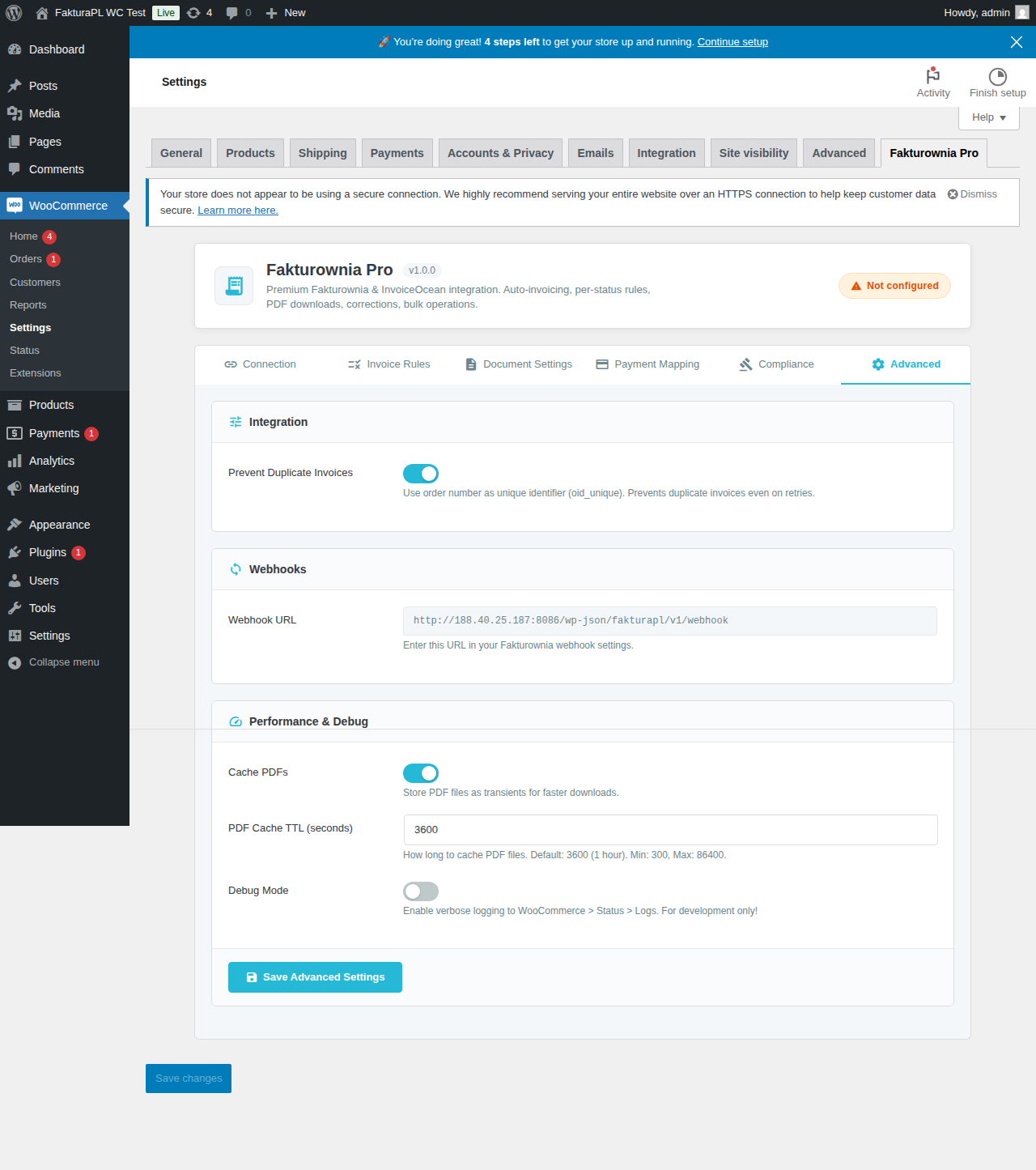
The Advanced tab controls reliability, debugging, and integration options.
API Request Timeout
Default: 15 seconds. How long the plugin waits for a response from the Fakturownia API before considering the call failed.
| Server type | Recommended timeout | |---|---| | Shared hosting (often slow) | 30 seconds | | VPS / dedicated (fast) | 10 seconds | | Cloud hosting with fast outbound | 8 seconds |
Setting the timeout too low causes unnecessary failures on servers with slightly elevated latency. Setting it too high means errors are slower to surface and longer to resolve.
Retry Queue
Failed API calls are automatically retried using WP-Cron. Configure:
| Setting | Default | Notes |
|---|---|---|
| Max retries | 3 | After this count, the order is flagged as fakturownia_failed and no further automatic retries occur |
| Retry interval | 5 minutes | Time between retry attempts (WP-Cron schedule) |
| Notify on permanent failure | Admin email | Sends an email to the WordPress admin email address when retries are exhausted |
After 3 failed retries, the order remains fakturownia_failed until you manually trigger regeneration from the order meta box or the WP-CLI process-queue command.
Debug Logging
Enable to write detailed API request and response logs to WooCommerce → Status → Logs under the fakturownia-pro handle.
Important: Debug logs contain invoice data including buyer details and product information. Enable only during active troubleshooting and disable in production immediately afterward.
# Access logs via WP-CLI:
wp eval 'echo WC_Log_Handler_File::get_log_file_path("fakturownia-pro");'
# Then tail the returned file path
Custom Action Hook
For developers who need to trigger invoice generation from custom code:
// Generate an invoice for order 1234
do_action('fakturownia_pro_generate_document', 1234, 'invoice');

// Generate a credit note for order 1234
do_action('fakturownia_pro_generate_document', 1234, 'correction');
This bypasses the status-based rule system and is useful for custom checkout flows, admin tools, or ERP integrations.
WP Settings API — Export and Import
All plugin settings are stored via the WordPress Settings API under the fakturownia_pro_settings option group. Export and import are supported for deployment to staging/production environments.
Export via WP-CLI
# Export to JSON file
wp option get fakturownia_pro_settings --format=json > fakturownia-pro-settings.json
Import via WP-CLI
# Import on a new site (API token is NOT included in exports for security)
wp option update fakturownia_pro_settings "$(cat fakturownia-pro-settings.json)" --format=json

# Re-enter the API token manually after import
wp eval 'update_option("fakturownia_pro_api_token", "YOUR_TOKEN_HERE");'
What Is and Is Not Exported
| Included in export | Not included (security) | |---|---| | Invoice rules | API token | | Document settings | Subdomain | | Payment gateway mappings | Stored invoice references | | Compliance feature settings | Customer NIP data |
The API token and subdomain must be re-entered manually after import to prevent credential exposure in exported configuration files.
Recommended Configurations by Use Case
B2C Retail Store (Polish market)
| Setting | Value | |---|---| | Invoice rule: processing → Create VAT Invoice | Yes + Also Mark as Paid + Email | | Invoice rule: refunded → Create Credit Note | Yes + Email | | Buyer name format | Full name | | GTU codes | Configure per product type | | OSS | Off (Polish customers only) |
B2B Software License Store (Polish + EU)
| Setting | Value | |---|---| | NIP field at checkout | Enabled, required for companies | | Invoice rule: processing → Create VAT Invoice | Yes + Also Mark as Paid + Email | | Invoice rule: refunded → Create Credit Note | Yes + Email | | OSS | Enabled (for EU B2C sales) | | Reverse Charge | Enabled (for EU B2B sales) | | GTU_12 | Mapped to software license product types |
COD Store
| Setting | Value | |---|---| | Invoice rule: completed → Create VAT Invoice | Yes + Also Mark as Paid + Email | | Invoice rule: refunded → Create Credit Note | Yes + Email | | COD gateway mapping | cash |
Next Steps
- Invoice Rules — configure per-status automation
- Compliance — NIP, OSS, GTU, MPP, Reverse Charge in detail
- Troubleshooting — common issues and fixes