Fakturownia Pro — Complete Configuration Reference
Fakturownia Pro's configuration panel has 6 tabs. Each tab controls a distinct area of the integration. This guide covers every single setting across all tabs in the order you will typically encounter them, with practical examples and a recommended-settings comparison for Polish B2C stores versus Polish B2B stores.
Open the configuration panel by going to Modules → Module Manager, finding Fakturownia Pro, and clicking "Configure".
Connection Tab
The Connection tab establishes the link between your PrestaShop store and your Fakturownia account. Every other feature depends on a working connection — configure this first.
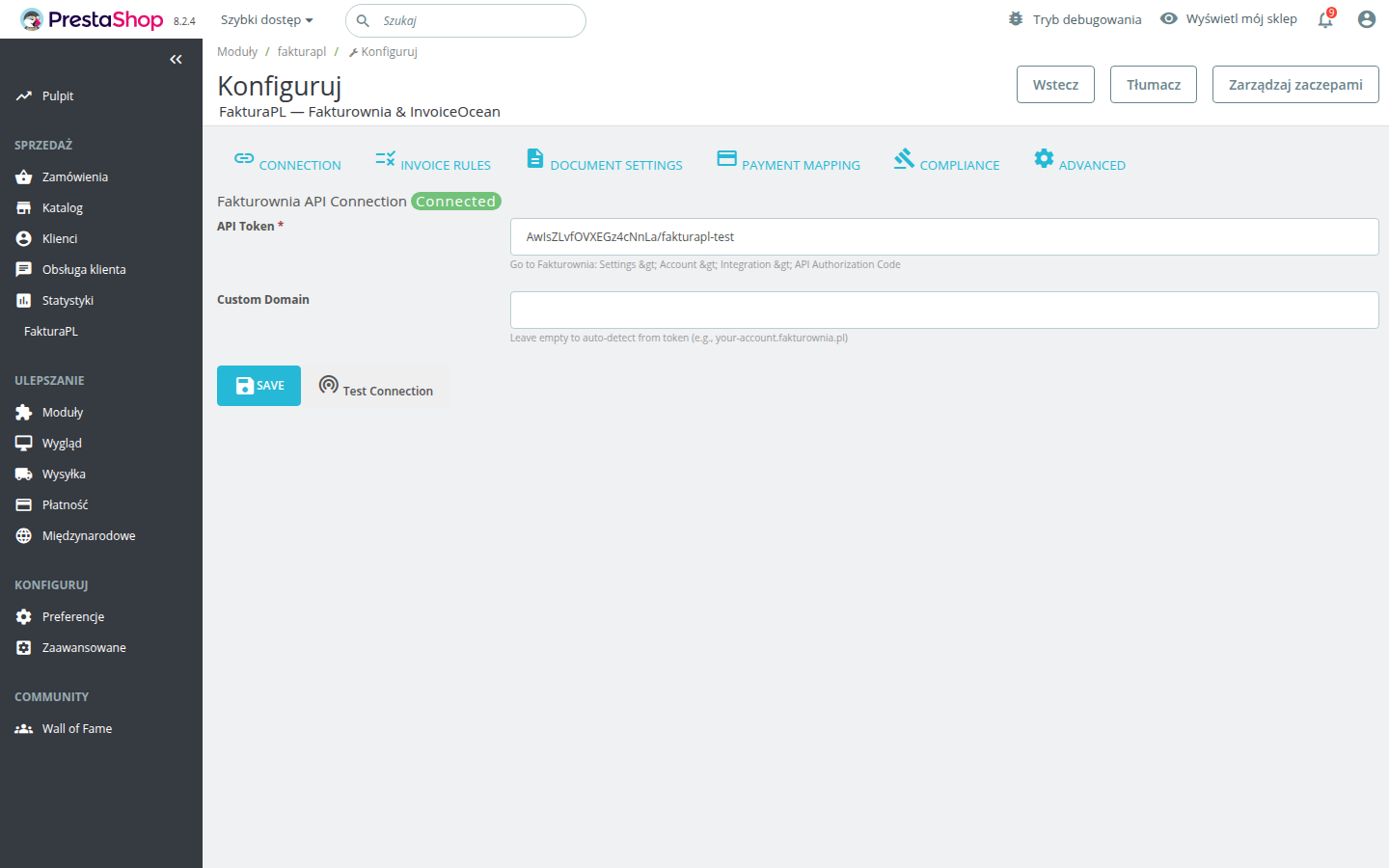
API Token
Paste your Fakturownia API Authorization Code here. You find it in your Fakturownia account under Settings → Account → Integration → API Authorization Code.
The token format is a long alphanumeric string followed by a slash and your subdomain: AwIsZLvfOVXEGz4cNnLa/yoursubdomain. The module extracts the subdomain automatically — you do not need to enter it separately.
If you use InvoiceOcean (the international version of Fakturownia), the token format is identical. Use it the same way.
Security note: Your API token grants full write access to your Fakturownia account. Do not share it publicly, do not paste it into tickets or emails, and rotate it immediately if you suspect it has been compromised (Fakturownia → Settings → Integration → regenerate token).
Custom Domain
Leave this field empty for standard Fakturownia.pl and InvoiceOcean.com accounts. The module extracts your subdomain from the API token automatically.
Set a custom domain only if you use a white-label Fakturownia setup with a domain like invoices.yourcompany.pl. Enter the full domain without https:// — for example: invoices.yourcompany.pl.
Test Connection
Always click "Test Connection" after entering or changing your token. A green "Connected" badge confirms the API is reachable and the token is valid. A red error means either:
- The token is wrong or the wrong token type (use the API Authorization Code, not OAuth secrets)
- Your server cannot reach
fakturownia.ploutbound on HTTPS (ask your host) - Fakturownia.pl is temporarily unreachable (try again in a few minutes)
See the Troubleshooting guide for a full diagnosis table.
Invoice Rules Tab
This is the engine of Fakturownia Pro. Each rule maps a PrestaShop order status to a Fakturownia action. Rules fire automatically when an order's status changes — no manual work required.
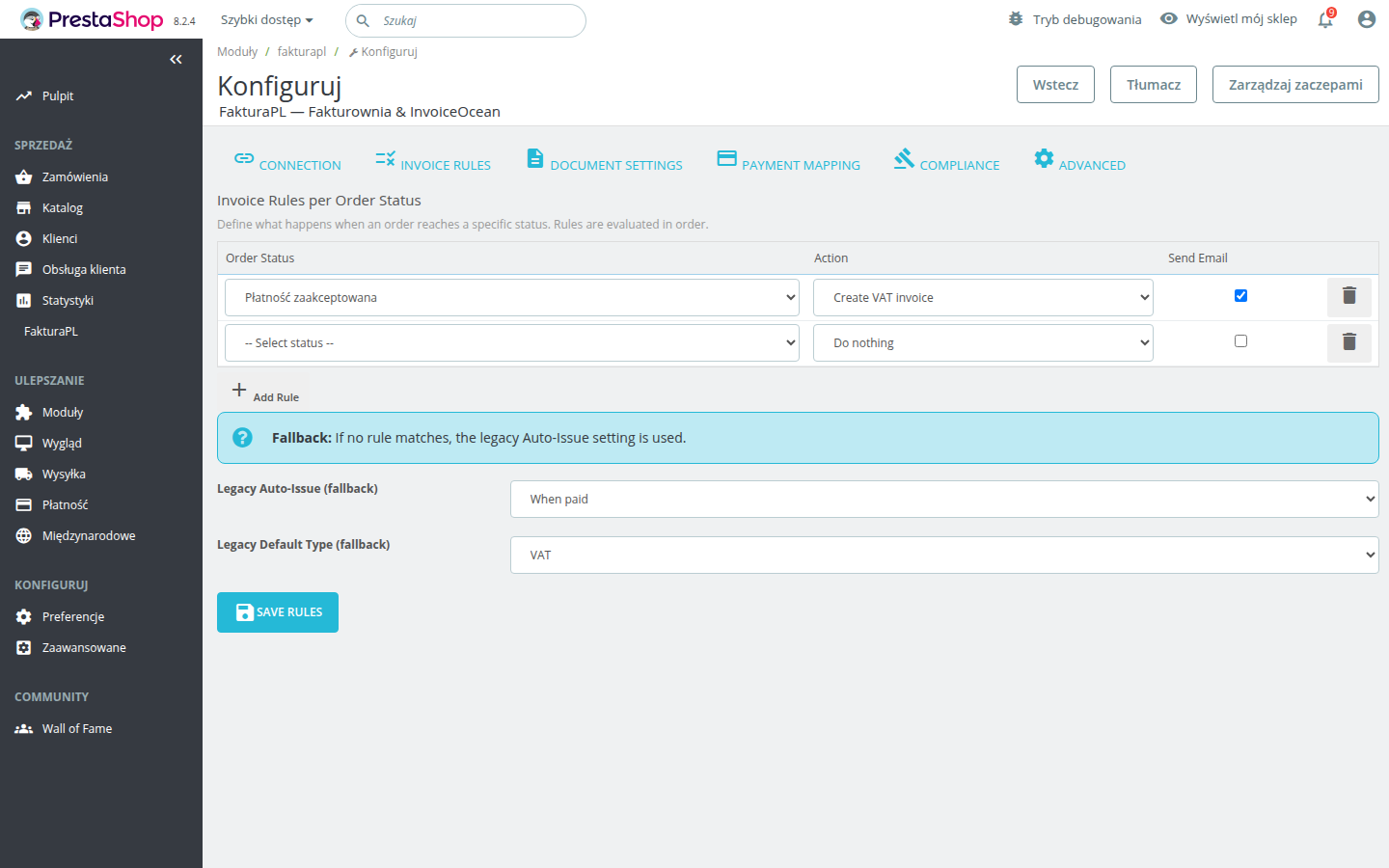
For a full explanation of every action, rule sequences, and edge cases, see the dedicated Invoice Rules guide. The key summary:
Available Actions
| Action | What it creates or does | |---|---| | Create VAT Invoice | Full VAT invoice (faktura VAT) in Fakturownia | | Create Proforma | Proforma invoice — requests payment, not an accounting document | | Create Receipt | Receipt (paragon) — for B2C sales below the till receipt threshold | | Mark as Paid | Updates an existing invoice's payment status to "paid" | | Send Email | Emails the invoice PDF to the buyer via Fakturownia | | Cancel Invoice | Cancels the invoice in Fakturownia (used on order cancellation) | | Create Correction | Correction invoice (faktura korygująca) for returns and refunds | | No Action | Ignores this status change entirely |
Email Toggle
Each rule has a Send Email toggle. When on, Fakturownia sends the invoice PDF to the buyer when the rule fires. The email uses the template and sender name configured in your Fakturownia account. Enable email only on the rule that creates the final VAT invoice — not on intermediate steps.
Also Mark as Paid
Available on any "Create" action. Creates the invoice and marks it as paid in a single step. Recommended for stores where the triggering status already confirms full payment (card payments, BLIK, instant transfers). See the Invoice Rules guide for when to use this versus a separate "Mark as Paid" rule.
Document Settings Tab
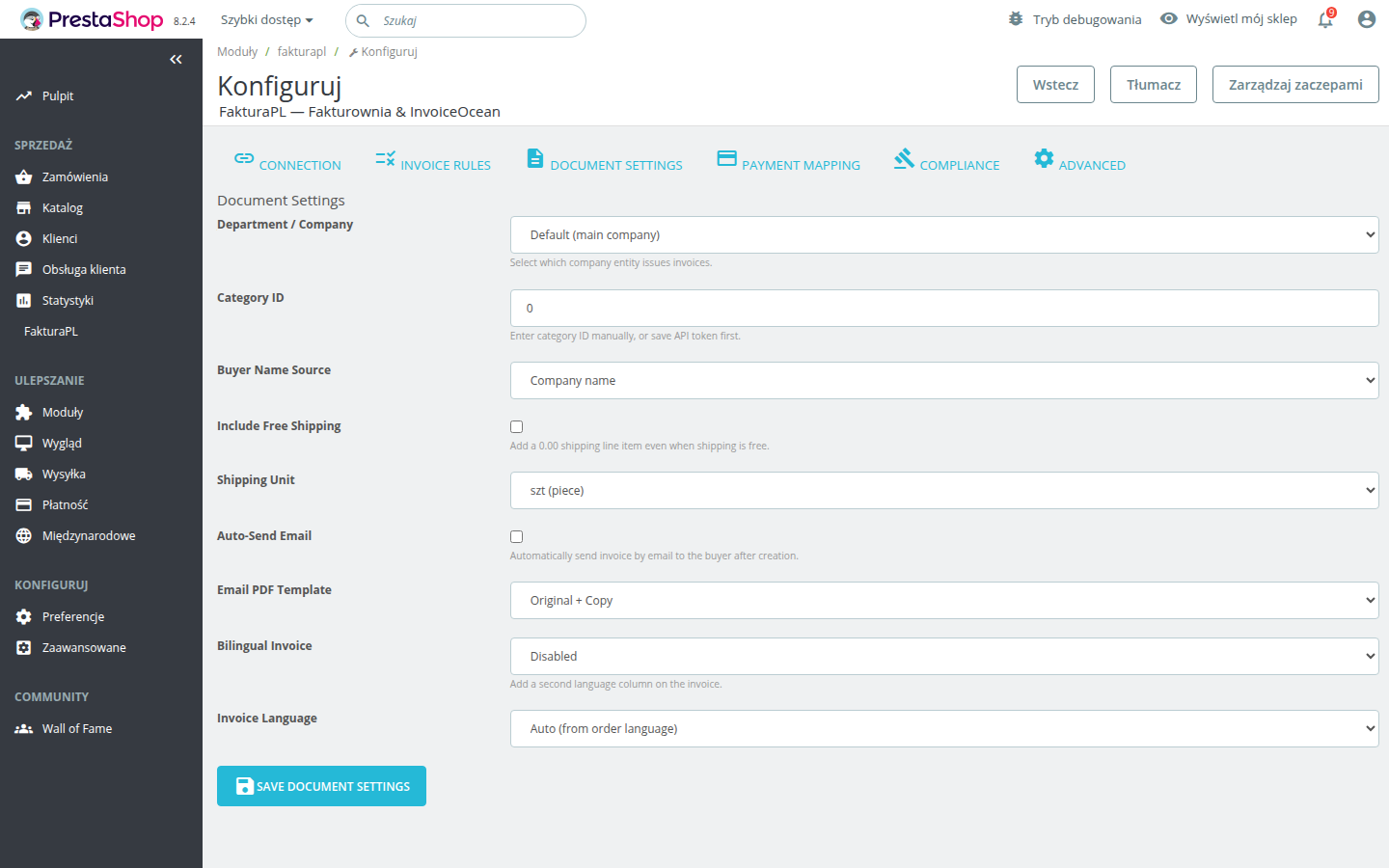
Controls how invoices look and what data they carry — applied to every invoice created by the module.
Department
If your Fakturownia account has multiple departments (wydziały), select the one invoices should be assigned to. Leave unset to use the account default.
When to use: Multi-brand stores or accounting teams that separate invoices by department. Leave blank for single-department accounts — there is no benefit to setting this if you only have one department.
Category
Optional invoice category for internal organisation in Fakturownia. Not visible on the invoice itself. Leave blank if you do not use categories in Fakturownia's reporting.
Buyer Name Format
Controls how the buyer's name appears on the invoice. Three options:
| Setting | What appears on the invoice | Best for | |---|---|---| | Company name | The company name from the order address | B2B-only stores | | Full name | The customer's first and last name | B2C-only stores | | Company + full name | Both company name and personal name | Mixed B2B/B2C stores |
Edge case: If a customer has "Company name" format selected but has not entered a company name at checkout, the invoice will fall back to their personal name. Ensure your checkout address form includes a required company name field for B2B customers.
Show NIP Field at Checkout
Adds a "Company NIP" input field to the checkout address form. When a customer enters a NIP, it is stored with the order and included on the invoice as the buyer's tax identification number.
The field is optional by default — customers who leave it blank receive a standard consumer invoice. You can make it required using PrestaShop's address field configuration if your store is exclusively B2B.
For KSeF compliance (mandatory from 2026 for Polish B2B), collecting NIP at checkout is essential — KSeF B2B invoices cannot be issued without the buyer's NIP.
Bilingual Invoices
When enabled, invoices are generated with two languages shown side by side (Polish and your selected secondary language). This requires bilingual invoice templates to be configured on the Fakturownia account side (Settings → Document templates).
When to use: Stores selling to international B2B customers who prefer documents in their language alongside Polish — common for German, Czech, and UK trade partners.
Sell Date Source
The sell date (data sprzedaży) on a Polish VAT invoice must accurately reflect when the sale occurred. Two options:
| Setting | Sell date value | Best for | |---|---|---| | Order date | The date the customer placed the order | Most stores — payment typically coincides with order placement | | Invoice creation date | The date the invoice was created in Fakturownia | Stores with delayed invoicing (e.g., NET30 B2B where invoice is created at end of month) |
Recommendation: Use "Order date" unless your accountant specifically advises otherwise. For immediate-payment stores (cards, BLIK, PayU), the order date and invoice creation date are effectively the same day anyway.
Payment Terms
Sets the payment deadline printed on the invoice. Options: 5, 7, 10, 14, 21, 30, 60, 90 days from issue; end of the month; or a custom number of days.
| Store type | Recommended setting | |---|---| | B2C (immediate payment — cards, BLIK) | Leave unset — inherit Fakturownia account default (typically 0 days) | | B2B bank transfer (NET7) | 7 days | | B2B bank transfer (NET14) | 14 days | | B2B NET30 | 30 days |
Setting payment terms on the module level overrides the Fakturownia account default for invoices created by this integration, but does not affect invoices created manually inside Fakturownia.
Internal Note
When enabled, the PrestaShop order note is copied to Fakturownia's internal note field. Internal notes are visible only inside the Fakturownia panel — they do not appear on the printed invoice PDF.
When to use: For stores where staff add order notes (e.g., "Customer called to confirm delivery address", "Priority order — expedite") that should be visible alongside the invoice in accounting without being shown to the buyer.
Notes Before Positions
Free text printed on the invoice above the line-item table (before the product rows). Appears on every invoice created by the module.
Common uses:
- Bank account details for NET30 invoices:
"Please transfer to: mBank 44 1140 2004 0000 3102 7685 1392" - Project reference:
"Project: Website Redesign Q1 2026 — Contract ref. WR-2026-001" - Proforma payment instructions:
"This is a proforma invoice. Please pay within 7 days to proceed with your order."
Notes After Positions
Free text printed on the invoice below the line-item table (after the product rows).
Common uses:
- Legal disclaimers or return policy summary
- Warranty terms:
"All software licenses are subject to the publisher's end-user license agreement." - Thank-you message:
"Thank you for your purchase."
Seller Name Override
By default, the seller name on invoices comes from your Fakturownia account settings. Enter a value here to override it for all invoices generated by this module.
When to use: When a single Fakturownia account is shared across multiple brands or PrestaShop stores, and each store should show a different seller name on its invoices.
Seller Contact Person
The contact person name printed on invoices. Leave blank to use the Fakturownia account default. Useful if different departments or account managers handle different stores.
Show Bank Account
Toggle whether your bank account number appears on the invoice.
Recommendation:
- Disable for card-only and prepaid stores — showing bank account details confuses card-paying customers and generates unnecessary payment queries
- Enable for bank transfer stores — buyers need account details to initiate their transfer
- Enable for B2B NET30 stores — buyers need the account number for scheduled payments
Payment Mapping Tab
Map each PrestaShop payment method to the correct Fakturownia payment type so invoices accurately reflect how the customer paid.
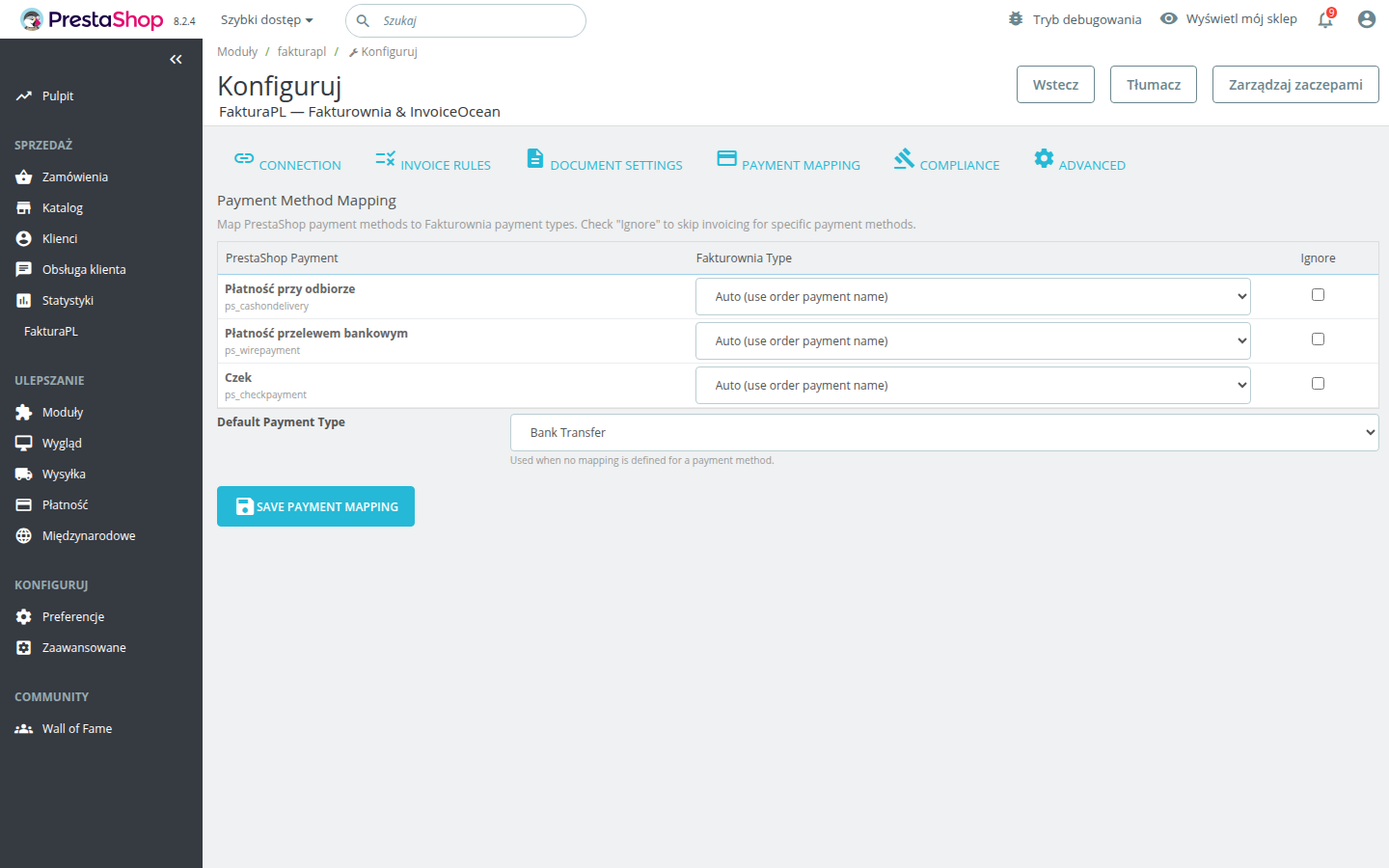
Fakturownia Pro loads all active payment modules from your PrestaShop installation dynamically. For each payment module, select the matching Fakturownia payment type from the dropdown.
Recommended Mappings
| PrestaShop payment module | Recommended Fakturownia type |
|---|---|
| Przelewy24, PayU, Tpay (bank transfers) | transfer |
| Przelewy24, PayU, Tpay (card payments via gateway) | card |
| Stripe | card |
| PayPal | paypal |
| Pay by Link (Przelewy24 BLIK) | transfer |
| Cash on Delivery (Pobranie) | cash |
| Bank wire (manual transfer) | transfer |
| Klarna | transfer |
| Installments (raty) | transfer |
If a payment method is unmapped, it defaults to transfer. Update mappings whenever you add or change payment modules — check the Payment Mapping tab after any change to your payment configuration.
Note: Some payment gateways (Przelewy24, PayU) support both card payments and bank transfers through the same PrestaShop module. If your gateway reports the specific payment method in the webhook, Fakturownia Pro can use it. If not, map the module to the most common payment type for your customers.
Compliance Tab
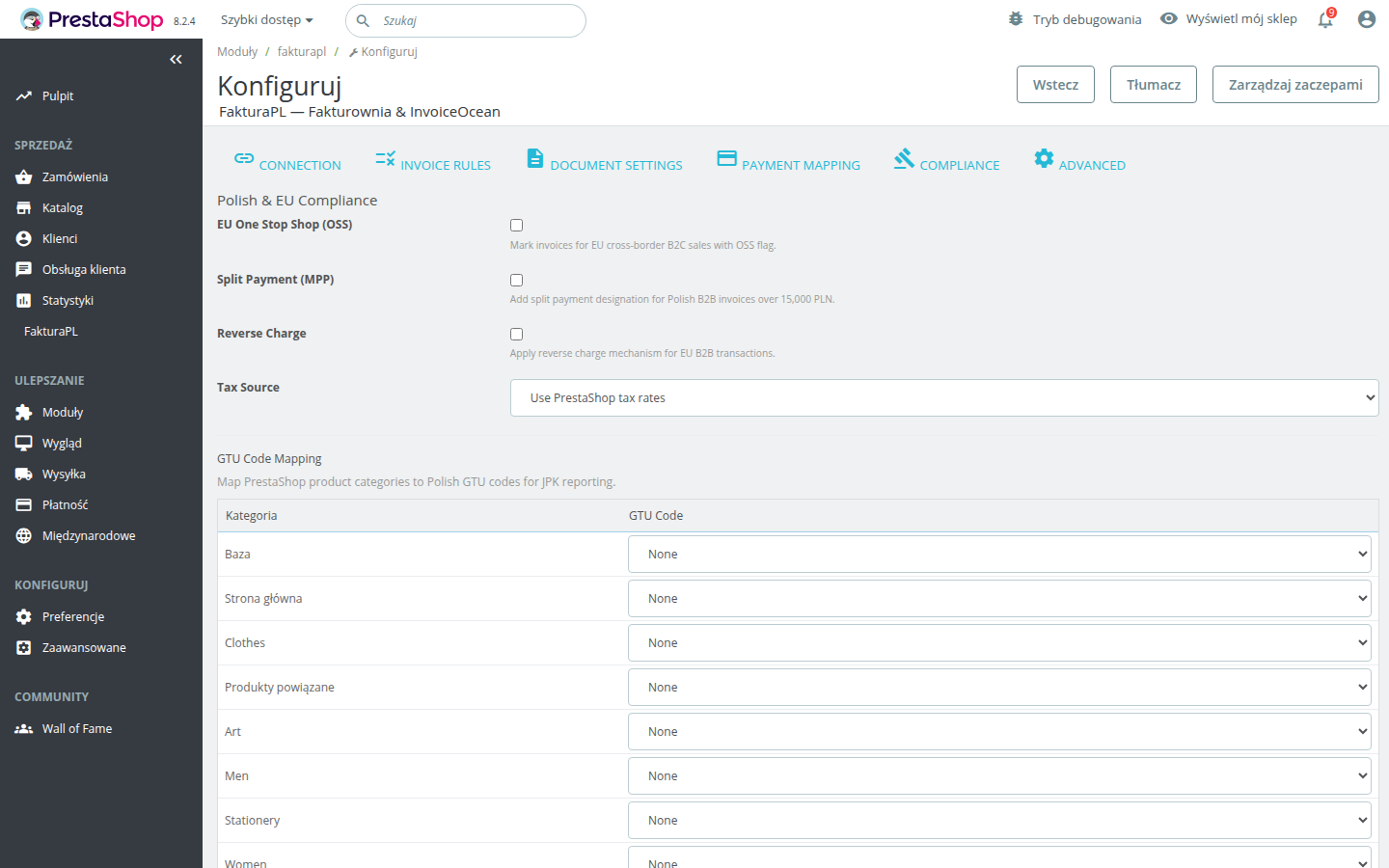
Handles Polish-specific and EU-wide tax compliance requirements. See the dedicated Compliance Guide for detailed setup, GTU code table, and practical examples.
EU OSS (One Stop Shop)
Enable if you sell B2C to customers in other EU countries and are registered for the OSS scheme. Fakturownia Pro validates the buyer's country against the EU member state list before applying the OSS flag, preventing incorrect flagging for UK, Norway, or Switzerland sales.
When to enable: Only if you are registered for OSS with the Polish tax authority. If you are below the €10,000 annual cross-border B2C threshold and have not registered, leave this off.
Split Payment (MPP)
Automatically appends "mechanizm podzielonej płatności" to Polish B2B invoices over 15,000 PLN gross. Below the threshold, no annotation is added. Enable for any store selling B2B goods or services that may trigger the split payment requirement.
GTU Codes
Map PrestaShop product categories to GTU codes (GTU_01 through GTU_13) for JPK_VAT reporting. Required if your products fall into any of the 13 GTU categories. See the Compliance Guide for the full GTU code table with category descriptions.
Reverse Charge
Enable for EU intra-community B2B sales. When a buyer provides a valid EU VAT number from a different EU member state, the module sets all invoice lines to tax-exempt and adds the reverse charge annotation. Leave disabled for B2C stores.
Advanced Tab
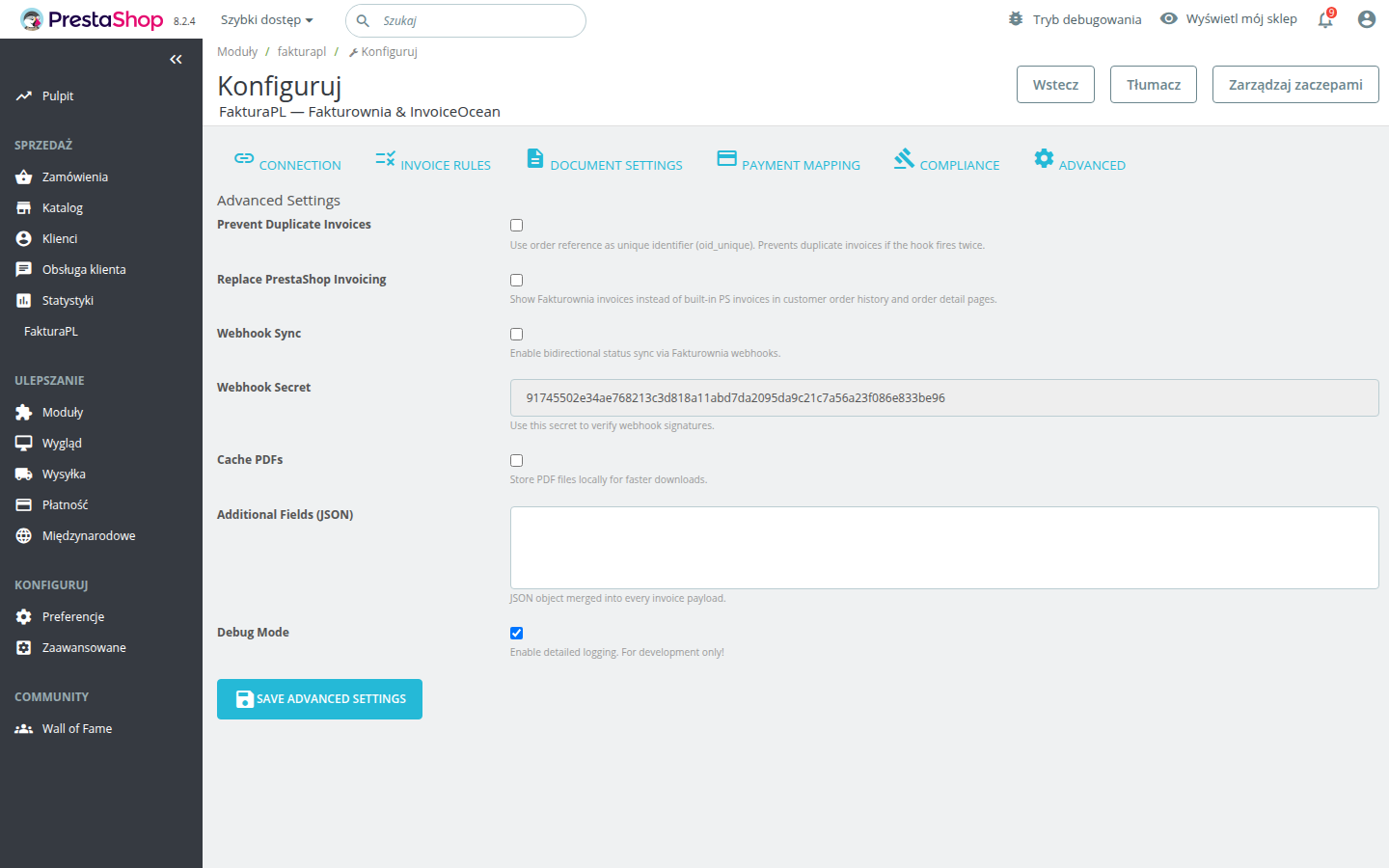
Technical integration settings that affect performance, deduplication, and the customer-facing invoice portal.
OID Deduplication
What it does: Includes a unique order identifier in every invoice creation request sent to Fakturownia. If Fakturownia receives a second request with the same order ID (e.g., from a payment gateway webhook retry), it rejects it and returns the existing invoice instead of creating a duplicate.
When to enable: Always enable this for any store using payment gateways that retry failed webhooks — which is virtually every modern gateway including Przelewy24, PayU, Stripe, and PayPal. There is no downside to enabling it; it only acts when a duplicate would otherwise be created.
What it does not do: It does not prevent duplicates caused by staff manually changing order statuses multiple times. Those require manual cleanup in Fakturownia.
Replace PS Invoicing
What it does: When enabled:
- Adds the Fakturownia invoice download link to the customer's order detail page (via the
displayOrderDetailhook) - Replaces the "My Invoices" section in the customer account with a Fakturownia-powered invoice list (via the
displayCustomerAccounthook) - Bypasses PrestaShop's native invoice generation for orders that have a Fakturownia invoice
When to enable: Enable this for any store where Fakturownia is the primary invoicing system — which is the intended use. Disable only if you need to run Fakturownia Pro alongside PrestaShop's native invoicing in parallel (uncommon).
Fallback behaviour: For orders without a Fakturownia invoice (placed before the module was installed, or for statuses with no active rule), PrestaShop's native invoice handling is used as a fallback. Customers are not left without an invoice.
Webhook Sync
What it does: Registers a webhook receiver at https://yourstore.com/module/fakturapl/webhook. When invoice status changes in Fakturownia (marked paid, sent, cancelled), the status is pushed to PrestaShop in real time and the local ps_fakturapl_invoices record is updated.
When to enable: Useful if you manually mark invoices as paid in Fakturownia (e.g., after receiving a bank transfer) and want the PrestaShop order to reflect the updated status without manual intervention. Also useful for stores where accounting staff work directly in Fakturownia.
Setup required: After enabling, register the webhook URL in your Fakturownia account: Settings → Integrations → Webhooks → Add webhook → enter https://yourstore.com/module/fakturapl/webhook and select the events you want to sync (payment status changes, cancellations).
PDF Cache
What it does: Caches downloaded invoice PDFs locally for 24 hours. When a customer or admin downloads an invoice PDF, Fakturownia Pro first checks the local cache. If a recent copy exists, it is served from cache without an API call. The cache is automatically invalidated when Fakturownia reports a change to the invoice.
When to enable: Recommended for stores with more than 50 orders per day, or any store where customers frequently re-download their invoices. Caching reduces API load and improves download speed.
Cache location: PDFs are stored in PrestaShop's var/cache/ directory. Cache is automatically cleared when you clear PrestaShop's main cache from Advanced Parameters → Performance.
Recommended Settings: B2C vs. B2B Comparison
| Setting | B2C store (consumers) | B2B store (companies with NIP) | |---|---|---| | Buyer Name Format | Full name | Company name | | Show NIP field at checkout | Disabled | Enabled | | Sell Date Source | Order date | Order date | | Payment Terms | Unset (0 days) | 14 or 30 days | | Show Bank Account | Disabled (cards) / Enabled (transfers) | Enabled | | EU OSS | Enable if cross-border sales > €10k/year | Not applicable (B2B uses Reverse Charge) | | Split Payment (MPP) | Disabled | Enable if selling Annex 15 products above 15k PLN | | Reverse Charge | Disabled | Enable if selling to EU companies | | OID Deduplication | Always enable | Always enable | | Replace PS Invoicing | Enable | Enable | | PDF Cache | Enable for high-traffic stores | Enable for high-traffic stores |
Next Steps
- Invoice Rules Deep Dive — advanced rule logic, all available actions, and real-world sequence examples
- Compliance Guide — GTU codes, EU OSS, KSeF, and split payment in full detail
- Customer Dashboard — configure the invoice portal for your customers
- Troubleshooting — solutions to common configuration issues