Invoice Rules — Automatic Invoice Creation Per Order Status
Invoice rules are the engine of Fakturownia Pro. Each rule maps a PrestaShop order status to a Fakturownia action, firing automatically whenever an order's status changes. Invoices, receipts, corrections, proformas, and payment confirmations all happen with zero manual effort once rules are configured correctly.
This guide covers every available action, all available rule configurations with practical examples for different store types, and the edge cases that matter most for Polish and EU stores.
How Rules Work
When a PrestaShop order's status changes — whether triggered by a payment gateway webhook, a staff member in the back office, or an automated process — Fakturownia Pro checks the Invoice Rules tab for a matching rule. If a matching rule exists and has an action other than "No Action", the module calls the Fakturownia API and executes that action.
Rules fire in real time. A "Payment accepted" status change at 14:32 will trigger an invoice creation at 14:32:00, not in a batch at midnight. There is no queue or delay — the Fakturownia API call happens synchronously in the same request as the status change.
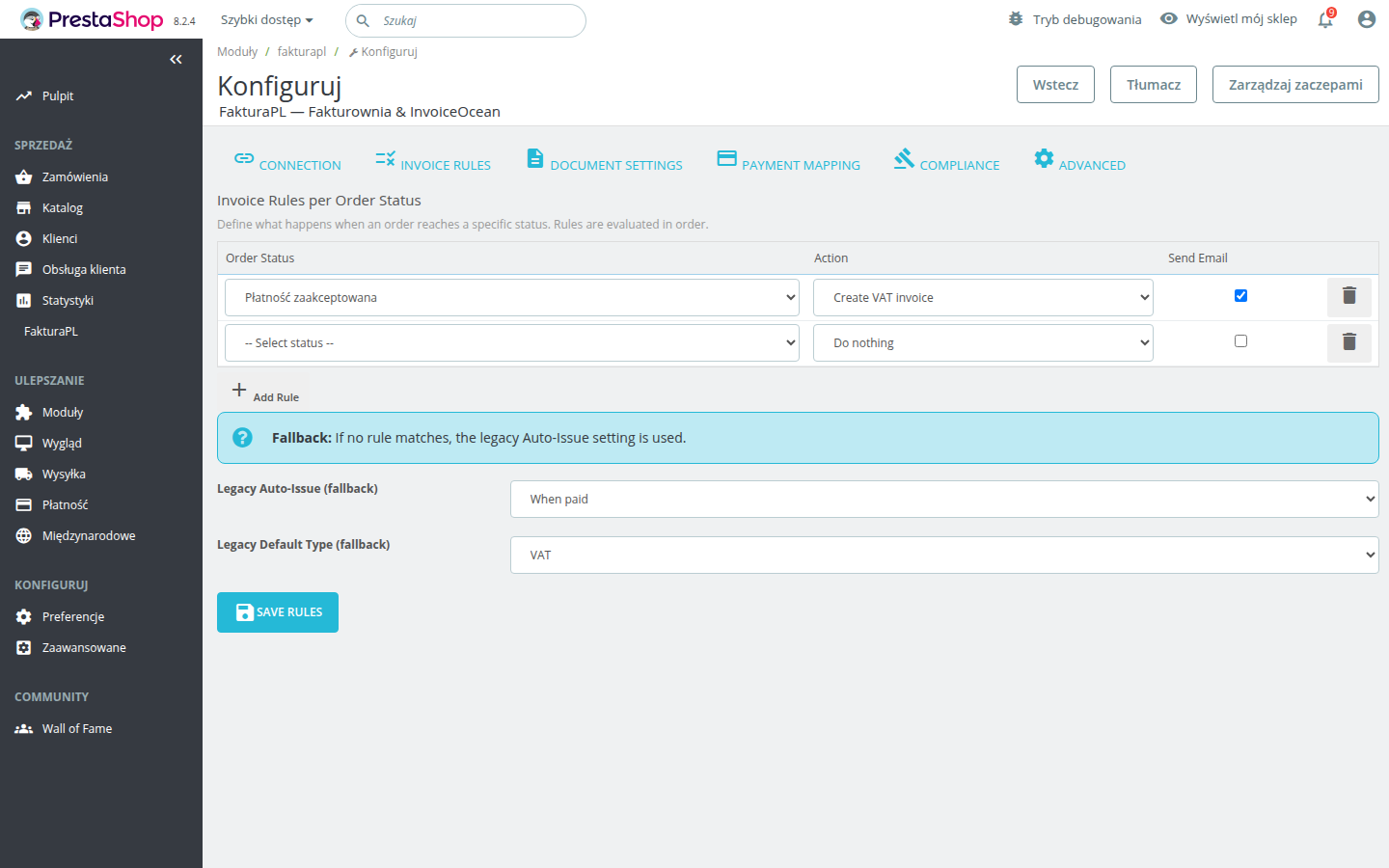
The rules tab shows one row per PrestaShop order status. Custom statuses you have created in PrestaShop appear alongside the default ones. Set each status row's action to "No Action" to ignore it, or choose an action to have the module respond to that status change.
Available Actions — Detailed Reference
Create VAT Invoice
Creates a full VAT invoice (faktura VAT) in Fakturownia using the complete order data: buyer name and address, NIP (if provided at checkout), all line items with quantities and prices, applicable VAT rates, and the payment method from the Payment Mapping tab.
The invoice number is assigned automatically by Fakturownia using the numbering scheme configured in your Fakturownia account (Settings → Invoice numbering). The invoice number and PDF download URL are stored in PrestaShop's ps_fakturapl_invoices table for retrieval by the customer portal and admin panel.
When to use: On the order status that confirms final, settled payment. For card payments and instant transfers (BLIK, PayU Express, Przelewy24 Express), this is typically "Payment accepted". For stores with manual payment confirmation, it may be a custom "Payment confirmed" status that staff set after verifying receipt.
What data it uses from the order:
- Buyer name and address (from the order's billing address)
- Company name and NIP (if entered at checkout)
- Line items: product names, quantities, unit prices, tax rates
- Shipping cost (as a separate line item on the invoice)
- Payment method (from the Payment Mapping tab configuration)
Create Proforma
Creates a proforma invoice (faktura pro forma) — a non-accounting document that requests payment before the goods or service are delivered. In Polish B2B practice, buyers often require a proforma to initiate a bank transfer through their accounting system before you can issue a VAT invoice.
A proforma is not a legally binding accounting document under Polish VAT law. It does not replace a VAT invoice. A proforma sequence always needs a follow-up "Create VAT Invoice" rule on a later status.
When to use: On "Awaiting bank transfer" or a custom "Awaiting payment" status that fires at order creation, before payment is confirmed. The proforma is sent to the buyer so they can initiate the bank transfer.
Important: Enable email delivery on the proforma rule so the buyer receives the proforma document immediately. Without the proforma in their inbox, they cannot initiate payment.
Create Receipt
Creates a receipt (paragon fiskalny) rather than a VAT invoice. Receipts are issued in Polish retail for B2C sales where the buyer has not requested a VAT invoice (has not provided a NIP number).
Under Polish law, receipts must be issued for B2C sales. For transactions below the receipt threshold (currently 450 PLN per transaction, with some category exceptions), a simplified invoice format may also be used. For transactions above 450 PLN, a full paragon or VAT invoice is required.
Note: Fakturownia handles the receipt as a document type within its system. Physical till receipt compliance (kasa fiskalna obligations under ustawa o VAT art. 111) is a separate obligation that requires fiscal hardware and software outside the scope of this module.
When to use: On "Payment accepted" for B2C stores where customers have not provided a NIP. Many stores skip this and use "Create VAT Invoice" for all customers regardless of B2B/B2C status — VAT invoices are always valid even for B2C customers, so using receipts is optional unless your accountant or fiscal obligations require them.
Mark as Paid
Marks an existing Fakturownia invoice for this order as paid. Does not create a new document — it updates the payment status on an invoice that was already created by an earlier rule.
When to use: In multi-step sequences where the invoice is created before payment is confirmed. Example: proforma created at order placement, VAT invoice created when the buyer confirms they have made the transfer, then "Mark as Paid" fires when staff manually verify receipt and set "Payment confirmed" status.
What happens if no invoice exists: If "Mark as Paid" fires but no invoice has been created yet for that order, Fakturownia Pro logs a warning and takes no action. It will not create a new invoice. Ensure your rule sequence always has a "Create" rule that fires before the "Mark as Paid" rule.
Also Mark as Paid (Checkbox on Create Rules)
The "Also Mark as Paid" checkbox on any "Create VAT Invoice" or "Create Proforma" rule combines document creation and payment confirmation into a single API call.
How it differs from a separate "Mark as Paid" rule:
- Single API call instead of two — slightly faster and avoids any possible race condition
- The invoice is born already in "paid" status — Fakturownia's reports reflect accurate payment status from the first moment
- No need for a separate "Mark as Paid" rule in your configuration
When to use: On any "Create" rule where the triggering status already confirms full payment with certainty — card payments, BLIK, instant transfer confirmations from payment gateways.
When NOT to use: On proforma rules (proformas are issued before payment), or on "Awaiting bank transfer" rules where payment is not yet confirmed.
Send Email
Sends the Fakturownia invoice PDF to the buyer by email. The email is sent from Fakturownia using the template and sender name configured in your Fakturownia account (Settings → Email templates).
Two ways to send email:
- Toggle on the Create rule — the email is sent when the invoice is created. This is the standard approach.
- As a standalone action on a different status — sends the existing invoice PDF when that status fires. Use this to re-send on "Shipped" if you want the customer to have the invoice again at delivery.
Email content: The email body comes from Fakturownia's template. You can customise the subject line, greeting, and message in Fakturownia → Settings → Email templates. The PDF invoice is always attached.
What email is NOT sent through: PrestaShop's email system. The email originates from Fakturownia's servers, not your store. This means it does not appear in PrestaShop's email log, and delivery issues must be debugged in Fakturownia → Sent mail log.
Cancel Invoice
Cancels the Fakturownia invoice associated with this order. A cancelled invoice is preserved in Fakturownia's records marked as void — it is not deleted, which is important for accounting completeness.
When to use: On the "Cancelled" order status. Cancelling the invoice ensures your Fakturownia income records match your actual delivered orders. An uncancelled invoice for a cancelled order inflates your reported revenue.
What if the invoice was already paid? A paid invoice cannot be directly cancelled in Fakturownia — it requires a correction invoice (faktura korygująca) to reverse the accounting entry. If an order with a paid invoice is cancelled, use "Create Correction" instead of "Cancel Invoice".
Create Correction
Creates a correction invoice (faktura korygująca) that reverses or adjusts a previously issued VAT invoice. Corrections are the legally required mechanism under Polish VAT law for handling returns, partial refunds, and quantity or price changes after an invoice has been issued.
How it works: Fakturownia Pro links the correction automatically to the original VAT invoice for the same order. The correction invoice shows the original values and the corrected values side by side.
Partial refunds: If PrestaShop has generated a credit slip for the order (via a partial refund), the module uses the credit slip amount for the correction invoice. If no credit slip exists (full cancellation without a credit slip), the correction is for the full invoice amount.
When to use: On "Refunded" or "Partial refund" status. Configure this rule for any store that accepts returns or issues refunds — without corrections, your Fakturownia VAT declarations will not match your actual collected tax.
No Action
The status change is ignored. No API call is made. Use this for operational statuses that have no accounting significance: "Preparing order", "In warehouse", "Out for delivery", "Awaiting restocking". Most statuses in a typical PrestaShop setup should be set to "No Action".
Real-World Rule Configurations
Configuration 1: Polish B2C Store — Cards and Instant Transfers
For a Polish consumer electronics store using PayU or Przelewy24 (card + BLIK + express transfer), where payment is confirmed instantly by the gateway:
| Status | Action | Email | Also Mark as Paid | |---|---|---|---| | Payment accepted | Create VAT Invoice | Yes | Yes | | Preparing order | No Action | — | — | | Shipped | No Action | — | — | | Delivered | No Action | — | — | | Refunded | Create Correction | Yes | — | | Cancelled | Cancel Invoice | No | — |
Why this works: Payment is confirmed in real time by the gateway. The single rule on "Payment accepted" handles the entire invoicing lifecycle. The correction rule handles returns. The cancellation rule keeps accounting clean if an order is cancelled before shipping.
Configuration 2: Polish B2B Store — Bank Transfers, NET14
For a Polish software reseller selling to companies that pay by bank transfer within 14 days:
| Status | Action | Email | Also Mark as Paid | |---|---|---|---| | Awaiting bank transfer | Create Proforma | Yes | No | | Payment accepted | Create VAT Invoice | Yes | Yes | | Preparing order | No Action | — | — | | Shipped | No Action | — | — | | Refunded | Create Correction | Yes | — | | Cancelled | Cancel Invoice | No | — |
Why this works: The proforma is sent immediately so the buyer's accounting team can process the transfer. Once payment arrives and staff confirm it (changing status to "Payment accepted"), the VAT invoice is created and marked paid instantly.
Configuration 3: EU B2C Store — OSS Registered, Multiple Countries
For a Polish store selling software licenses to consumers across the EU, registered for OSS:
| Status | Action | Email | Also Mark as Paid | |---|---|---|---| | Payment accepted | Create VAT Invoice | Yes | Yes | | Refunded | Create Correction | Yes | — | | Cancelled | Cancel Invoice | No | — |
Additional settings required:
- Compliance tab: EU OSS enabled
- Compliance tab: Reverse Charge enabled (for the occasional B2B EU buyer)
The same rule fires for all customers. Fakturownia Pro applies OSS flags and correct EU country VAT rates automatically based on the buyer's country in each order.
Configuration 4: Mixed B2B/B2C Store — Proforma-First for B2B, Immediate Invoice for B2C
A store serving both consumers and businesses. B2C customers pay by card and get invoices immediately. B2B customers pay by transfer and need a proforma first.
Since PrestaShop's order statuses are shared across all order types, use a separate custom status for B2B orders awaiting payment:
| Status | Action | Email | Also Mark as Paid | |---|---|---|---| | Payment accepted | Create VAT Invoice | Yes | Yes | | Awaiting bank transfer (B2B custom status) | Create Proforma | Yes | No | | Refunded | Create Correction | Yes | — | | Cancelled | Cancel Invoice | No | — |
How to create the custom status: PrestaShop Admin → Orders → Statuses → Add New Status. Name it "Awaiting bank transfer (B2B)" with an appropriate colour. Configure your bank transfer payment module to use this status instead of the standard one.
Configuration 5: Subscription/Services Store — Proforma Invoice Sequence
A Polish SaaS company that invoices at the start of each billing period and marks payment on confirmation:
| Status | Action | Email | Also Mark as Paid | |---|---|---|---| | Order placed | Create Proforma | Yes | No | | Payment confirmed | Create VAT Invoice | Yes | Yes | | Subscription cancelled | Create Correction | No | — |
Note: The correction on "Subscription cancelled" is appropriate if a refund is being issued. If the subscription simply expires with no refund, "Cancel Invoice" is more appropriate than "Create Correction".
Email Delivery Behaviour
When the email toggle is enabled on a rule, Fakturownia sends the email — not PrestaShop. Key implications:
- The email does not appear in PrestaShop's email log (
ps_mailtable) - Delivery failures are visible in Fakturownia → Sent mail log
- The email template, sender name, and subject are configured in Fakturownia → Settings → Email templates
- Enabling email on multiple rules can result in the buyer receiving multiple emails for one order — be intentional about which rules have email enabled
Avoiding duplicate emails: If OID Deduplication is enabled and a payment gateway sends a retry webhook, the second invoice creation request is rejected. The email from the first successful creation is already sent. No duplicate email is sent on the rejected duplicate.
Edge Cases
Status changes back and forward
Rules fire on every status change, including moving to a status the order was already in (or returning to a previous status). Example: order goes "Payment accepted" → "Awaiting payment" → "Payment accepted" — the Create VAT Invoice rule fires twice.
Solution: Enable OID Deduplication (Advanced tab). The second creation request is rejected and the existing invoice is returned. Without it, a duplicate is created.
No invoice exists when "Mark as Paid" fires
If a "Mark as Paid" rule fires but no invoice has been created yet for the order, Fakturownia Pro logs a warning and takes no action. Check the rule sequence — the "Create" rule must fire before the "Mark as Paid" rule.
Paid invoice gets cancelled order
If an order with a paid Fakturownia invoice is cancelled, the "Cancel Invoice" rule will attempt to cancel a paid invoice. Fakturownia may reject this depending on account settings — a correction invoice is the legally correct approach for reversing a paid invoice. Consider using "Create Correction" on the "Cancelled" status if your store frequently cancels paid orders.
Partial refund with partial credit slip
When PrestaShop issues a partial credit slip (partial refund via the order detail page → create credit slip), Fakturownia Pro's "Create Correction" rule uses the credit slip amount for the correction invoice, not the full order amount. This means the correction invoice matches the actual refunded amount.
If no credit slip exists (the status was manually changed to "Refunded" without generating a credit slip), the correction is for the full invoice amount. Always generate credit slips through PrestaShop's standard refund flow for accurate partial corrections.
Orders placed before module installation
For orders placed before Fakturownia Pro was installed, no invoice was created automatically. The order detail page in PrestaShop Admin shows the "No Invoice" panel.
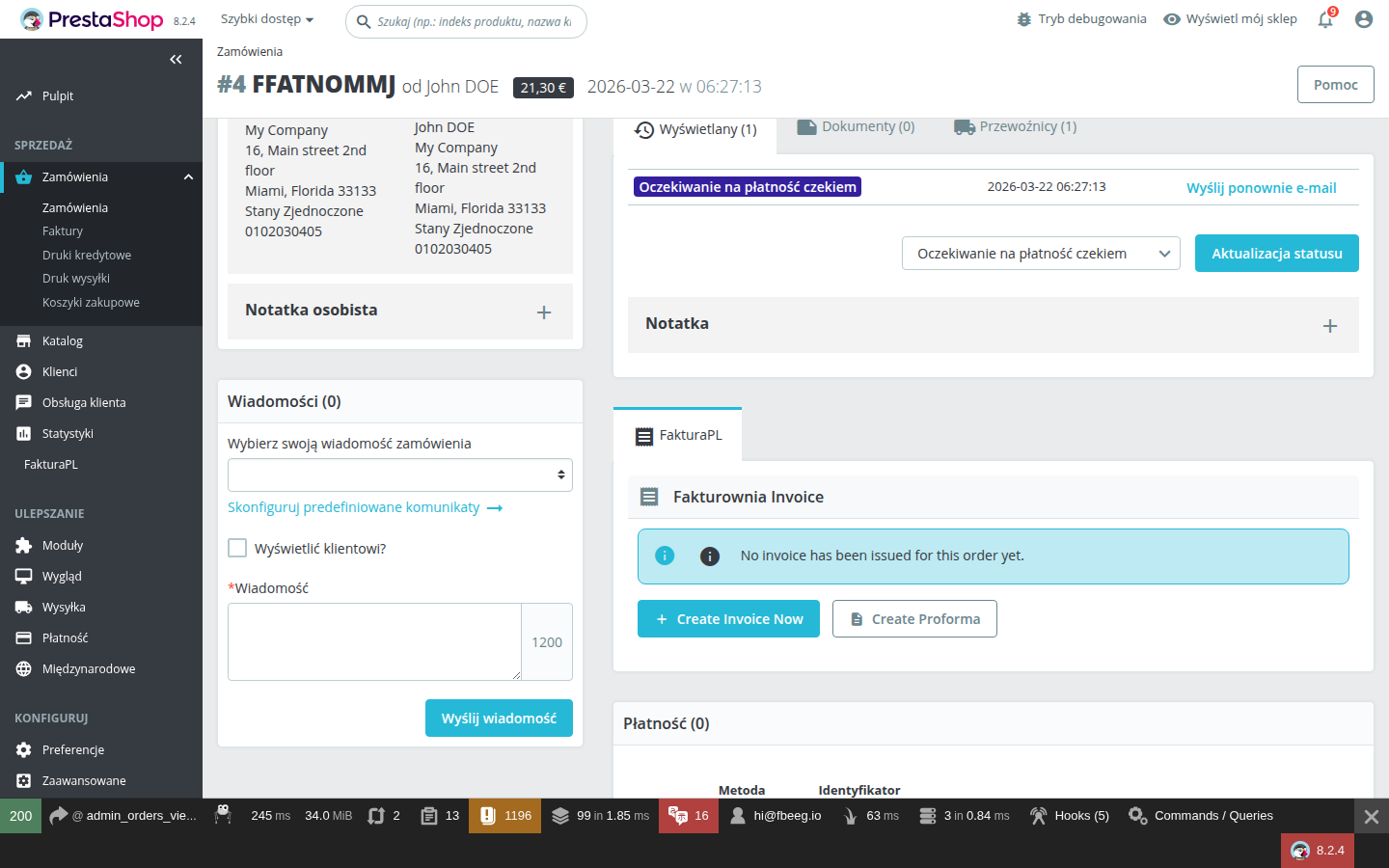
From this panel, you can manually trigger invoice creation for the order without changing its status. This is the recommended way to backfill invoices for historical orders.
Very rapid status changes
If an order's status changes very quickly in sequence (e.g., a payment gateway sets "Awaiting payment" then immediately "Payment accepted" within milliseconds), both status change hooks fire. If both statuses have rules, both fire. Ensure intermediate statuses (like "Awaiting payment") have "No Action" set to prevent partial invoice creation.
Next Steps
- Compliance Guide — set up GTU codes, EU OSS, and KSeF alongside your invoice rules
- Configuration Guide — Document Settings and Payment Mapping affect every invoice your rules create
- Troubleshooting — invoices not firing? Work through the diagnosis checklist