Hook Position Guide — Definitive Reference
A hook is a named location in your PrestaShop theme where HTMLBox Pro can inject content. Choosing the right hook means your content reaches customers in the right context — the right page, the right position on that page, at exactly the right moment in their journey.
This guide is the complete reference for every hook position HTMLBox Pro supports, grouped by page area, with the technical hook name, a description of where it renders on the page, what it is best suited for, and a practical example use case.
How to Select a Hook
Using the visual hook selector (recommended for new users):
Open a block in the block editor. Click the Hook Position field — the visual hook selector opens as an overlay showing a wireframe of your storefront with all available positions highlighted as clickable regions.
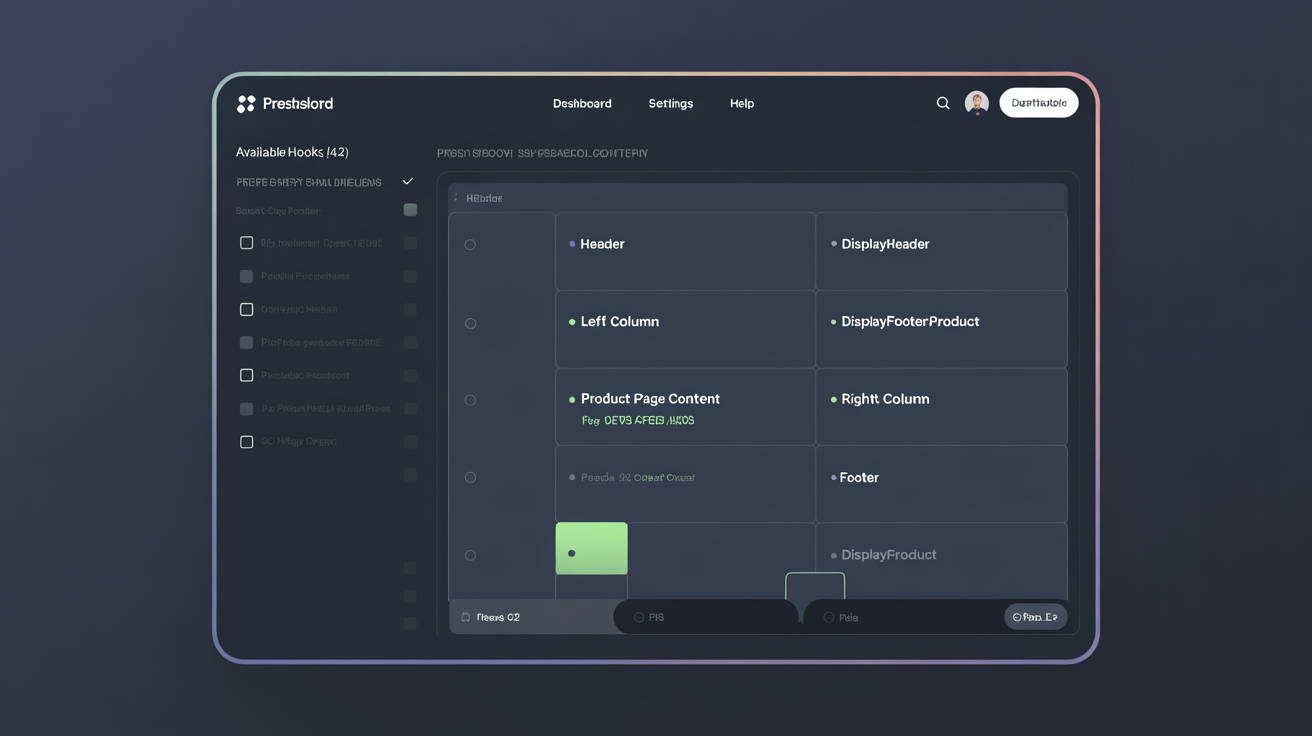
Click any highlighted area to select that hook. The technical hook name and a description appear below the wireframe diagram. This is the fastest way to find the right position without needing to know hook names in advance.
Using the search field (for experienced users):
If you already know the hook name, type it directly into the Hook Position search field — for example, type displayProductTab and the matching hook appears in the dropdown immediately.
Where Hooks Render on Your Storefront
The front office screenshot below shows two blocks rendered on a live store: an announcement bar in displayTop (full-width strip below the header, visible on every page) and a content block in displayHome (main content well on the homepage, between the slider and the product grid).
Neither position required any theme modification — both are injected through PrestaShop's native hook system. Your block HTML appears exactly as written, inheriting the page's base font and background colour.
Global Hooks — Every Page
These hooks fire on every page of your store. Use them for sitewide content that should be visible regardless of what the customer is browsing.
| Hook Name | Position on Page | Best For | Example Use Case |
|---|---|---|---|
| displayTop | Below the header, above the navigation bar | Announcement bars, site-wide notices, free shipping thresholds | "Free shipping on orders over €50" strip with background colour |
| displayBanner | Above the header navigation (very top of page on most themes) | Seasonal campaign banners, countdown timers | Black Friday countdown timer |
| displayNav1 | First navigation bar area | Secondary navigation links, phone number, trust badge | Phone number and opening hours |
| displayNav2 | Second navigation bar area | Language/currency switcher supplements, promotional links | "New arrivals" or "Sale" quick link |
| displayHeader | Inside the HTML <head> tag — invisible to users | Custom CSS overrides, <link> tags for fonts, Google Tag Manager | Custom font loading, sitewide CSS variables |
| displayFooter | Footer content area, above the copyright bar | Newsletter sign-up form, extended trust seals, social media links | Email newsletter sign-up block |
| displayFooterBefore | Just above the footer element | Cookie consent notices, GDPR compliance banners | GDPR cookie banner (for custom implementations) |
| displayAfterBodyOpeningTag | Immediately after <body> opens | Chat widgets (Intercom, LiveChat), third-party scripts that need early loading | LiveChat widget script |
| displayBeforeBodyClosingTag | Just before </body> closes | Analytics tags, remarketing pixels, scripts that can defer loading | Google Analytics 4 script, Facebook Pixel |
Tips for global hooks:
displayTopis the most visible position on every page — use it for your single most important sitewide message. Do not put multiple large blocks here; it pushes page content below the fold.displayHeaderanddisplayBeforeBodyClosingTagare for invisible technical content. Never place visible HTML content in these hooks.displayAfterBodyOpeningTagis the correct hook for chat widgets — placing them indisplayHeaderdelays the page's CSS loading.
Home Page Hooks
| Hook Name | Position on Page | Best For | Example Use Case |
|---|---|---|---|
| displayHome | Main content area of the homepage, typically between the slider and featured product grid | Hero banners, welcome messages, featured category blocks, brand story sections | Full-width promotional banner with headline, image, and CTA button |
| displayHomeTab | Tabbed section on the homepage (theme-dependent) | Product highlight tab labels | Custom tab label: "Staff Picks" |
| displayHomeTabContent | Content inside the home page tabs | Custom tab body content | List of handpicked products with images and links |
| displayTopColumn | Full-width column above the main content area | Wide promotional banners, logo strips, partner badges | "As seen in" press logo strip |
displayHome is the most-used hook in HTMLBox Pro — it places content in the heart of the homepage. Most themes give it considerable width (full content column) and it renders prominently above the product grid.
Product Page Hooks
Product page hooks let you enrich individual product listings with additional context, resources, and interactive elements — without editing theme files.
| Hook Name | Position on Page | Best For | Example Use Case |
|---|---|---|---|
| displayProductAdditionalInfo | Directly below the "Add to Cart" button | Trust badges, delivery estimates, payment method icons, warranty information | Row of payment logos (Visa, Mastercard, PayPal, BLIK) + "Secure checkout" badge |
| displayProductTab | Adds a new tab label to the product tabs bar | Sizing guides, compatibility charts, video embeds, extended specifications | "Size Guide" tab label on clothing products |
| displayProductTabContent | Content rendered inside a product tab | Full HTML content for a custom product tab body | Size chart table and measurement instructions |
| displayReassurance | Reassurance block below the cart area | Money-back guarantee icons, secure payment reassurance, returns policy summary | "30-day returns · Secure payment · Fast shipping" icon row |
| displayProductButtons | Area near the product action buttons | Wishlist prompts, comparison tool links, social sharing buttons | "Add to wishlist" custom link |
| displayProductPriceBlock | Directly adjacent to the price display | Bulk pricing notices, price match guarantees, "logged-in price" callouts | "Buy 5+ and save 15% — log in to see trade prices" |
Using displayProductTab and displayProductTabContent together:
These two hooks work as a pair. displayProductTab adds the tab label to the tab navigation bar; displayProductTabContent fills the tab body. Both blocks must target the same tab ID to connect correctly.
Example setup:
- Block A: Hook =
displayProductTab, Content =<li class="nav-item"><a class="nav-link" data-toggle="tab" href="#sizing-guide-tab">Sizing Guide</a></li> - Block B: Hook =
displayProductTabContent, Content =<div id="sizing-guide-tab" class="tab-pane fade">...[your size chart HTML]...</div>
Apply the same Category condition to both blocks so the sizing tab only appears on relevant product categories.
Category and Listing Page Hooks
| Hook Name | Position on Page | Best For | Example Use Case |
|---|---|---|---|
| displayProductListFunctionalButtons | Button area on each product card in category listings | Quick-buy overlays, product comparison checkbox, custom action buttons | "Quick view" button on each listing card |
| displayProductListReviews | Review snippet area on product cards in listings | Star rating display, review count badge | Rating stars pulled from a third-party review system |
| displayLeftColumn | Left sidebar on category and product pages | Navigation filters supplements, category descriptions, promotional banners | Seasonal promotion tile in the sidebar |
| displayRightColumn | Right sidebar on category and product pages | Featured products, promotional banners, trust badges | "Bestsellers in this category" widget |
Sidebar hook caveat: displayLeftColumn and displayRightColumn only render on pages and themes that include a sidebar. Many modern PrestaShop themes do not show sidebars on mobile or on product pages. Always verify your theme includes the sidebar on the target page type before assigning content to these hooks. Use Responsive Visibility (mobile off) for sidebar blocks.
Cart and Checkout Hooks
Hooks in the purchase funnel. Use them purposefully — cluttered cart pages reduce conversions.
| Hook Name | Position on Page | Best For | Example Use Case |
|---|---|---|---|
| displayShoppingCartFooter | Below the product list in the cart | Upsell notices, coupon reminder, loyalty points balance | "You're only €15 away from free shipping" dynamic bar |
| displayCrossSellingShoppingCart | Cross-sell recommendations section on cart page | Related category banners, accessory suggestions | "Customers also bought" banner with product category links |
| displayExpressCheckout | Express checkout button area | Alternative payment notices, buy-now-pay-later callouts | "Also available with Klarna — 3 monthly installments" |
| displayPaymentTop | Above the payment method selection | Security reassurance messages, data protection notices | "256-bit SSL encryption — your payment is safe" badge row |
| displayPaymentReturn | Payment return/confirmation page after gateway redirect | Post-payment offers, referral codes, download links | "Download your receipt — and share with a friend for 10% off" |
Order Confirmation and Account Hooks
| Hook Name | Position on Page | Best For | Example Use Case |
|---|---|---|---|
| displayOrderConfirmation | The "Thank you for your order" page shown after purchase | Thank-you messages, referral prompts, social sharing requests, upsell coupons | "Your order is confirmed! Share and give a friend €5 off" |
| displayOrderDetail | Order detail page in customer My Account | Return policy reminders, tracking link instructions, related product suggestions | "Track your shipment" guide with logistics partner links |
| displayCustomerAccount | Customer My Account dashboard | Loyalty program status, upgrade offers, account tips | "Your VIP status: Gold — you've saved €124 this year" |
| displayMyAccountBlock | Sidebar navigation on My Account pages | Extra navigation links, custom account sections, promotional tiles | "Manage your subscription" sidebar link |
| displayCustomerLoginFormAfter | Below the customer login form on the login page | Trust copy, social proof, privacy reassurance | "Join 12,000+ happy customers · GDPR compliant · Unsubscribe anytime" |
Search Results Hooks
| Hook Name | Position on Page | Best For | Example Use Case |
|---|---|---|---|
| displaySearchTop | Above the search results listing | Search tips, "Didn't find it?" prompt, filtered search suggestions | "Can't find what you're looking for? [Chat with us]" prompt |
| displaySearch | Within the search results area | Promotional content for popular searches, alternative category suggestions | "Looking for software licenses? [Browse our full catalogue]" banner |
Error and Utility Page Hooks
| Hook Name | Position on Page | Best For | Example Use Case |
|---|---|---|---|
| display404Page | The 404 not found error page | Helpful navigation prompts, search bar, popular pages links | "Looks like this page moved. Try [search] or [browse categories]" |
| displayMaintenance | The maintenance mode page | Branded maintenance message, countdown timer, back-soon notice | Custom maintenance page with brand design, contact info, and expected time |
Full Hook Table — Alphabetical Quick Reference
| Hook Name | Page / Area |
|---|---|
| display404Page | 404 error page |
| displayAfterBodyOpeningTag | Global — <body> open |
| displayBanner | Global — above header |
| displayBeforeBodyClosingTag | Global — </body> close |
| displayCrossSellingShoppingCart | Cart page — cross-sell |
| displayCustomerAccount | My Account — dashboard |
| displayCustomerLoginFormAfter | Login page — below login form |
| displayExpressCheckout | Checkout — express checkout area |
| displayFooter | Global — footer content |
| displayFooterBefore | Global — above footer |
| displayHeader | Global — inside <head> |
| displayHome | Homepage — main content |
| displayHomeTab | Homepage — tab label |
| displayHomeTabContent | Homepage — tab content |
| displayLeftColumn | Category/product — left sidebar |
| displayMaintenance | Maintenance mode page |
| displayMyAccountBlock | My Account — sidebar |
| displayNav1 | Global — first navigation bar |
| displayNav2 | Global — second navigation bar |
| displayOrderConfirmation | Order confirmation page |
| displayOrderDetail | My Account — order detail |
| displayPaymentReturn | Post-payment return page |
| displayPaymentTop | Checkout — above payment methods |
| displayProductAdditionalInfo | Product page — below Add to Cart |
| displayProductButtons | Product page — action button area |
| displayProductListFunctionalButtons | Category listing — product cards |
| displayProductListReviews | Category listing — review snippets |
| displayProductPriceBlock | Product page — price area |
| displayProductTab | Product page — tab label |
| displayProductTabContent | Product page — tab content |
| displayReassurance | Product page — reassurance block |
| displayRightColumn | Category/product — right sidebar |
| displaySearch | Search results — content area |
| displaySearchTop | Search results — above results |
| displayShoppingCartFooter | Cart page — below product list |
| displayTop | Global — below header |
| displayTopColumn | Homepage — above main content |
Tips for Working with Hooks
Multiple blocks on the same hook: You can assign as many blocks as you like to the same hook. They render in the order shown in the block list — drag to reorder. This lets you stack an announcement bar above a promotional banner, or show multiple product tab entries by assigning separate blocks to displayProductTab.
Combine hooks with conditions for targeted content: Assign a block to displayTop (every page) with a Customer Group condition of "Wholesale" — only wholesale customers see that strip. Retail customers see an unrelated block on the same hook, or nothing at all. This gives you surgically targeted messaging in a universal position.
Check your theme's hook support: Not all themes implement all hooks. A theme can skip any hook it does not want to support. If a block assigned to a hook does not appear, open your theme's .tpl files and search for the hook name. If it does not appear, the theme does not call that hook. Contact your theme developer to add it, or choose a different hook position.
Mobile testing is mandatory for displayLeftColumn: Sidebar hooks frequently render differently or not at all on mobile. Always test on a phone-sized viewport after assigning blocks to sidebar hooks.
Next Steps
- Conditional Display Rules — control who sees each block
- A/B Testing Guide — test which content performs better
- Real-World Examples — full code examples for 10+ use cases across multiple hook positions