Conditional Display Rules — Complete Reference
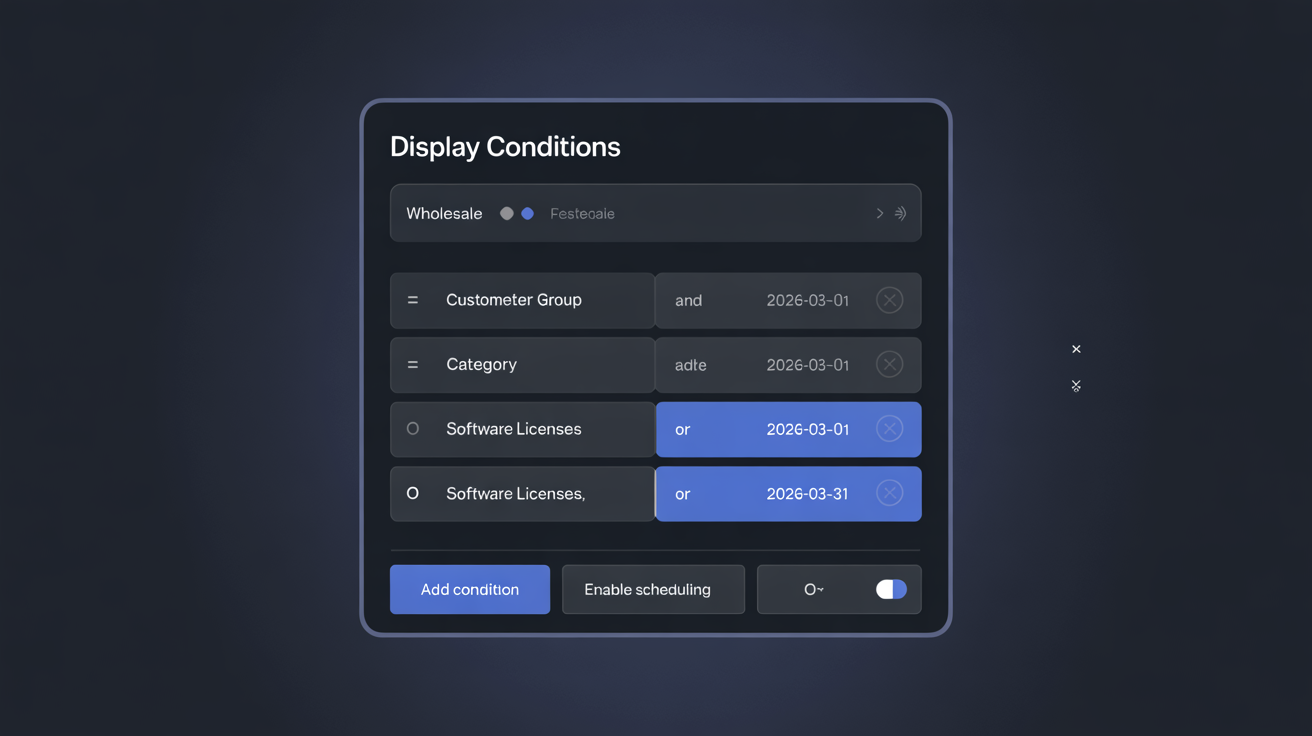
Conditions give each content block a specific audience. Without conditions, a block is visible to every visitor on every page where the hook fires. With conditions, you control exactly who sees what — and when.
A single hook position can serve dozens of different audiences simultaneously: wholesale customers see one message, retail customers see another, French-speaking visitors see French content, and a Black Friday banner appears only between November 28th and December 1st — all in the same hook, all managed from the block list without touching any theme file.
How Conditions Work Technically
Conditions are evaluated server-side for every page load. If a visitor does not match a block's conditions, that block's HTML is never sent to the browser — it is completely absent from the rendered page source. This is more efficient than CSS-based hiding (which sends the HTML but hides it) and means your conditional content is truly invisible to non-matching visitors.
Adding Conditions to a Block
- Open the block in the block editor
- Scroll to the Conditions section
- Click "Add Condition"
- Select a condition type from the dropdown
- Configure the values for that condition type
- Click "Save Condition"
- Add more conditions if needed
- Choose the logic operator (AND / OR) between conditions
- Click "Save" on the block to apply
Condition Types — Complete Reference
Customer Group
Show or hide the block based on the visitor's PrestaShop customer group.
| Value options | Who it matches | |---|---| | Guest | Any visitor who is not logged in | | Default customer | Logged-in customers with no custom group assigned | | [Custom group name] | Any group you have created in PrestaShop (Wholesale, VIP, Trade, etc.) |
How customer group is detected: The condition checks PrestaShop's active session. Guest visitors have no session; logged-in customers have a session with their group ID.
Example 1 — Wholesale-only price notice:
A block on displayProductPriceBlock with condition "Customer Group = Wholesale" shows: "Your wholesale discount is applied at checkout". Retail customers see nothing in that position.
Example 2 — Login prompt for guests:
A block on displayProductPriceBlock with condition "Customer Group = Guest" shows: "Trade customer? [Log in] for wholesale pricing." Once logged in, the customer no longer matches this condition — they see the wholesale message instead.
Example 3 — VIP exclusive offer:
A block on displayHome with condition "Customer Group = VIP" shows a personalised banner: "VIP members get early access to the new collection — [shop now]." Regular customers see the standard homepage content.
Category
Show the block only on pages that belong to specific product categories.
Where it applies:
- Category listing pages (the page showing all products in a category)
- Individual product pages where the product belongs to the specified category
Matching behaviour: Select one or more categories — the block shows if the current page matches any of the selected categories (OR logic within the multi-select, regardless of your block-level AND/OR setting).
Child categories: Child categories are not automatically included. If you select "Electronics" and have "Phones" as a sub-category of Electronics, the block will not appear on "Phones" pages unless you also select "Phones" specifically.
Example 1 — Category-specific sizing guide:
A block on displayProductTab with condition "Category = Clothing" adds a sizing guide tab only to clothing products. The tab does not appear on any non-clothing product.
Example 2 — Electronics compatibility notice:
A block on displayProductAdditionalInfo with condition "Category = Laptops" shows: "Compatibility: check our [accessories finder] for matching peripherals." Only appears on laptop product pages.
Example 3 — Software license note for B2B:
A block on displayProductAdditionalInfo with conditions "Category = Software" AND "Customer Group = Wholesale" shows: "Volume licensing available — [contact us] for orders of 10+ seats." Appears only to wholesale customers on software product pages.
Product
Show the block only on the page for a specific product or a list of specific products.
Use cases:
- Launch-specific blocks that only one new product should carry
- Compliance notices required for specific regulated products
- Custom tabs for a hero product with unique features
Example 1 — New product launch badge:
A block on displayProductAdditionalInfo for a specific product ID shows: "New arrival — free express shipping this week only." Disappears from any other product.
Example 2 — Product-specific video tab:
A block on displayProductTab for a specific product adds a "Video" tab; the corresponding displayProductTabContent block shows an embedded YouTube video. Only that product has the video tab.
Scalability note: Product conditions are efficient for a handful of products but become impractical for large catalogues. For broad targeting ("all products in a category"), use the Category condition instead.
Manufacturer / Brand
Show the block only for products from a specific manufacturer or list of manufacturers.
Where it applies: Product pages where the product is assigned to the specified manufacturer in PrestaShop's Catalog → Manufacturers.
Example — Authorised reseller notice:
A block on displayReassurance with condition "Manufacturer = [Your Brand Partner]" shows: "Authorised UK reseller · Genuine product with full manufacturer warranty." Only appears on products from that specific brand, reassuring buyers they are getting an authentic item.
Example — Brand-specific promotion:
A block on displayProductAdditionalInfo with condition "Manufacturer = Bosch" shows: "Bosch promotion: buy any 2 Bosch products and get 10% off. [See details]." Customers only see the promotion when they are actually viewing a Bosch product.
Language
Show the block only when the store is being viewed in a specific language.
Use cases:
- Language-specific legal text (GDPR notice in German for German language, different for French)
- Market-specific promotions (a Black Friday banner only for English-language visitors)
- Translated block variants without duplicating layout work (create one block per language, each with a language condition, all on the same hook)
Example — Language-specific legal footer text:
Three blocks on displayFooter:
- Block 1: "Language = English" → English privacy policy summary
- Block 2: "Language = German" → German Datenschutz summary
- Block 3: "Language = Polish" → Polish RODO summary
Each visitor sees only the text in their language. Same hook, same position, three audiences.
Relationship to multistore: Language conditions work within a single store. If you have a separate PrestaShop shop per country (e.g., a German shop at de.yourstore.com), use shop-specific blocks rather than language conditions.
Country / Zone
Show the block based on the visitor's detected geographic location.
Detection method: HTMLBox Pro uses the visitor's IP address for geolocation. Standard IP geolocation accuracy for country-level detection is typically 95–99% for most regions. VPN users and some shared IP addresses may not be detected correctly.
Country: Select specific countries — the block shows for visitors whose IP resolves to the selected country/countries.
Zone: Select a PrestaShop geographic zone (configured in International → Locations → Zones). Zones group multiple countries together. PrestaShop's default zones include Europe, North America, Asia, South America, Oceania, Africa, and Others.
Example — Local warehouse notice:
A block on displayTop with condition "Country = Germany, Austria, Switzerland" shows: "DE/AT/CH customers: order by 14:00 for same-day dispatch from our Berlin warehouse." Other visitors see nothing in that position.
Example — EU VAT notice:
A block on displayShoppingCartFooter with condition "Zone = Europe" shows: "EU VAT is included in all displayed prices." Non-EU visitors (where different tax rules apply) do not see this message.
Date Range (Scheduling)
Activate and deactivate blocks automatically on specific dates.
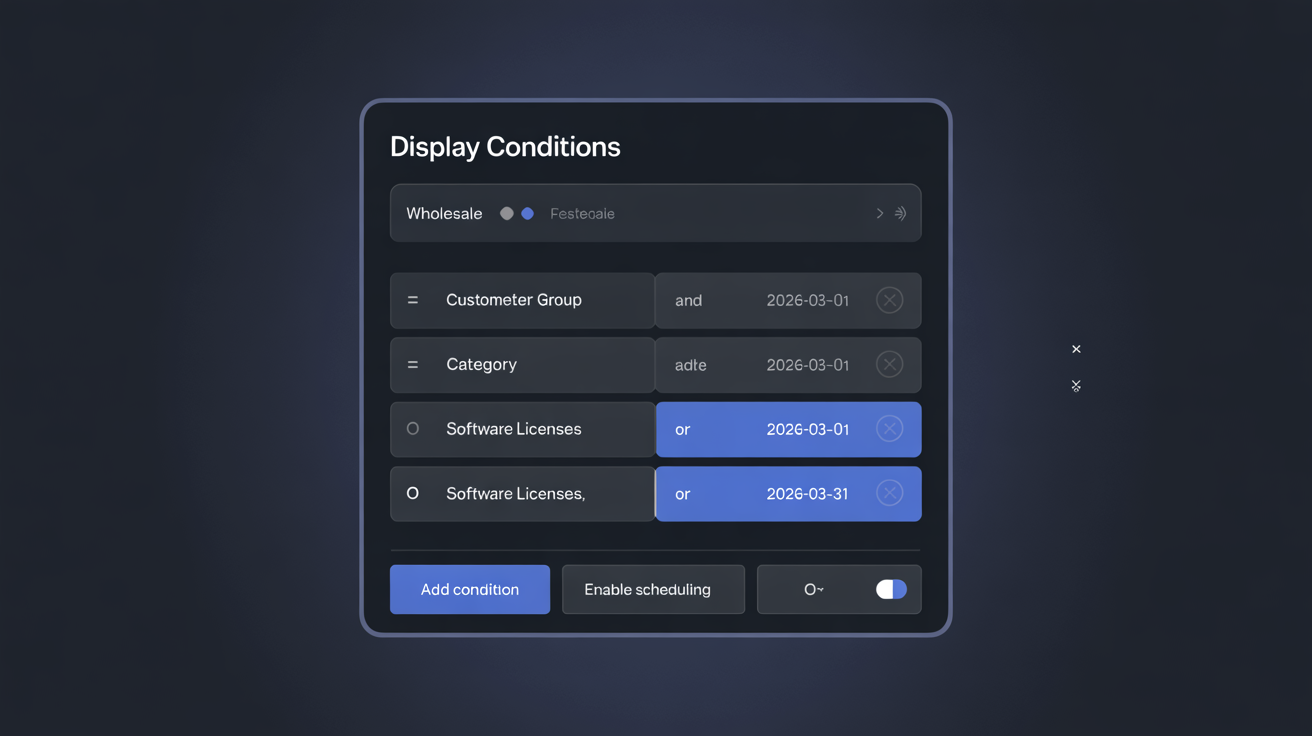
| Field | Exact behaviour | |---|---| | Start Date only | Block activates at 00:00 store timezone on the start date and remains visible indefinitely | | End Date only | Block is visible immediately and deactivates at 23:59 store timezone on the end date | | Start + End Date | Block is visible only between these dates | | Neither | Block is always visible when enabled (no time restriction) |
Example — Black Friday campaign:
- Start Date: November 28, 2026
- End Date: December 1, 2026
The block goes live at midnight and disappears automatically at midnight — no manual intervention.
Example — Seasonal banner:
- Start Date: December 1
- End Date: January 5 (new year)
Christmas design is live for the holiday season without you needing to remember to take it down.
Example — Launch day content:
- Start Date: April 10, 2026 at 09:00
Use this for products or sales that launch at a specific time. The block stays invisible until the launch moment, then appears automatically.
AND/OR Logic
When a block has multiple conditions, you choose how they are evaluated together.
AND Logic
All conditions must be true for the block to show.
Truth table:
| Condition A | Condition B | Block shows? | |---|---|---| | True | True | Yes | | True | False | No | | False | True | No | | False | False | No |
Example — Targeted B2B upsell on electronics pages:
Conditions: "Customer Group = Wholesale" AND "Category = Electronics"
| Visitor | Category page | Block shows? | |---|---|---| | Wholesale customer | Electronics | Yes | | Wholesale customer | Clothing | No | | Guest / retail customer | Electronics | No | | Guest / retail customer | Clothing | No |
OR Logic
Any one condition being true is sufficient for the block to show.
Truth table:
| Condition A | Condition B | Block shows? | |---|---|---| | True | True | Yes | | True | False | Yes | | False | True | Yes | | False | False | No |
Example — Regional free shipping notice:
Conditions: "Country = Germany" OR "Country = Austria" OR "Country = Switzerland"
The block shows to visitors from any of the three DACH countries and no one else.
Complex Targeting Scenarios
Scenario 1: Black Friday VIP Early Access
Show a "VIP early access" banner from November 24–27 only to VIP customers, then switch to a general Black Friday banner for all customers from November 28–December 1.
Block 1 — VIP early access:
- Hook:
displayBanner - Conditions: Customer Group = VIP AND Date Range November 24–27
Block 2 — General Black Friday:
- Hook:
displayBanner - Conditions: Date Range November 28–December 1 (no customer group condition = shows to everyone)
Both blocks on the same hook. During November 24–27, VIP customers see the early access banner, everyone else sees nothing. From November 28, everyone sees the general banner (VIP customers now also match block 2's date condition).
Scenario 2: Language + Country Compliance Notice
Show a German-language privacy notice to visitors from Germany browsing in German, and a separate notice to German-speaking visitors from Austria.
Block 1:
- Hook:
displayFooter - Conditions: Language = German AND Country = Germany
Block 2:
- Hook:
displayFooter - Conditions: Language = German AND Country = Austria
Both show German text, but the content can reference the correct national data protection authority (BfDI for Germany, DSB for Austria).
Scenario 3: Holiday Promotion with Geographic Exclusion
Show a Christmas promotion to everyone except the UK (where Christmas falls on a different public holiday schedule and the promotion does not apply).
Block:
- Hook:
displayTop - Conditions: Date Range December 1–26
Then create a second block for UK visitors showing a different, UK-appropriate promotion:
Block 2:
- Hook:
displayTop - Conditions: Country = United Kingdom AND Date Range December 1–26
Because the first block has no country condition, it shows globally. The second block shows additionally to UK visitors. To exclude UK visitors from block 1, you would need to duplicate block 1 and add a "Country = [all EU countries]" condition — or handle the UK-specific content as an override that renders after the global block.
Testing Conditions
After setting conditions on a block, always verify from the storefront before relying on them for a live campaign:
Testing Customer Group conditions:
- Open an incognito browser window — you are "Guest"
- Navigate to the page where the hook fires
- Confirm the block appears (or does not) as expected for guests
- Log in as a customer in the target group
- Reload the page and confirm the block behaviour matches your configuration
Testing Date Range conditions:
- Temporarily set the Start Date to today and leave End Date empty
- Clear the HTMLBox Pro cache (block list toolbar → Clear Cache)
- Navigate to the page — the block should now appear
- Reset the Start Date to the intended future date
- Clear cache again
Testing Category conditions:
- Navigate to a category or product page in the target category
- Confirm the block appears
- Navigate to a page in a different category — confirm the block does not appear
Condition Priority and Ordering
Conditions determine visibility but not render priority. When multiple blocks pass their conditions on the same hook, the render order is determined by the drag-and-drop order in the block list — not by which conditions matched. The topmost eligible block renders first.
Next Steps
- A/B Testing Guide — test two block variants against each other; combine with conditions for targeted tests
- Hook Position Guide — find the right hook position for every targeting scenario
- Real-World Examples — see conditions in practice across 10+ complete examples