Installation
Fakturownia Pro for WooCommerce is distributed as a standard WordPress plugin (.zip archive). Installation takes under five minutes and requires no FTP access or server configuration changes.
System Requirements
Before installing, confirm your environment meets these minimums:
| Requirement | Minimum | Recommended | |---|---|---| | WordPress | 6.3 | 6.5+ | | WooCommerce | 8.0 | 9.x | | PHP | 8.1 | 8.2+ | | MySQL / MariaDB | 8.0 / 10.4 | Latest stable | | SSL certificate | Required | Required | | PHP extensions | cURL, JSON, OpenSSL | — | | Fakturownia account | Any paid plan | Business or Enterprise | | Memory limit | 64 MB minimum | 256 MB+ |
Why SSL is required: Fakturownia Pro transmits invoice data and API credentials over HTTPS. WordPress installations without SSL are not supported because token storage cannot be secured.
HPOS (High-Performance Order Storage): Fully supported. If you have HPOS enabled in WooCommerce → Settings → Advanced → Features, the plugin operates on the wc_orders and wc_orders_meta tables. It never accesses legacy wp_posts order data when HPOS is active. No additional configuration is needed for HPOS compatibility.
Step 1: Download the Plugin
Log in to your plugkit.io account, navigate to My Licenses, and download fakturownia-pro-woocommerce.zip. Do not unzip the file before installation — WordPress accepts the archive directly and handles extraction.
If the download link has expired (they expire after 30 days), click "Re-send download link" on the license page.
Step 2A: Install via WordPress Admin
- In your WordPress dashboard, go to Plugins → Add New Plugin
- Click "Upload Plugin" at the top of the page
- Choose the downloaded
.zipfile and click "Install Now" - After the upload completes, click "Activate Plugin"
The plugin appears in your Plugins list as "Fakturownia Pro for WooCommerce" after activation.
Step 2B: Install via WP-CLI
If you manage WordPress from the command line:
# Upload the zip to your server first, then install:
wp plugin install /path/to/fakturownia-pro-woocommerce.zip --activate

# Or install directly from a URL if your server has internet access:
wp plugin install https://downloads.plugkit.io/fakturownia-pro-woocommerce.zip \
  --activate \
  --extra-headers="Authorization: Bearer YOUR_PLUGKIT_API_KEY"
Verify activation:
wp plugin status fakturownia-pro-woocommerceExpected output: Plugin fakturownia-pro-woocommerce is active.
Step 3: Locate Your Fakturownia API Key
- Log in to your Fakturownia account at
app.fakturownia.pl - Click your account name (top right) → Settings
- Go to the Account tab → Integration section
- Find "API Authorization Code" and copy the entire token
The token format is: AlphanumericCharacters/your-subdomain
Keep this token private: It grants full API access to create, modify, and delete documents in your Fakturownia account. Do not commit it to version control, include it in screenshots, or share it in support tickets without redacting it.
Step 4: Connect the API
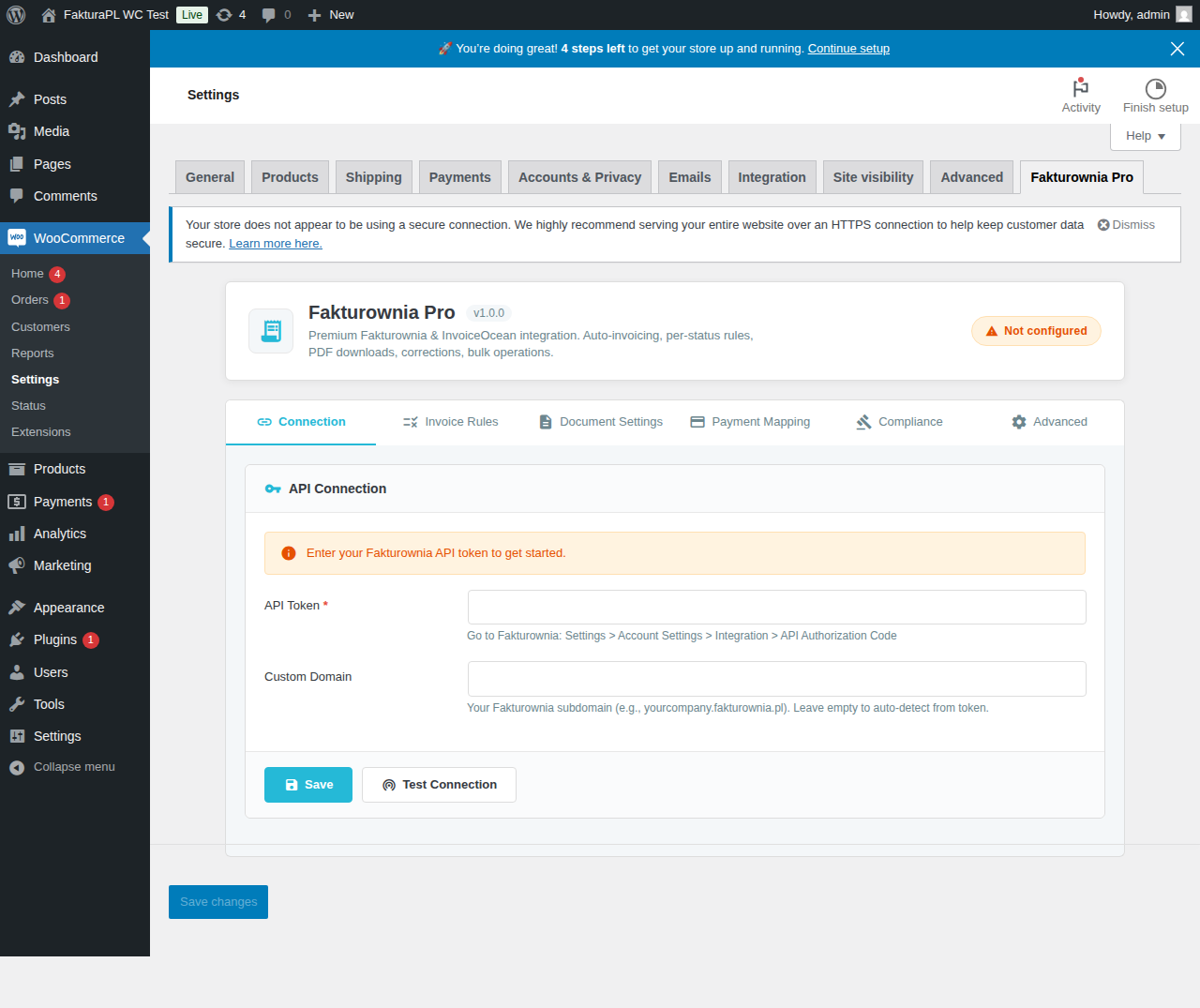
- In your WordPress dashboard, go to WooCommerce → Fakturownia Pro
- On the General tab, paste your API token into the API Token field
- Enter your Fakturownia subdomain in the Subdomain field (just the part before
.fakturownia.pl, e.g.,mycompany) - Click "Save & Test Connection"
A green success banner reading "Connected to Fakturownia account: [Your Company Name]" confirms the connection is working.
Common connection failures:
- Token copied without the
/your-subdomainportion — must include the full string - Subdomain field contains
yourcompany.fakturownia.plinstead of justyourcompany— enter only the subdomain - Trailing whitespace in either field — paste into a plain text editor first to strip invisible characters
Step 5: HPOS Compatibility Check
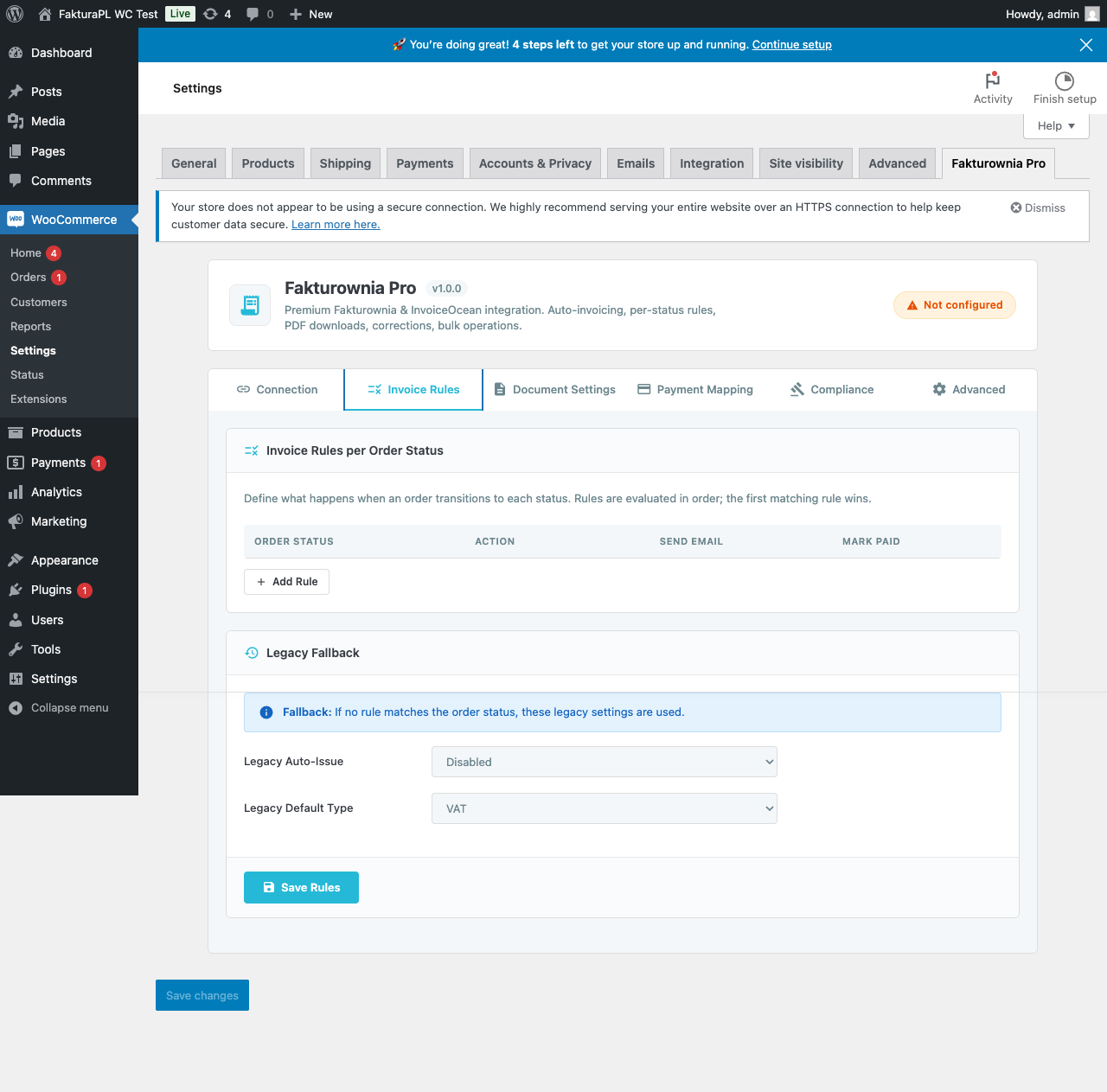
After connecting, check the General tab for a HPOS status indicator:
| Status shown | Meaning |
|---|---|
| HPOS Active — Compatible | Your store uses HPOS, plugin is operating in HPOS mode |
| Legacy Order Storage Active | Your store uses traditional post-based storage, plugin operates on wp_posts |
| HPOS Compatibility Mode Active | Both storage methods are active (migration in progress) — plugin handles both |
To check HPOS status from the command line:
wp option get woocommerce_custom_orders_table_enabled
# "yes" = HPOS active, "no" or absent = legacy
If you plan to migrate to HPOS after installation, do so via WooCommerce → Settings → Advanced → Features → Orders storage → Migrate. KSeF-IDs and audit log entries in the Fakturownia Pro metadata migrate automatically with the orders.
Step 6: Verify the Order Meta Box
Navigate to WooCommerce → Orders and open any existing order. You should see a "Fakturownia Pro" meta box in the right sidebar. The meta box shows the invoice status for that order (not yet generated for historical orders).
If the meta box is absent:
- Deactivate and reactivate the plugin
- Clear any persistent object cache:
wp cache flush - Check for conflicting plugins that override the order meta box area
Step 7: Configure WordPress Cron
Fakturownia Pro uses WP-Cron for two background tasks:
- Retry queue: Failed invoice API calls are retried automatically every 5 minutes
- Bulk generation queue: Bulk invoice generation runs in the background to avoid HTTP timeouts
Verify WP-Cron is functioning:
wp cron event list | grep fakturowniaExpected output includes entries like fakturownia_pro_process_queue and fakturownia_pro_retry_failed.
If WP-Cron is disabled on your server (DISABLE_WP_CRON = true in wp-config.php), ensure a real system cron triggers WordPress cron:
# Add to server crontab (crontab -e):
* * * * * php /var/www/html/wp-cron.php > /dev/null 2>&1
Or via WP-CLI:
* * * * * cd /var/www/html && wp cron event run --due-now --quietUnreliable WP-Cron is the most common cause of bulk generation stalling and retry failures.
Upgrading from a Previous Version
When a new plugin version is released on plugkit.io:
- Download the new
.zipfrom plugkit.io → My Licenses - Go to Plugins → Add New Plugin → Upload Plugin
- Upload the new ZIP
- WordPress prompts: "A newer version of this plugin exists. Replace current with uploaded?" — click "Replace current with uploaded"
- The plugin updates in place
All settings, invoice references, and historical data are preserved across upgrades. The upgrade process runs any pending database migrations automatically.
Before upgrading: Check the Changelog for breaking changes. Major version upgrades (e.g., 1.x to 2.x) may require manual steps.
To upgrade via WP-CLI:
wp plugin update fakturownia-pro-woocommerce \
  --path=/path/to/new/fakturownia-pro-woocommerce.zip
WordPress Multisite
On WordPress Multisite, activate the plugin per site (not network-activated). Each sub-site needs its own Fakturownia API token and subdomain configured independently.
Why per-site activation: Each sub-site may represent a different legal entity or brand with a different Fakturownia account. Network-activation would apply a single configuration to all sites, which is rarely correct for WooCommerce Multisite deployments.
If you run multiple sites from the same Fakturownia account, connect them all to the same API token — but configure invoice rules and seller overrides independently per site.
Post-Installation Checklist
Complete these steps after installation to ensure the plugin is configured correctly before orders start flowing:
- [ ] API connection tested successfully (green banner)
- [ ] HPOS status confirmed and matches your WooCommerce configuration
- [ ] At least one invoice rule configured (e.g.,
processing→ Create VAT Invoice) - [ ] Test order placed and invoice appeared in Fakturownia
- [ ] WP-Cron verified to be running
- [ ] Customer invoice tab confirmed to appear in My Account (if using customer portal)
- [ ] Debug logging disabled (should be off in production)
Next Steps
- Configure settings and invoice rules — all six settings tabs documented
- Set up per-status invoice rules — configure per WooCommerce order status
- Configure compliance features — NIP, OSS, GTU, MPP, Reverse Charge