AI Action Queue
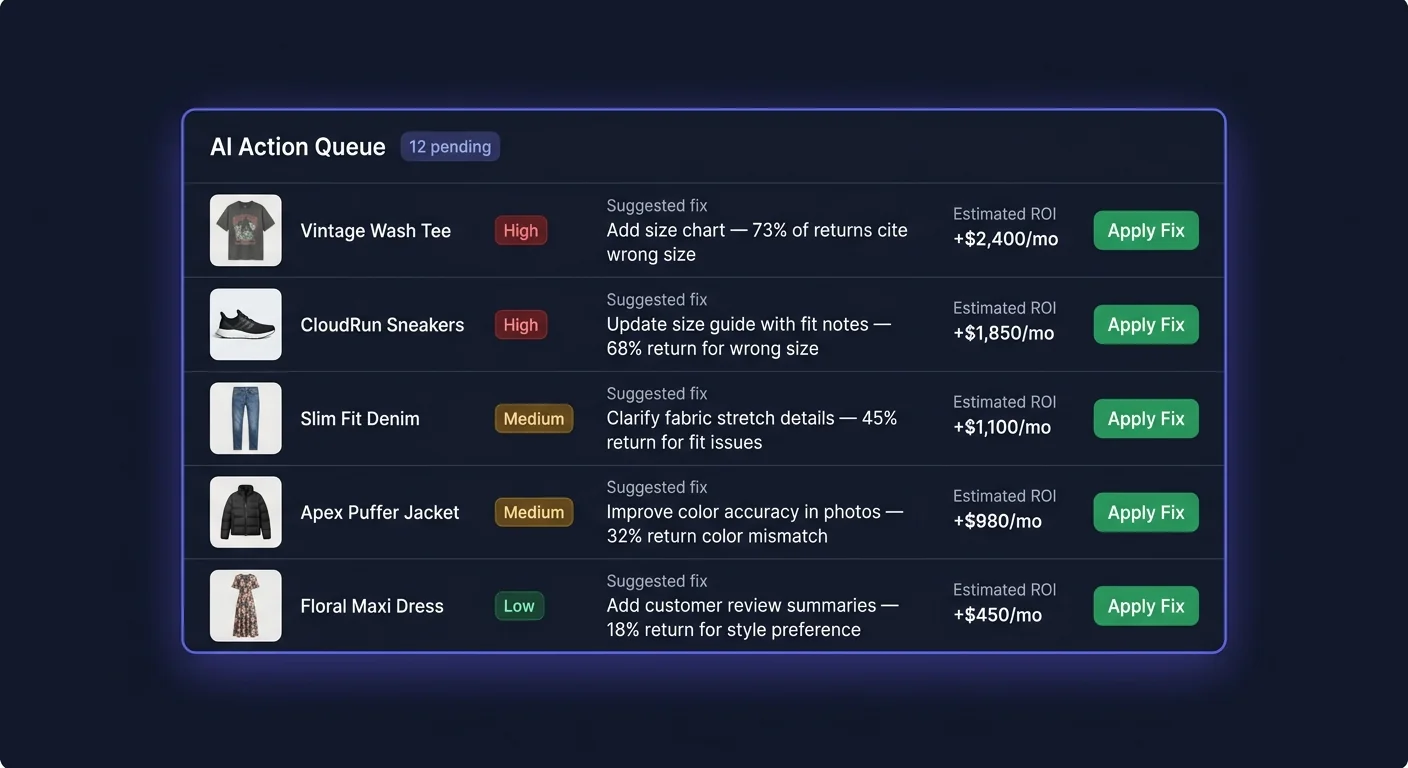
The Action Queue is where ReturnShield AI translates return analysis into concrete, ready-to-apply product listing improvements. Each item in the queue is a specific change to a product description, title, or size guide — generated, evidenced, and ranked by the AI based on your store's actual return data.
How the AI Generates Fixes
The generation pipeline has four stages:
Stage 1: Return Note Aggregation
ReturnShield collects return notes from three sources for each product:
- The return reason field in Shopify returns
- The order note field on returned orders (customers sometimes explain there)
- Post-return survey responses (if enabled) — these carry 2x the weight of unstructured notes
All notes for a given product are aggregated into a corpus for analysis.
Stage 2: Complaint Pattern Extraction
The AI scans the corpus for recurring complaint themes using a trained NLP model. It identifies phrases that appear disproportionately in returns versus retained orders. Key signals:
- Frequency: How often does a phrase appear in return notes vs. non-return orders?
- Consistency: Are multiple customers using similar language, or is each note unique?
- Recency: Notes from the last 30 days weight 2x more than notes from 61–90 days ago
- Specificity: "runs small in the shoulders" is more actionable than "didn't fit"
Stage 3: Fix Generation
Once a dominant complaint is identified, the AI generates a specific listing change that addresses it. The fix is constrained to the most targeted possible change — typically one or two sentences modified within the existing description, not a full rewrite.
Examples of the specificity you can expect:
- "runs small" → adds specific measurements or "size up recommended" language
- "color different from photo" → adds a lighting/photography disclaimer or color qualifier
- "material feels synthetic" → adds fabric composition percentage and texture description
- "waistband too tight" → adds waistband circumference measurement
Stage 4: Confidence Scoring
The AI scores its confidence in the fix based on:
| Signal | Weight in confidence score | |---|---| | Number of return notes analyzed | 35% | | Consistency of complaint theme | 30% | | Clarity of the connection between complaint and proposed fix | 25% | | Historical accuracy for similar fix types | 10% |
Fixes with fewer than 5 data points are labeled "Low evidence" in the queue. Review these carefully — the AI may be extrapolating from limited data.
Reading a Queue Item
Click any item in the Action Queue to open the detail panel. The panel has four sections:
1. Word-Level Diff
The most important section. Shows the current product description on the left and the proposed description on the right, with character-level highlighting of every change.
| Highlight color | Meaning | |---|---| | Red background | Text that will be removed | | Green background | Text that will be added | | No highlight | Text that remains unchanged |
What to check in the diff:
- Is the change limited to the relevant section, or does it alter unrelated text?
- Does the new text sound like your brand voice?
- Is the change accurate? The AI generates wording from return notes — the specific size measurements, fabric percentages, or color descriptions it proposes should be verified against your actual product specs.
Example diff:
Before: The Westfield Oxford Shirt is crafted from premium cotton for a comfortable all-day wear.
After: The Westfield Oxford Shirt is crafted from 100% Egyptian cotton with a standard slim fit — size up if you prefer a relaxed fit across the shoulders.
The diff would highlight "premium cotton for a comfortable all-day wear" in red and "100% Egyptian cotton with a standard slim fit — size up if you prefer a relaxed fit across the shoulders" in green.
2. Evidence Summary
The AI's written explanation of why it generated this fix. Format:
"X of Y returns in the last 90 days mention [complaint theme]. The proposed change addresses this by [what was added/changed]."
Below the summary, 3–5 individual return note excerpts are shown verbatim (anonymized — no customer names or order numbers). Read these carefully. If the notes match the proposed fix, the AI has interpreted the evidence correctly. If the notes mention something different from what the diff addresses, click "Reject" and select "Wrong interpretation" as the reason.
3. Expected Impact
| Field | What it means | |---|---| | Confidence score | AI confidence that this specific fix will reduce return rate for this product (0–100%) | | Expected monthly savings | Estimated monthly cost reduction if fix is applied, based on current return volume and your configured true cost per return | | Projected return rate change | Before/after return rate prediction (e.g., "from 18% to 12%") | | Data points | Number of return notes analyzed to generate this fix | | Evidence quality | Strong (10+ consistent notes), Moderate (5–9 notes), Low (under 5 notes) |
The expected monthly savings calculation: (predicted return rate reduction) × (units sold per month) × (true cost per return). It uses your configured cost assumptions — if you have not entered accurate warehouse and shipping costs under Settings, this figure will be based on category averages.
4. Product Context
Below the impact metrics, the panel shows:
- The product's current risk score and return rate
- How the return rate compares to similar products in your catalog
- A mini chart showing the return rate trend over the last 90 days
Approving a Fix
- Read the diff and confirm the change is accurate (verify measurements, fabric specs, or other factual claims against your product data)
- Review the evidence — do the return note excerpts match what the diff addresses?
- Confirm the wording matches your brand voice
- Click "Apply"
ReturnShield writes the updated description directly to the Shopify product via the API. The change takes effect within seconds and is visible to new visitors immediately. The original description is saved in the fix record so you can revert if needed.
After applying, the item moves to the Applied tab. A 60-day outcome tracking period begins immediately.
Editing Before Applying
If the AI's proposed wording is directionally correct but the phrasing does not match your voice:
- Click "Edit before applying"
- The proposed description opens in an inline editor — make your changes
- Click "Apply edited version"
Your version is saved and applied to Shopify. ReturnShield logs that this fix was manually edited, which is factored into outcome tracking — the AI accounts for the fact that your version may differ from its exact proposal when evaluating prediction accuracy.
Tip: The most common edit is tone adjustment. The AI generates functional, descriptive language, but your brand may use a warmer or more distinctive voice. A quick edit to match your tone is always worth it — apply the underlying fix, just in your words.
Rejecting a Fix
- Click "Reject"
- Select a rejection reason:
| Reason | When to use | |---|---| | Wrong interpretation | The return notes do not match what the diff addresses | | Already addressed | The issue has been fixed separately | | Brand voice issue | The change is functionally correct but does not fit your tone and you do not want to edit it right now | | Inaccurate facts | The proposed text contains wrong measurements, fabric specs, or other factual errors | | Other | Free text field |
- Confirm the rejection
Rejected items move to the Rejected tab. The rejection reason feeds back into the AI model to improve future suggestions for this product. A pattern of "Wrong interpretation" rejections on a specific product type helps the model learn which return note patterns it is misreading for your catalog.
Important: Rejecting a fix does not prevent the AI from generating a new suggestion for the same product later if the return pattern continues. If you reject a fix because the issue is already addressed, the new returns should stop — and the product's risk score will decrease accordingly, naturally deprioritizing it.
Queue Priority and Sorting
The default sort order is Expected Savings (highest first). This ensures you see the highest-impact fixes first. Reorder using the sort controls:
| Sort option | Best for | |---|---| | Expected savings (default) | Maximize return cost reduction per hour of review time | | Confidence score | When you want the most reliable suggestions, even if smaller impact | | Product risk score | Prioritize your most problematic products | | Date generated (newest first) | Review the latest suggestions before they accumulate | | Data points | Prioritize fixes with the most evidence |
Auto-Apply Settings
For high-confidence fixes, ReturnShield can apply changes without manual review.
Navigate to Settings → Action Queue → Auto-Apply:
| Setting | Description | |---|---| | Minimum confidence | Only auto-apply above this threshold (recommended: 90%+) | | Maximum monthly impact | Only auto-apply fixes with lower expected impact — larger changes get human review | | Excluded product categories | Never auto-apply to products in these categories (useful for flagship products or complex items where wording is critical) | | Notify on auto-apply | Email notification each time a fix is applied automatically | | Auto-apply hours | Restrict auto-application to specific hours (e.g., during business hours when your team can monitor) |
How the auto-apply decision tree works:
- A fix is generated and added to the queue
- If confidence is at or above threshold AND expected impact is at or below maximum: auto-apply without manual review
- If either condition is not met: add to the manual review queue
- An email notification is sent (if enabled) listing what was applied
Building trust progressively: Most merchants start auto-apply at 95% confidence and a $100/mo cap, then gradually lower the confidence threshold by 2–3% per month as they observe that auto-applied fixes are accurate. A common endpoint after three to six months is 85% confidence with a $300/mo cap.
Tracking Fix Outcomes (60-Day Window)
Each applied fix is tracked in the Applied tab with a rolling 60-day outcome window. After 60 days from the apply date, ReturnShield compares:
- Return rate for the product in the 60 days before the fix was applied
- Return rate in the 60 days after
The comparison is shown as:
Predicted: 18% → 12% (expected -6 percentage points)
Actual: 18% → 13.5% (actual -4.5 percentage points)
Accuracy: 75% of predicted improvement achieved
Factors That Affect Outcome Accuracy
Outcome tracking is inherently noisy because multiple things change simultaneously in a running store:
- Seasonal demand shifts (more returns in January regardless of description quality)
- New orders placed before the fix was applied (customers who read the old description)
- New inventory batches that may have different fit than previous batches
- External events (carrier delays, economic pressure)
ReturnShield models for seasonality and volume changes, but some residual noise is expected. A fix that achieves 60–80% of its predicted improvement is performing well. A fix that achieves over 100% (better than predicted) usually indicates the issue was more widespread than the evidence suggested.
What Happens to the AI's Confidence Model
Fix outcomes feed back into the AI's confidence scoring. When a fix achieves near-predicted improvement, confidence scoring for similar fix types is reinforced. When a fix underperforms, the model adjusts downward for that category of change. Over 6–12 months of applied fixes, the AI's confidence calibration becomes specific to your catalog.
Filters and Navigation
| Tab | Contents | |---|---| | Pending | Fixes awaiting your review (default view) | | Applied | Applied fixes with outcome tracking data | | Rejected | Rejected fixes with reasons | | Auto-Applied | Fixes applied automatically (if auto-apply is enabled) |
Filter the Pending tab by:
- Evidence quality: Strong, Moderate, Low
- Product category: Focus on a specific category
- Expected impact: Above a monthly savings threshold
- Date generated: Last 7, 30, or 90 days
Next Steps
- Dashboard — understanding the trend chart and cost calculator
- Customer Segments — using segment data alongside Action Queue fixes
- Configuration — setting auto-apply thresholds and priority weighting