KSeF Pro — Installation Guide (WooCommerce)
KSeF Pro for WooCommerce connects your WordPress store to Poland's national e-invoicing system, KSeF (Krajowy System e-Faktur). The plugin generates FA(2) XML invoices, signs them with XAdES-BES digital signatures, and submits them to the Ministry of Finance API — keeping your store compliant with Poland's mandatory e-invoicing requirements without manual intervention.
What is KSeF?
KSeF (Krajowy System e-Faktur) is the Polish government's mandatory electronic invoicing infrastructure. Every B2B VAT invoice issued by a Polish taxpayer must be submitted to KSeF and receive a unique KSeF-ID — a government-assigned identifier that becomes the permanent official record of the transaction for VAT purposes.
Key facts about the mandate:
- Active for large VAT payers, phased rollout to all Polish VAT payers
- Applies to B2B domestic transactions; B2C invoices are optional but recommended
- FA(2) schema version 2.0 mandatory from April 2026
- KSeF-IDs must be retained for 5 years
- Non-compliance carries financial penalties per the Polish VAT Act
For a full explanation of the KSeF authentication flow and session lifecycle, see the KSeF Connection page.
Requirements
| Requirement | Minimum | Recommended |
|---|---|---|
| WordPress | 6.3 | 6.7 |
| WooCommerce | 8.0 | 9.4 |
| PHP | 8.1 | 8.3 |
| PHP extensions | cURL, OpenSSL, SimpleXML | — |
| MySQL | 5.7 | 8.0 |
| KSeF account | Active token from the MF portal | — |
| NIP | Valid Polish tax ID registered in KSeF | — |
| WP-Cron | System cron recommended | wp cron event run |
Verify PHP Extensions
php -m | grep -E "curl|openssl|simplexml"All three must be present. If any is missing, contact your hosting provider — these are standard extensions available on all major PHP-capable hosts.
Memory Requirement
FA(2) XML generation and XAdES-BES signing are memory-intensive for large orders with many line items. Ensure PHP memory limit is at least 128 MB:
php -r "echo ini_get('memory_limit');"If below 128 MB, increase in wp-config.php:
define('WP_MEMORY_LIMIT', '256M');HPOS Status
KSeF Pro supports both legacy (wp_postmeta) and HPOS (wc_orders_meta) order storage. The plugin detects the active storage mode automatically — no configuration needed.
If you plan to migrate to HPOS after installing KSeF Pro, use the built-in WooCommerce migration tool (WooCommerce → Settings → Advanced → Features → Data synchronisation). KSeF-IDs and audit log entries are preserved during migration.
Step 1: Download the Plugin
After purchasing KSeF Pro on plugkit.io, a download link is emailed within a few minutes. Download ksefpl-woocommerce.zip.
Do not unzip it. WordPress handles extraction automatically.
To re-download, log in to plugkit.io → My Account → Orders → click the download link.
Step 2: Upload via WordPress Admin
- Log in to WordPress Admin → Plugins → Add New Plugin
- Click "Upload Plugin" at the top
- Select
ksefpl-woocommerce.zipand click "Install Now" - After installation, click "Activate Plugin"
After activation, the plugin appears in your Plugins list as "KSeF Pro — National e-Invoicing for WooCommerce" with status Active.
What Gets Installed
| Component | Details |
|---|---|
| Plugin files | wp-content/plugins/ksefpl-woocommerce/ |
| Database tables | {prefix}_ksefpl_queue (submission queue), {prefix}_ksefpl_audit (audit log), {prefix}_ksefpl_sessions (session tracking) |
| WP options | ksefpl_* keys in wp_options (encrypted token, seller data, settings) |
| XML storage | wp-content/uploads/ksefpl-xml/ (auto-created with .htaccess protection) |
| UPO storage | wp-content/uploads/ksefpl-upo/ (auto-created with .htaccess protection) |
| Cron jobs | 4 WP-Cron events registered: ksefpl_process_queue, ksefpl_poll_status, ksefpl_download_upo, ksefpl_retry_failed |
| WooCommerce hooks | woocommerce_order_status_changed, HPOS equivalent hooks |
| Admin menu | WooCommerce → KSeF Pro |
Storage Directory Permissions
The XML and UPO upload directories require write permissions for the web server user:
ls -la wp-content/uploads/ | grep ksefplBoth directories should show the web server user (www-data on Debian/Ubuntu, nginx on CentOS) as owner. If created with wrong ownership:
chown -R www-data:www-data wp-content/uploads/ksefpl-xml
chown -R www-data:www-data wp-content/uploads/ksefpl-upo
The .htaccess files in these directories block direct URL access — do not delete them.
Step 3: Obtain Your KSeF Token
Test Token (Start Here)
- Go to
https://ksef-test.mf.gov.pl - Log in with Qualified Electronic Signature (QES), Trusted Profile (Profil Zaufany), or seal certificate
- Navigate to Tokeny → Generuj token
- Select scopes: Wystawianie faktur (invoice_write) and Dostęp do faktur (invoice_read)
- Copy the token — it is shown only once
The test environment is a full-fidelity replica of production. Use it to validate your entire configuration before going live.
Production Token
Follow the same steps at https://ksef.mf.gov.pl. Before generating a production token, verify your NIP is active: navigate to Sprawdź status NIP on the portal. New companies or recently re-registered entities may have a delay of 1–2 business days before activation.
Token Scope Warning
A token missing invoice_read scope will submit successfully but silently fail during UPO download. Your audit log will show orders stuck in SUBMITTED status indefinitely. Always generate tokens with both invoice_write and invoice_read.
Step 4: Configure the Plugin
After activation, go to WooCommerce → KSeF Pro. The settings screen opens on the KSeF Connection tab.
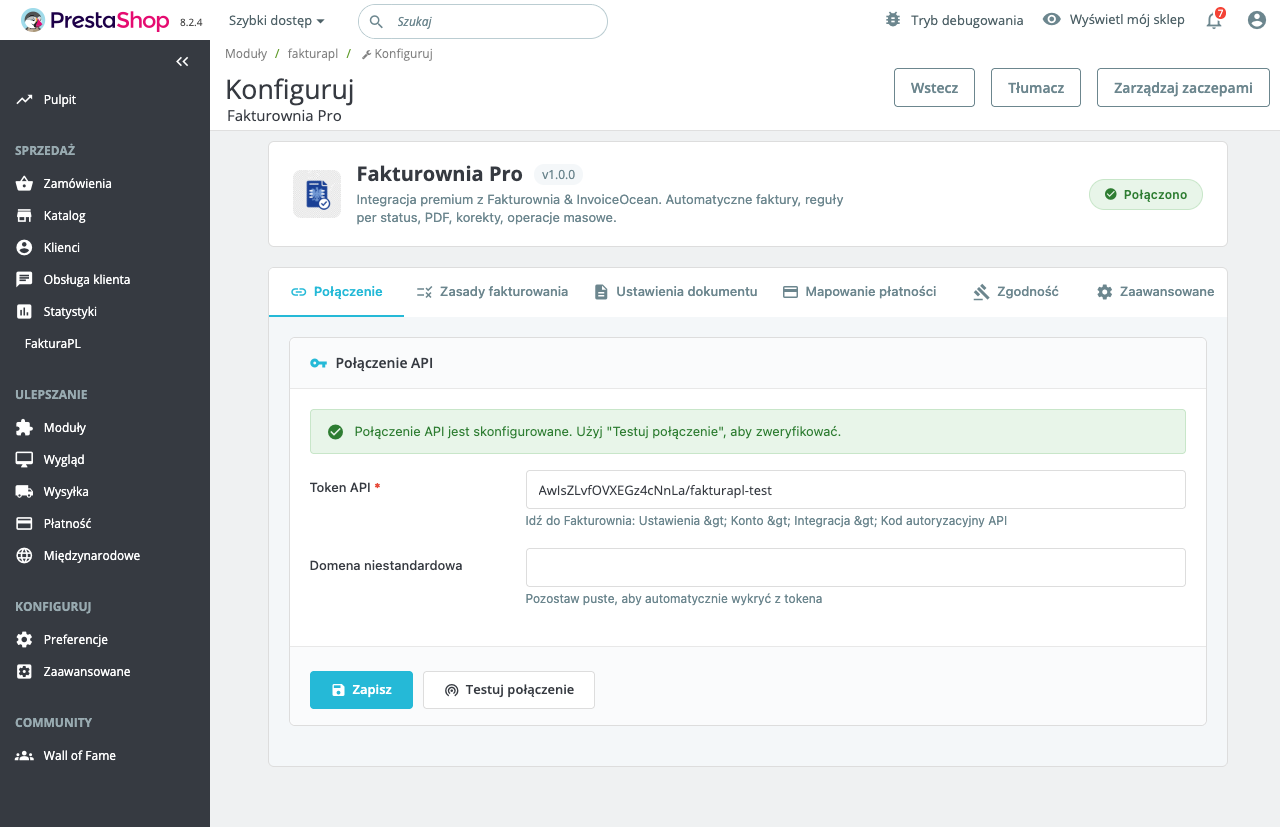
Minimum required settings before testing:
- Select Test environment
- Paste your test token
- Go to Seller Data tab and enter your company NIP and address
- Click "Verify connection" — green indicator confirms the NIP/token pair is valid
Proceed to the Configuration guide for full settings documentation.
Step 5: Set Up WordPress Cron
KSeF Pro uses WordPress cron for all background tasks: queue processing, UPO polling, and failed submission retries.
The default HTTP-triggered wp-cron is not reliable for production use. On low-traffic sites it may not run for minutes or hours, causing orders to stay in PENDING status indefinitely.
Recommended: System Cron with WP-CLI
# Step 1: Disable the HTTP wp-cron trigger
# Add to wp-config.php:
define('DISABLE_WP_CRON', true);

# Step 2: Add a real cron entry (crontab -e)
*/5 * * * * cd /var/www/yoursite && wp cron event run --due-now --quiet 2>&1 | logger -t wp-cron
This runs all due WordPress cron events every 5 minutes, unconditionally. The logger command sends output to syslog for monitoring.
Alternative: wget/curl Approach
*/5 * * * * wget -q -O /dev/null "https://yourstore.pl/wp-cron.php?doing_wp_cron" 2>&1Less reliable than WP-CLI because it depends on HTTP response time. Use only if WP-CLI is unavailable.
Verify Cron is Working
After setting up system cron, trigger it manually and check the log:
wp cron event run ksefpl_process_queue
tail -20 wp-content/uploads/ksefpl-logs/ksefpl-$(date +%Y-%m-%d).log
You should see log entries showing queue processing. If the log file is empty after running, enable Debug logging in KSeF Pro → Advanced → Logging Level.
Step 6: Verify with a Test Submission
- Place a test order in your WooCommerce store (use a test payment gateway)
- Move the order to the configured trigger status (default: Processing)
- Run the cron manually:
wp cron event run ksefpl_process_queue - Check WooCommerce → KSeF Pro → Audit Log — the order should appear with status
SUBMITTED - Run the poll cron:
wp cron event run ksefpl_poll_status && wp cron event run ksefpl_download_upo - Refresh the audit log — status should change to
ACCEPTEDwith a KSeF-ID - Open the order detail — the KSeF Pro meta box should show the KSeF-ID with a download link for the UPO
Updating the Plugin
When a new version is available:
- Download the updated
ksefpl-woocommerce.zipfrom plugkit.io - Go to Plugins → Add New Plugin → Upload Plugin
- Upload the new ZIP and confirm the upgrade prompt
All KSeF-IDs, audit log entries, UPO files, and configuration are preserved across upgrades. If the upgrade includes a database schema change, the migration runs automatically on the first admin page load after update.
After upgrading, clear the WordPress object cache and verify the plugin version in Plugins → KSeF Pro.
Multisite Installations
KSeF Pro supports WordPress Multisite with per-site activation:
- Activate the plugin at the network level to make it available to sub-sites, or per-site
- Each sub-site has its own KSeF token, seller NIP, and configuration
- Cron events are registered per-site — each site runs its own queue independently
- If multiple sub-sites share the same legal entity NIP, they share the same KSeF account and KSeF-ID sequence
Post-Installation Checklist
- [ ] Plugin active in Plugins list
- [ ] XML and UPO directories exist and are writable
- [ ]
.htaccessblocks present in XML and UPO directories - [ ] System cron configured (not HTTP wp-cron)
- [ ] Token verified — green indicator in KSeF Connection tab
- [ ] Seller NIP matches the NIP on the KSeF token
- [ ] Tax class → VAT code mapping complete
- [ ] Trigger status configured (default: Processing)
- [ ] Test order submitted and
ACCEPTEDin audit log - [ ] UPO downloaded and contains valid KSeF-ID
- [ ] FA(2) XML reviewed — buyer and seller data correct