KSeF Pro — Installation Guide (PrestaShop)
KSeF Pro connects your PrestaShop store to Poland's national e-invoicing system, KSeF (Krajowy System e-Faktur), and submits FA(2) XML invoices directly to the Ministry of Finance API. This guide walks you through installation, token generation, and the post-install verification steps to confirm your setup is working before processing real orders.
What is KSeF?
KSeF (Krajowy System e-Faktur) is the Polish government's mandatory electronic invoicing infrastructure. Every B2B VAT invoice issued by a Polish taxpayer must be submitted to KSeF and receive a unique KSeF-ID — a government-assigned reference number that becomes the official VAT record for that transaction.
Key facts:
- Mandatory for VAT payers: Active Polish VAT payers are required to submit B2B invoices via KSeF. The mandate is being phased in by business size.
- FA(2) XML format: Invoices must conform to the FA(2) logical structure defined by the Ministry of Finance (schema version 2.0 from April 2026).
- XAdES-BES digital signature: Every FA(2) XML document must be digitally signed before submission.
- UPO (Urzędowe Poświadczenie Odbioru): After submission, you receive an Official Proof of Receipt — a government-signed XML that confirms the invoice was accepted and is legally binding.
- KSeF-ID: The permanent government-assigned invoice identifier. This replaces the invoice number for VAT audit purposes and must be retained for 5 years.
KSeF Pro handles the entire submission lifecycle: FA(2) XML generation, XAdES-BES digital signing, session management, UPO download, and KSeF-ID storage — so your PrestaShop store remains compliant without manual intervention.
Requirements
| Requirement | Minimum | Recommended |
|---|---|---|
| PrestaShop | 8.0 | 8.2.x or 9.0.x |
| PHP | 8.1 | 8.3 |
| PHP extensions | cURL, OpenSSL, SimpleXML | — |
| MySQL | 5.7 | 8.0 |
| KSeF account | Active token from the MF portal | — |
| NIP | Valid Polish tax identification number | — |
| Outbound HTTPS | Access to ksef.mf.gov.pl port 443 | — |
Verify PHP Extensions
To confirm the required extensions are loaded, go to Advanced Parameters → Information in your PrestaShop Admin, or run from the command line:
php -m | grep -E "curl|openssl|simplexml"All three must appear in the output. If any is missing, contact your hosting provider to enable it.
Outbound Network Requirements
KSeF Pro makes outbound HTTPS requests from your web server to:
ksef-test.mf.gov.pl(test environment)ksef.mf.gov.pl(production environment)
Both must be reachable on port 443. To test connectivity:
curl -I https://ksef-test.mf.gov.pl 2>&1 | head -5A 405 Method Not Allowed or 200 OK response confirms connectivity. Connection refused or a timeout indicates a firewall restriction — contact your hosting provider.
Step 1: Download the Module
After purchasing KSeF Pro on plugkit.io, a download link is emailed to you within a few minutes. Download the file ksefpl.zip.
Do not unzip it. PrestaShop handles extraction automatically during the upload process.
If you need to re-download the module, log in to plugkit.io → My Account → Orders and click the download link for your order.
Step 2: Upload to PrestaShop
-
Log in to your PrestaShop Admin Panel.
-
Navigate to Modules → Module Manager.
-
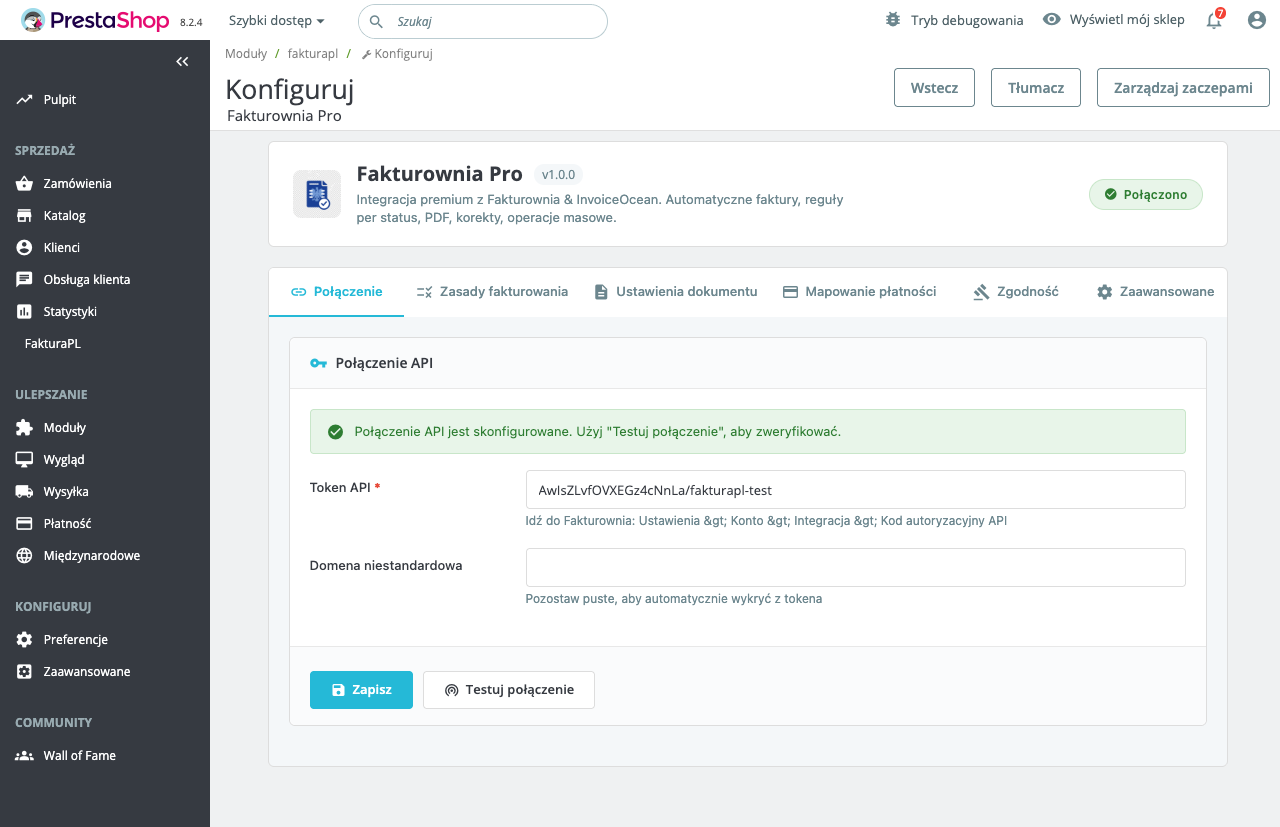
Click "Upload a module" in the top-right corner.
-
Select
ksefpl.zipand confirm. -
PrestaShop extracts and installs the module automatically.
After installation, search for "KSeF" in the module list. The module appears as "KSeF Pro — National e-Invoicing for PrestaShop" with status Active.
What Gets Installed
The installation creates:
| Component | Details |
|---|---|
| Module files | modules/ksefpl/ directory |
| Database tables | ps_ksefpl_audit (submission records), ps_ksefpl_sessions (session tracking) |
| Configuration entries | KSEFPL_* keys in ps_configuration |
| XML storage | modules/ksefpl/xml/ (auto-created, requires write permissions) |
| UPO storage | modules/ksefpl/upo/ (auto-created, requires write permissions) |
| PrestaShop hooks | actionOrderStatusPostUpdate, displayAdminOrderMainBottom |
If the XML or UPO directories could not be created (permissions issue), the module will show a warning banner. Fix permissions before processing any orders:
chmod 755 /path/to/prestashop/modules/ksefpl/xml
chmod 755 /path/to/prestashop/modules/ksefpl/upo
Step 3: Obtain Your KSeF Token
KSeF authentication uses a token issued by the Ministry of Finance portal. The process:
Test Environment Token
- Go to
https://ksef-test.mf.gov.pl - Log in with your Qualified Electronic Signature (QES), Trusted Profile (Profil Zaufany), or seal certificate
- Navigate to Tokeny → Generuj token
- Select permissions: Wystawianie faktur (invoice write) and Dostęp do faktur (invoice read)
- Set an expiry date (tokens can be permanent or time-limited)
- Click Generuj and copy the displayed token string
The token is shown only once. Store it in a password manager immediately.
Production Environment Token
Follow the same steps at https://ksef.mf.gov.pl. Production tokens require your NIP to be active in the KSeF system — verify at Sprawdź status NIP before generating a token.
Required Token Scopes
| Scope | Polish label | Required for |
|---|---|---|
| invoice_write | Wystawianie faktur | Submitting invoices |
| invoice_read | Dostęp do faktur | Downloading UPOs |
| credentials_read | Odczyt poświadczeń | Token validation on config save |
A token missing invoice_read will submit successfully but fail silently on UPO download. Always generate tokens with all three scopes.
Step 4: Open Module Configuration
-
In PrestaShop Admin, go to Modules → Module Manager.
-
Find KSeF Pro and click "Configure".
-
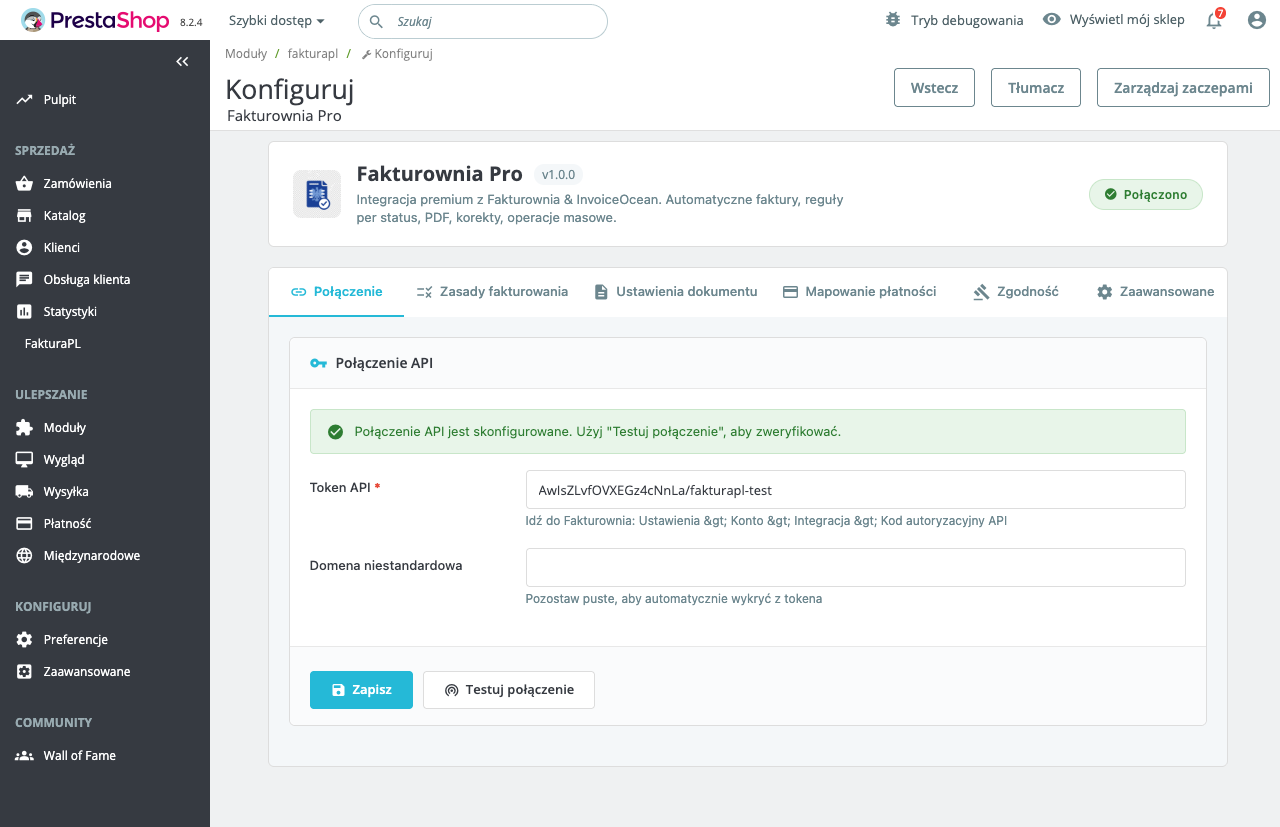
The module opens on the KSeF Connection tab.
-
Select environment: Test (start here) or Production.
-
Paste your API token into the Token field.
-
Enter your NIP in the Seller Data tab.
-
Click "Verify Token" — a green indicator confirms the token/NIP pair is valid.
Proceed to the Configuration guide to complete invoice settings, tax rate mapping, and trigger rules.
Step 5: Test Before Going Live
Before switching to the Production environment:
- Confirm the Test environment token verifies successfully (green indicator).
- Place a test order in your PrestaShop store.
- Move the order to your configured trigger status (e.g., "Payment accepted").
- Check KSeF Pro → Audit Log — the order should appear with status
SUBMITTED, thenACCEPTEDwithin 1–2 minutes. - Click the accepted record and download the UPO — confirm it contains a KSeF-ID.
- Open the FA(2) XML preview and verify seller NIP, buyer data, line items, and VAT amounts are correct.
Only after a successful test submission should you switch to the Production environment.
Updating KSeF Pro
When a new version is available on plugkit.io:
- Download the updated
ksefpl.zipfrom your order. - Go to Modules → Module Manager → Upload a module.
- Upload the new ZIP — PrestaShop performs an in-place upgrade, preserving all configuration.
All stored KSeF-IDs, audit log entries, and UPO files are retained across upgrades. A database migration runs automatically on first page load after upgrade if schema changes are required.
After upgrading: Clear the PrestaShop cache (Advanced Parameters → Performance → Clear cache) and verify the module configuration still shows the correct token and environment.
Multistore Installations
KSeF Pro supports PrestaShop Multistore. Each shop can have its own KSeF token and NIP if they operate under different legal entities:
- In PrestaShop Admin, switch to the target shop context (top-left shop switcher).
- Go to Modules → KSeF Pro → Configure.
- Set the token and seller NIP for this specific shop.
- Save — settings are scoped to this shop only.
If all shops share the same NIP (a single legal entity with multiple storefronts), configure KSeF Pro at the All Shops level. All orders across shops will submit under the same KSeF account.
Uninstalling
Go to Modules → Module Manager, find KSeF Pro, and click Uninstall. You are prompted whether to:
- Keep configuration data: Preserves all audit log entries, KSeF-IDs, and UPO files in the database and file system.
- Delete module data: Removes all database tables and stored XML/UPO files permanently.
Choose "Keep" unless you are certain you will never need the audit records — retained records satisfy the 5-year legal requirement.
Post-Installation Checklist
- [ ] Module shows as Active in Module Manager
- [ ] XML and UPO directories exist and are writable
- [ ] Token verified (green indicator) against Test environment
- [ ] Seller NIP matches the NIP on the KSeF token
- [ ] Tax rate mapping configured (PrestaShop rules → Polish VAT codes)
- [ ] Trigger status configured in Invoice Settings
- [ ] Test order submitted successfully —
ACCEPTEDin audit log - [ ] UPO downloaded and contains a valid KSeF-ID
- [ ] FA(2) XML reviewed — buyer and seller data correct