Customer Invoice Portal
Fakturownia Pro gives your customers direct access to their Fakturownia invoices from within their PrestaShop account — no support tickets, no manual PDF emailing. This guide covers the full setup: enabling the portal, the NIP field at checkout, how the B2B checkout experience differs from B2C, PDF download mechanics, and how to test everything end-to-end.
What Customers See
With the customer portal enabled, customers experience the following:
On the Order Detail Page
After an invoice rule fires and a Fakturownia invoice is created, the order detail page in the customer's account shows a Fakturownia Pro invoice panel with:
- The invoice number (e.g., FV 2026/03/042)
- Invoice type (VAT Invoice, Proforma, Receipt, Correction)
- Invoice date
- A Download PDF button
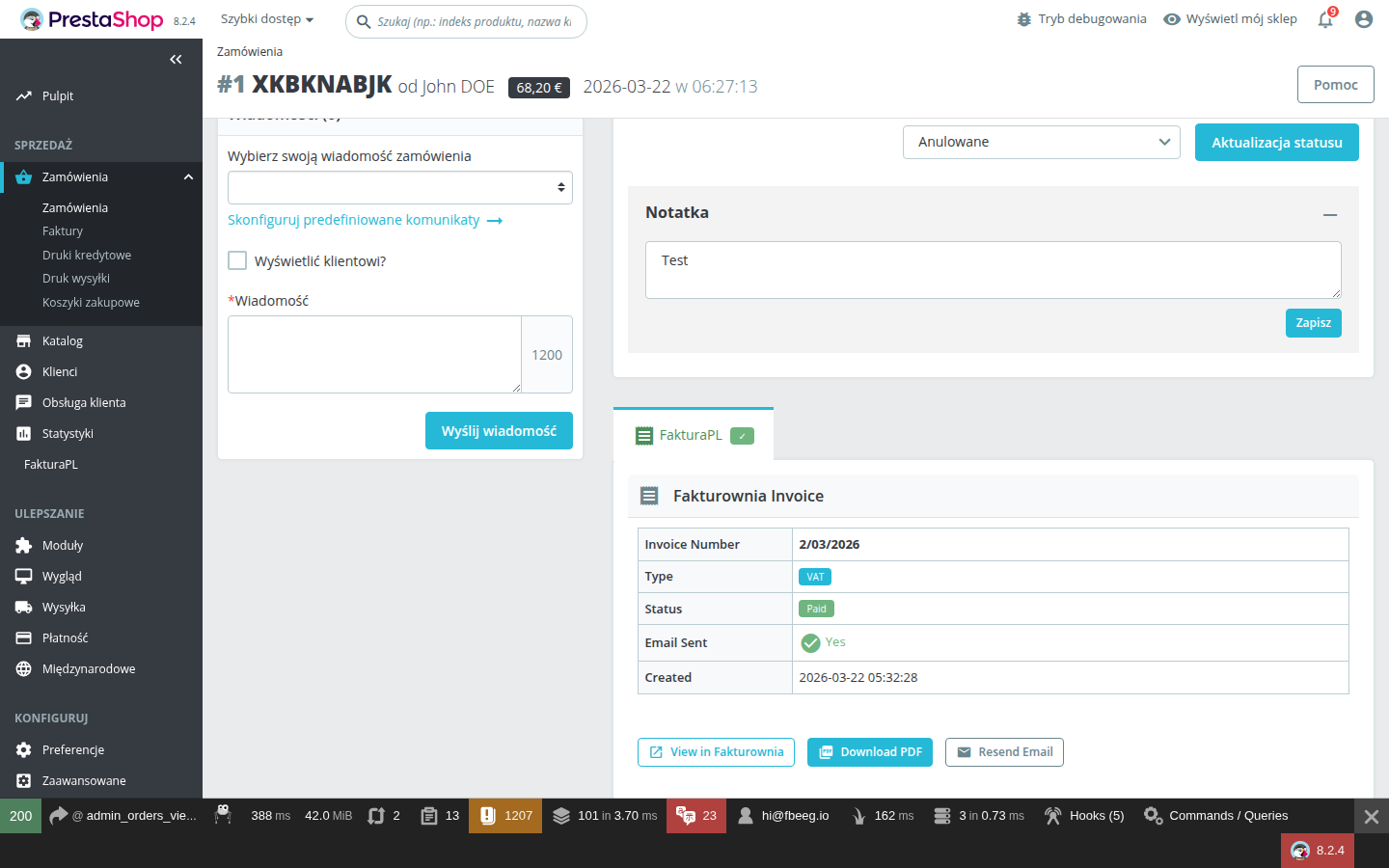
Clicking "Download PDF" triggers a PDF download in the browser. The PDF is the full, formatted Fakturownia invoice identical to what an accountant would receive — not a simplified PrestaShop-generated document.
When No Invoice Exists Yet
If the order's status has not triggered any invoice rule yet (e.g., the order is awaiting payment), the panel shows a "No invoice yet" message.
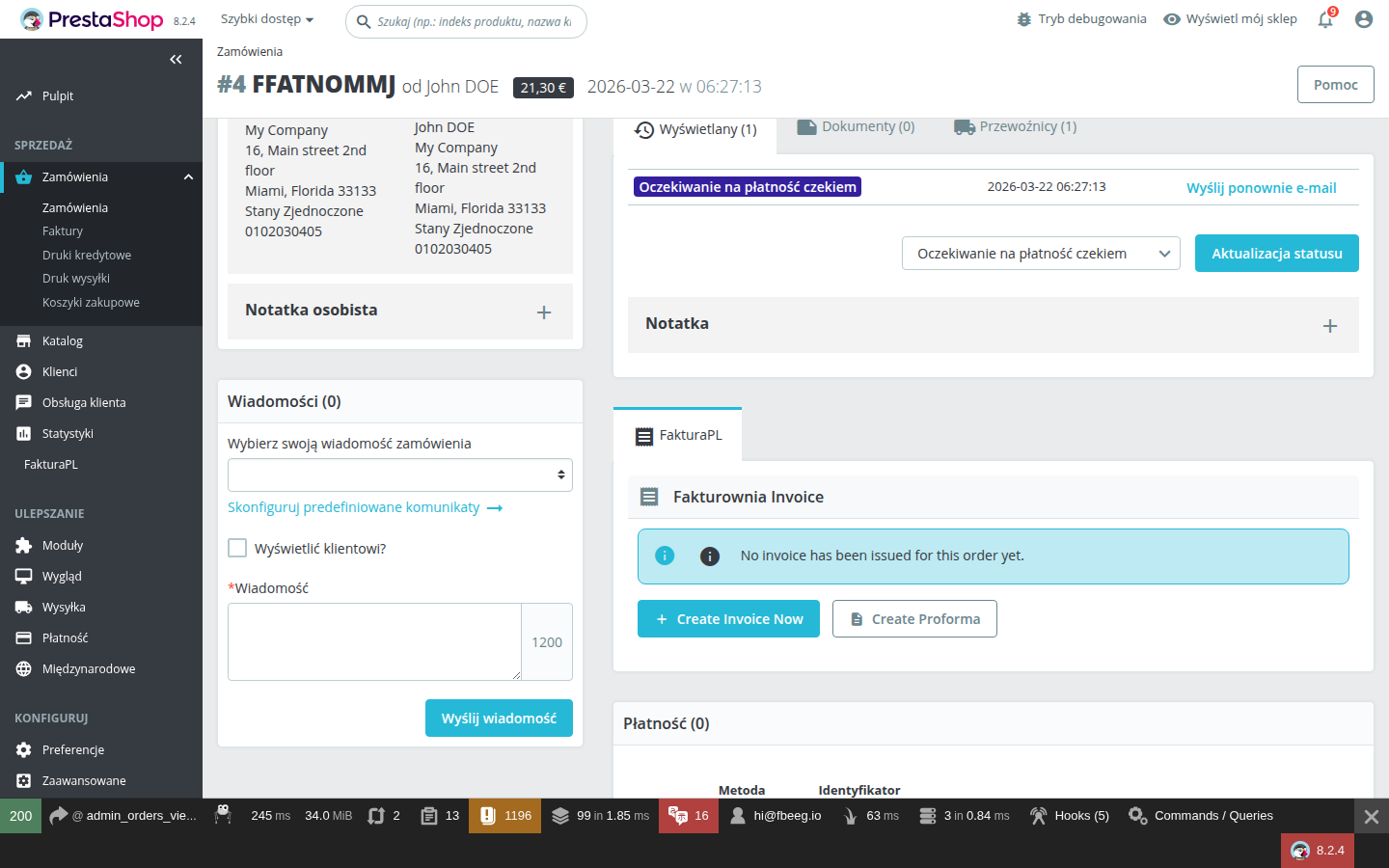
This is normal for orders in early status stages. The invoice will appear once the configured rule fires. B2B customers who need the document urgently can contact your store; you can manually trigger invoice creation from the PrestaShop Admin order detail page.
In the My Account Section
With "Replace PS Invoicing" enabled, the customer's My Account page shows a "My Invoices" section listing all Fakturownia invoices for their orders. This replaces PrestaShop's native invoice list.
Step 1: Enable the Customer Portal
- Open Fakturownia Pro configuration (Modules → Module Manager → Configure)
- Go to the Advanced tab
- Enable "Replace PS Invoicing"
- Save
This setting activates two hooks simultaneously:
| Hook | What it adds |
|---|---|
| displayOrderDetail | Invoice panel on the customer's order detail page |
| displayCustomerAccount | "My Invoices" section on the My Account dashboard |
Fallback for orders without Fakturownia invoices: For any order that has no Fakturownia invoice (placed before the module was installed, or for statuses with no active rule), PrestaShop's native invoicing is used as a fallback. Customers are never left without any invoice — if a PrestaShop PDF invoice exists, it is shown instead.
Step 2: Configure NIP Field at Checkout
Polish B2B customers need their company name and NIP (Numer Identyfikacji Podatkowej) on invoices for their accounting records. Fakturownia Pro adds a dedicated NIP field to the PrestaShop checkout form.
Enabling the NIP field
- In Fakturownia Pro configuration, go to the Document Settings tab
- Enable "Show NIP field at checkout"
- Save
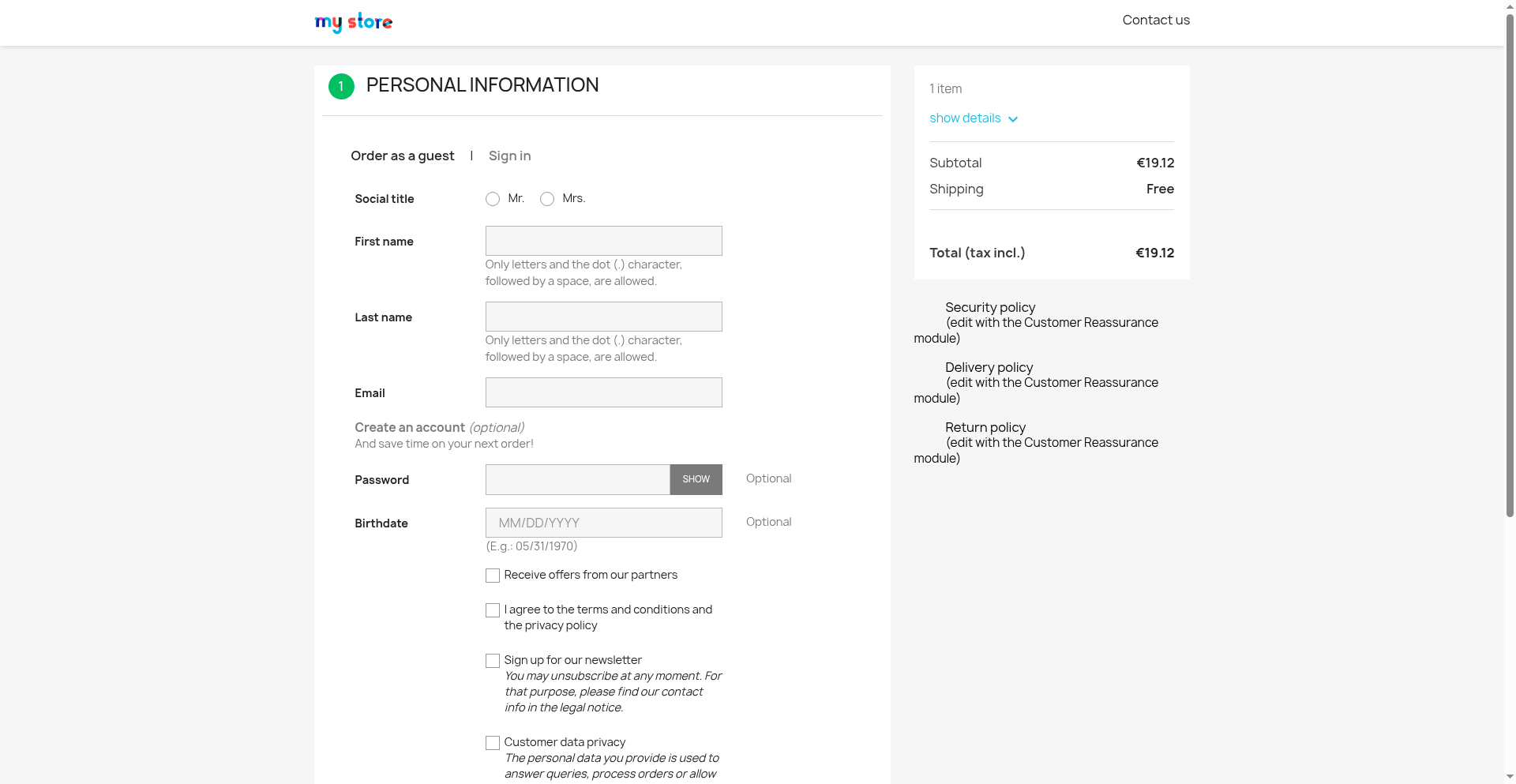
The NIP field appears on the checkout address form as "Company NIP" (or "NIP firmy" if using the Polish language version). It is placed directly below the company name field on the billing address form.
NIP field behaviour
- The field is optional by default — B2C customers who do not have a NIP skip it without issue
- When a customer enters a NIP, it is stored with the order (in the
ps_addresstable alongside the order) - When an invoice rule fires, the NIP is passed to the Fakturownia API as part of the buyer data
- The NIP appears on the invoice alongside the company name
Customising the NIP field label
The NIP field label is translatable via PrestaShop's standard translation system:
- Go to International → Translations
- Select the theme translation type and your language
- Search for "Company NIP" in the translation strings
- Modify the label text as needed (e.g., "Tax ID / NIP", "VAT Registration Number")
This is useful for stores serving international customers who may not recognise the term "NIP" — using "Tax ID" or "VAT number" is more universally understood.
Step 3: Understand B2B vs B2C Checkout Differences
The checkout experience and resulting invoice depend on whether the customer provides a NIP.
| Situation | Checkout | Invoice | |---|---|---| | B2C customer, no NIP | NIP field visible but empty | Invoice shows customer's full name as buyer. No NIP on invoice. | | B2B customer, enters NIP | NIP field filled with company NIP | Invoice shows company name + NIP as buyer | | B2B customer, no NIP entered | Treated like B2C | Invoice shows personal name, no NIP — customer may need to contact support for a corrected invoice |
Buyer Name Format interaction: The "Buyer Name Format" setting in Document Settings controls what appears in the buyer name field:
| Format | NIP provided | NIP not provided | |---|---|---| | Company name | Shows company name from address | Shows company name from address (may be blank if not filled) | | Full name | Shows first + last name | Shows first + last name | | Company + full name | Shows both | Shows full name only (company name omitted if blank) |
Recommendation for mixed stores: Use "Company + full name" format. B2B customers who fill in both company name and NIP get properly labelled B2B invoices. B2C customers who fill in only their personal name get personal invoices. No ambiguity.
KSeF implications
From 2026, KSeF B2B invoices require the buyer's NIP. A B2B invoice without a NIP cannot be submitted to KSeF as a valid B2B e-invoice.
Practical consequence: If a B2B customer forgets to enter their NIP at checkout, the invoice created by Fakturownia Pro will not have a NIP and cannot be submitted to KSeF as a B2B invoice. The customer will need to contact you to request a corrected invoice (faktura korygująca) with the NIP added — which is avoidable with a clear NIP field at checkout and appropriate guidance text.
Consider adding a note near the NIP field at checkout: "B2B customers: enter your company NIP here to receive an invoice addressed to your company."
Step 4: Configure Email Template Customisation
When the email toggle is on for any invoice rule, Fakturownia sends the invoice by email. The email template is configured inside Fakturownia, not inside PrestaShop — so you need to customise it there.
Customising the Fakturownia email template
- Log in to your Fakturownia account
- Go to Settings → Email templates
- Find the "Invoice by email" template
- Edit the subject line (e.g., "Your invoice from [Your Store Name] — {{invoice_number}}")
- Edit the email body — you can use the following template variables:
{{invoice_number}}— the invoice number{{buyer_name}}— the buyer's name or company{{total_gross}}— the invoice total including VAT{{invoice_date}}— the invoice issue date{{due_date}}— the payment due date
- Save the template
Sender identity: The sender name and reply-to address are configured under Fakturownia → Settings → Account → Email settings. Set the sender name to your store name and the reply-to to your customer support address.
Email logs and delivery issues
All emails sent by Fakturownia are logged in Fakturownia → Sent mail log. If a customer reports not receiving their invoice email:
- Check the Sent mail log for the relevant invoice
- Confirm the customer's email address on the Fakturownia invoice is correct (it comes from the order's billing address in PrestaShop — check the order first)
- Ask the customer to check their spam folder
- If the email shows "sent" in the log but was never received, the issue is on the recipient's mail server — ask your customer to add
fakturownia.plto their allowlist
Step 5: Understand PDF Download Mechanics
When a customer clicks the "Download PDF" button, Fakturownia Pro:
- Retrieves the invoice's PDF URL from the local
ps_fakturapl_invoicesdatabase table - Checks whether PDF Cache is enabled (Advanced tab) and whether a cached copy exists
- If cache hit: Serves the locally cached PDF directly without an API call
- If cache miss: Makes an API request to Fakturownia to fetch the PDF, streams it to the customer, and stores a local cache copy for 24 hours
Cache invalidation
The PDF cache is automatically invalidated when:
- Fakturownia reports a change to the invoice via webhook (requires Webhook Sync to be enabled)
- The TTL (24 hours) expires
- You manually clear PrestaShop's cache from Advanced Parameters → Performance → Clear cache
PDF filename
The PDF is served with Content-Disposition: attachment; filename="FV_2026_03_042.pdf" — the filename matches the Fakturownia invoice number in a filesystem-safe format (slashes replaced with underscores).
Why PDFs come from Fakturownia, not PrestaShop
The PDF is generated by Fakturownia's templating system, not by PrestaShop. This means:
- The invoice PDF matches exactly what an accountant opening the invoice in Fakturownia would see
- Your Fakturownia invoice templates, logos, and branding are applied
- Corrections and cancellations are reflected correctly in the PDF
PrestaShop's native PDF invoices are simpler and do not carry GTU codes, OSS flags, or KSeF numbers — another reason to use Fakturownia Pro's portal rather than PrestaShop's built-in invoicing.
Step 6: Verify the Customer Portal End-to-End
Before going live, run a full customer-journey test:
- Place a test order in your store (use a test product and test payment method)
- Confirm the order appears in PrestaShop Admin → Orders
- Manually change the order status to the one that triggers your VAT Invoice rule
- Wait 10–15 seconds, then reload the order detail page in Admin
- Confirm the Fakturownia Pro panel shows the invoice number and a PDF download link
- Log in to Fakturownia.pl and confirm the invoice exists there with correct buyer data, amounts, and tax rates
- Log in to your store as the test customer
- Navigate to My Account → Order History → open the test order
- Confirm the invoice panel appears with the Download PDF button
- Click Download PDF and verify it opens correctly in a PDF viewer
- If email was enabled: check that the test customer received the invoice email
Testing the NIP field
- Place a second test order with a NIP number entered at checkout
- Trigger the invoice rule on that order
- Open the invoice in Fakturownia — confirm the NIP and company name appear in the buyer section
- Download the PDF — confirm the NIP is visible on the invoice
Common Configuration Patterns
B2C-only store (consumers, no company invoices needed)
- "Replace PS Invoicing": enabled
- NIP field at checkout: disabled
- Buyer Name Format: Full name
- Invoice rules: Create VAT Invoice on "Payment accepted", email on
Customer experience: invoice download link on order page, PDF in inbox. No NIP or company fields in the checkout form.
B2B-only store (companies with NIP required)
- "Replace PS Invoicing": enabled
- NIP field at checkout: enabled
- Buyer Name Format: Company name
- Invoice rules: Create Proforma on "Awaiting payment", Create VAT Invoice on "Payment accepted"
Customer experience: proforma in inbox immediately after order, VAT invoice once payment confirmed. Invoice shows company name and NIP.
Mixed B2B/B2C store
- "Replace PS Invoicing": enabled
- NIP field at checkout: enabled (optional for B2C customers)
- Buyer Name Format: Company + full name
- Invoice rules: Create VAT Invoice on "Payment accepted" for all customers
Customer experience: B2B customers with NIP get company-addressed invoices. B2C customers without NIP get personal-name invoices. Both download from the same order detail page interface.
FAQ
Q: A customer is asking for an invoice for an order placed before I installed the module. What do I do?
A: Open the order detail page in PrestaShop Admin. The Fakturownia Pro panel will show a manual action button to create an invoice for historical orders without changing their status. Click it, and Fakturownia Pro will create the invoice on demand.
Q: A B2B customer entered the wrong NIP at checkout. Can I fix it?
A: The NIP is stored on the order's billing address. You can edit the billing address from the order detail page in PrestaShop Admin. However, the invoice that was already created in Fakturownia already has the wrong NIP. In that case, you need to create a correction invoice in Fakturownia (or use the "Create Correction" action on the order) and issue a new invoice with the correct NIP.
Q: Can customers see invoices from other customers?
A: No. Invoice retrieval requires the customer to be logged in. Fakturownia Pro fetches only the invoice for the specific order being viewed, and PrestaShop's customer session ensures each customer can only access their own orders.
Q: The PDF download link appears but returns an error. What should I check?
A: Check Advanced Parameters → Logs for a "Fakturownia Pro: PDF fetch failed" entry. The most common causes are an invalid or expired API token (re-enter it in the Connection tab), or Fakturownia temporarily unreachable (try again in a few minutes). If PDF Cache is enabled, a cached copy may also be stale — clear the module cache from the block list page.
Next Steps
- Invoice Rules — ensure invoices are created automatically so the portal has documents to show
- Compliance Guide — collecting NIP at checkout is required for KSeF compliance
- Troubleshooting — portal not showing invoices? Work through the diagnosis checklist