Troubleshooting
This page covers WooCommerce-specific issues with KSeF Pro. For KSeF API error codes common to all platforms, see the error code reference.
Enable Debug Logging First
Before diagnosing any issue:
- Go to WooCommerce → KSeF Pro → Advanced → Logging Level
- Set to Debug
- Save settings
- Reproduce the issue
- Check the log:
tail -50 wp-content/uploads/ksefpl-logs/ksefpl-$(date +%Y-%m-%d).log
The debug log records every KSeF API call including full HTTP request/response bodies, cron event runs, and rule engine decisions. Most issues can be diagnosed from this output alone.
Reset to Info after debugging — debug logs grow quickly on busy stores.
WordPress Cron Not Running
The most common production issue. Orders stay in PENDING status indefinitely; UPOs never arrive; no new log entries appear after the initial queue insertion.
Diagnose Cron Status
# Check all ksefpl cron events and their next scheduled run
wp cron event list --fields=hook,next_run_relative | grep ksefpl

# Expected output (all showing near-future run times):
# ksefpl_process_queue    0 minutes
# ksefpl_poll_status      0 minutes
# ksefpl_download_upo     1 minute
# ksefpl_retry_failed     4 minutes
If any event shows a past run time hours or days ago, cron is not executing.
Check if Events Are Registered
wp cron event list | grep ksefpl | wc -l
# Should return 4
If fewer than 4 events are registered, the plugin may have been deactivated and reactivated without cron re-registration. Deactivate and reactivate the plugin from Plugins → KSeF Pro → Deactivate → Activate.
Fix: Set Up System Cron
# Step 1: Disable HTTP wp-cron in wp-config.php
define('DISABLE_WP_CRON', true);

# Step 2: Add system cron entry (crontab -e)
*/5 * * * * cd /var/www/yoursite && wp cron event run --due-now --quiet 2>&1 | logger -t ksefpl-cron
Verify immediately after setup:
# Manually trigger the cron
wp cron event run ksefpl_process_queue
# Then check the log for activity
tail -20 wp-content/uploads/ksefpl-logs/ksefpl-$(date +%Y-%m-%d).log
Fix: Force Queue Processing
For immediate relief while fixing cron:
wp cron event run ksefpl_process_queue
wp cron event run ksefpl_poll_status
wp cron event run ksefpl_download_upo
Check the audit log after running — processed orders should show ACCEPTED status with KSeF-IDs.
Cron With Redis/Memcached Object Cache
If your WordPress installation uses Redis or Memcached as the WP object cache, WordPress transient-based cron scheduling can behave inconsistently. KSeF Pro's cron intervals are stored as transients — if the cache is flushed frequently, intervals reset to the defaults on every cache clear.
Fix: add to wp-config.php:
// Exclude KSeF Pro transients from object cache (force DB storage)
define('KSEFPL_FORCE_DB_TRANSIENTS', true);
This forces KSeF Pro's scheduling transients to use the database instead of the object cache.
HPOS Migration Issues
If you migrated orders to HPOS and KSeF Pro stopped detecting order status changes:
Verify HPOS is Active
wp option get woocommerce_custom_orders_table_enabled
# Returns: yes (HPOS active) or no (legacy)
Re-register Plugin Hooks
KSeF Pro registers HPOS-compatible hooks on activation. If the plugin was activated before HPOS was enabled, the HPOS hooks are missing:
- Deactivate KSeF Pro (Plugins → KSeF Pro → Deactivate)
- Enable HPOS: WooCommerce → Settings → Advanced → Features → High-Performance Order Storage → Enable
- Reactivate KSeF Pro
Verify Order Meta Location
Under HPOS, order meta is in wc_orders_meta, not wp_postmeta:
-- Check for KSeF-IDs in HPOS tables
SELECT order_id, meta_key, meta_value
FROM wp_wc_orders_meta
WHERE meta_key = '_ksefpl_ksef_id'
ORDER BY order_id DESC
LIMIT 10;
If rows are present but the meta box in the order detail shows empty, flush the WooCommerce object cache:
wp cache flushKSeF-ID Column Not Visible in Orders List
The KSeF-ID column is registered for both HPOS and legacy orders lists. If it's missing after HPOS migration:
# Check if the column is registered
wp eval "print_r(apply_filters('manage_woocommerce_page_wc-orders_columns', []));";
If ksefpl_ksef_id is not in the output, the plugin needs to be deactivated and reactivated (see above).
Authentication Failures (KSeF Error 10000/10100)
Token Has Trailing Whitespace
The most common transcription error. In WooCommerce → KSeF Pro → KSeF Connection:
- Clear the token field completely (select all, delete)
- Re-paste the token directly from your password manager or the KSeF portal
- Click "Verify connection" before saving
AUTH_KEY Changed After Migration
If your WordPress installation was migrated and wp-config.php salts were regenerated:
# Check if token can be decrypted
wp eval "
\$token = get_option('ksefpl_api_token');
echo \$token ? 'Token present' : 'Token missing';
";
If present but verify fails with an auth error, the encryption key changed. Re-enter the token in the plugin settings. To prevent this in future, add a static KSEFPL_ENCRYPTION_KEY to wp-config.php.
Wrong Environment for Token
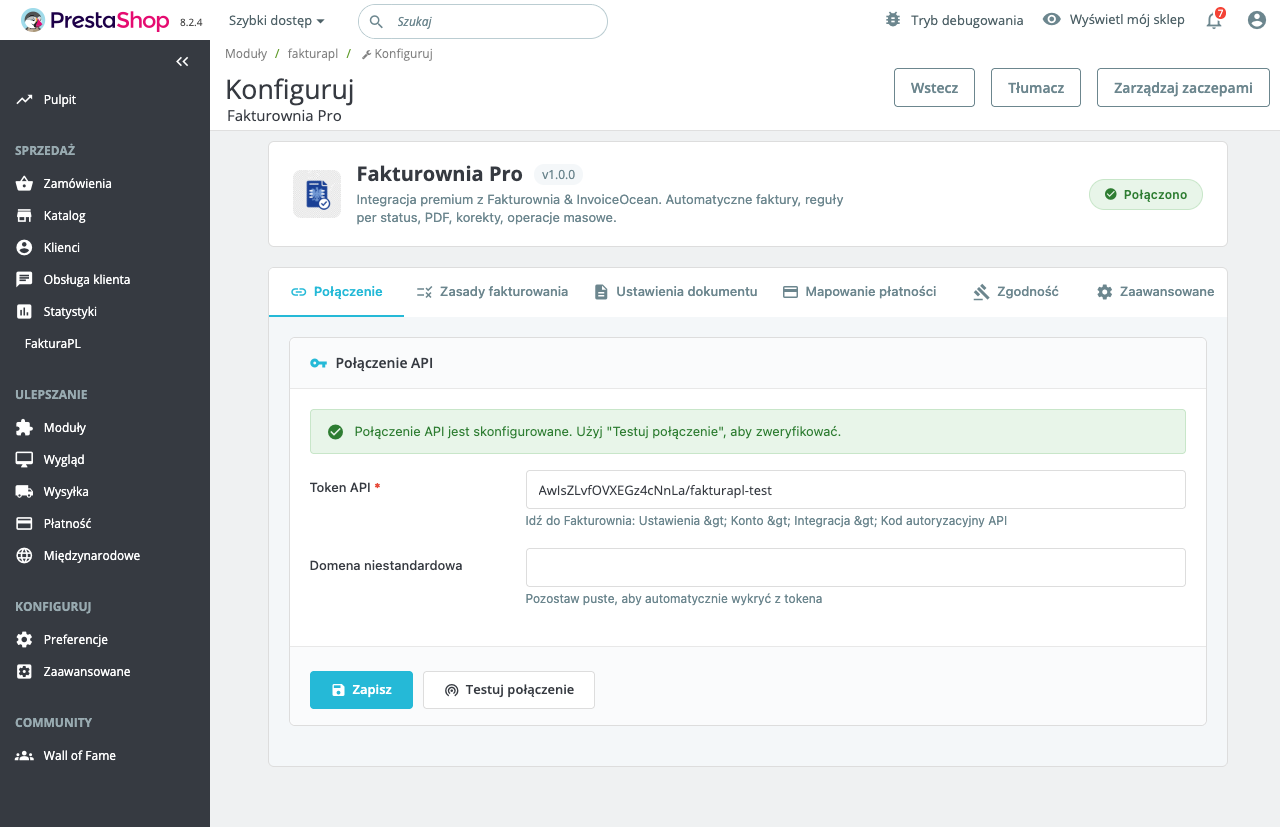
Test tokens only authenticate against ksef-test.mf.gov.pl. Production tokens only against ksef.mf.gov.pl. Verify the environment dropdown matches the token:
XML Validation Failures (KSeF Error 20000)
Read the MF Validation Report
- Open WooCommerce → KSeF Pro → Audit Log
- Expand the
FAILEDrecord (chevron icon) - Click "View MF validation report" — the MF API returns a structured validation report with element paths and error descriptions
Common WooCommerce-Specific Causes
Product names with special characters
WooCommerce allows emoji, HTML entities, and non-standard characters in product names. FA(2) XML rejects certain characters even after standard XML escaping. If a specific order fails validation and the product name contains unusual characters, rename the product to use standard alphanumeric text and retry.
Zero-price line items
Free products (price = 0.00) produce <JednostkowaCenaNetto>0.00</JednostkowaCenaNetto> rows. Some KSeF schema validators reject these. Enable "Skip zero-price items" in Advanced settings.
WooCommerce coupon line producing negative amounts
If a coupon discount produces a negative net amount on a line item (over-discounting), the FA(2) XML fails the schema check. The underlying issue is usually a misconfigured WooCommerce coupon that applies more discount than the product price. Fix the coupon logic and retry.
Date format mismatch (Error 20200)
If your PHP server timezone is UTC and the order date is near midnight Warsaw time, the <DataWystawienia> date may be one day off from the legal invoice date. Verify:
php -r "echo date_default_timezone_get();"Fix by setting date.timezone = Europe/Warsaw in php.ini, or in wp-config.php:
date_default_timezone_set('Europe/Warsaw');REST API Conflicts
KSeF Pro exposes internal REST endpoints under /wp-json/ksefpl/v1/ for the order detail meta box AJAX calls. If a security plugin blocks these:
Symptoms: The KSeF Pro meta box in order detail shows a spinner indefinitely or a 401/403 error in the browser console.
Fix for Wordfence:
- Go to Wordfence → Firewall → Allowlisted URLs
- Add:
/wp-json/ksefpl/(prefix match)
Fix for iThemes Security / Solid Security:
- Go to Security → Settings → API
- Add
/ksefpl/to the REST API whitelist
Fix for Sucuri:
- Go to Sucuri → Firewall → Allowlist
- Add the endpoint pattern
/wp-json/ksefpl/v1/
Submissions Stuck at SUBMITTED
Symptoms: Audit log shows orders in SUBMITTED status for more than 10–20 minutes (normal MF processing time is under 3 minutes).
Step 1: Check MF server status
Visit https://status.ksef.mf.gov.pl — if there is an active incident, wait for it to be resolved.
Step 2: Check UPO polling cron
wp cron event run ksefpl_poll_status
wp cron event run ksefpl_download_upo
tail -20 wp-content/uploads/ksefpl-logs/ksefpl-$(date +%Y-%m-%d).log
If polling returns an error, check network connectivity to ksef.mf.gov.pl from your server.
Step 3: Session timeout
If the record is older than 30 minutes, the KSeF session has expired. The invoices were not accepted. Mark the record as FAILED from the audit log and re-submit.
Plugin Conflict Diagnosis
If issues started after installing another plugin:
# Temporarily deactivate all plugins except KSeF Pro and WooCommerce
wp plugin deactivate --all
wp plugin activate woocommerce ksefpl-woocommerce

# Test a submission
wp ksefpl submit <order-id>

# If it works, reactivate plugins one at a time to find the conflict
wp plugin activate <plugin-slug>
Getting Support
Collect the following before opening a ticket at plugkit.io:
# System info
wp --info
wp plugin get ksefpl-woocommerce --fields=name,version,status
wp option get woocommerce_custom_orders_table_enabled

# Log excerpt
tail -100 wp-content/uploads/ksefpl-logs/ksefpl-$(date +%Y-%m-%d).log

# Cron status
wp cron event list --fields=hook,next_run_relative | grep ksefpl

# WooCommerce system report
wp wc system_status
Also include:
- The audit log entry for the failing order (click "Copy debug info" in the detail row)
- The order ID and the error shown in the audit log
- Whether the issue is on all orders or specific ones